> For the complete documentation index, see [llms.txt](https://docs-shpf.bsscommerce.com/b2b-wholesale-solution/llms.txt). Markdown versions of documentation pages are available by appending `.md` to page URLs; this page is available as [Markdown](https://docs-shpf.bsscommerce.com/b2b-wholesale-solution/b2b-pricing/volume-pricing/import-and-export-volume-pricing-rules.md).
# Import & Export Volume Pricing Rules
Use bulk import/export to manage many volume pricing rules at once — ideal when you have large product catalogs or need to replicate rules across multiple stores.
Need to manage many pricing rules at once? Our Import / Export feature for **Volume Pricing** makes it simple. You can **bulk create**, **edit**, or **migrate** discount rules without having to configure each one manually — saving time and reducing errors.
## Where to find it
Go to **B2B pricing › Volume Pricing**, click **More actions** and choose **Import & export**. The page has an **Export** card, an **Import** card and an **Export history** table below them.
Volume Pricing Import & export page
### 📤 Export Existing Rules
1. On the **Import & export** page, click **Export** in the **Export** card.
2. In the **Export rules** window, the **Export** option is **All records**: every rule is exported, with each tier on its own row.
3. Under **Export as**, choose **CSV** or **Excel**. Choose **CSV** if you want to import the file again.
4. Click **Export rules**. The export runs as a **background job**. A progress bar shows how far along it is, and you can leave the page meanwhile.
5. When it finishes, click the download link in the banner, or download the file from **Export history**.
{% hint style="info" %}
**Export history** lists your recent files with **File name**, **Created**, **Access expires** and **Download**. Files are kept for **1 day**. After that the link shows **Link expired** — click **Export again** to create a fresh file.
{% endhint %}
Use the exported file as a backup or starting point for bulk edits.
### Export from the rules list
You can also export without leaving the rules list:
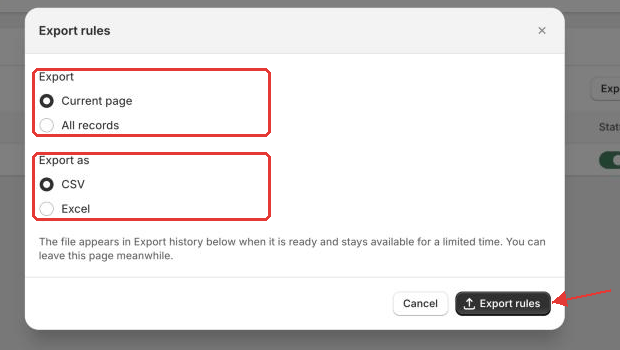
1. Go to **B2B pricing › Volume Pricing**. Click **Export** above the rules list, or select rules and choose **Export** from the bulk actions.
2. In the **Export rules** window, choose what to export: **Current page**, **All records**, **Selected records** (when you have ticked rules) or the records matching your search (when a search is active).
3. Under **Export as**, choose **CSV** or **Excel**, then click **Export rules**.
4. The export runs in the background, so you can leave the page. When it finishes, click the download link.
Export rules window opened from the rules list
***
### 📥 Import New or Updated Rules
#### Step 1: Download the Sample File
1. On the **Import & export** page, click **Import**. The **Import rules by CSV** window opens.
2. Click **Download sample CSV**.
3. Open the file in Excel or Google Sheets.
{% hint style="warning" %}
**Delete every row under the column names before you upload**, including the guide rows and the example rules.
{% endhint %}
The file format changed: download a fresh sample instead of reusing an old file. The old **Rule type** (`QB` / `AB`, `Minimum Order Qty`…) columns were replaced by **Volume pricing type**, **Apply level** and the **From** / **To** tier columns.
#### Step 2: Fill In Your Rules
**One tier = one row.** Put the rule columns **and its first tier** (**From**, **To**, **Discount type**, **Discount value**) on the same row. For each extra tier, add a row with only **From**, **To**, **Discount type** and **Discount value** filled and every other column blank.
| Scenario | What to do |
| ------------------------- | ------------------------------------------------------------------------------------------------------ |
| Creating a new rule | Leave the **ID** column blank. |
| Updating an existing rule | Put the rule's **ID** in the rule row, and tick **Overwrite rules with matching IDs** when you upload. |
| Extra tiers of a rule | Add rows under the rule row with only the four tier columns filled. |
**Columns** (`*` = required; conditional = required depending on the condition you pick):
| Column | Required | Values |
| ------------------------------ | ----------- | --------------------------------------------------------------------------------------------------------------------------------------------------------------------------------------------------------------------------------------------------------------------------------------------------------------------------------------------------------------------------------------------------------------------------------------------------------------------------------------------------------------------------------------- |
| **ID** | | Blank to create a rule. The ID of an existing rule to update it. Rule row only. |
| **Name** | \* | Any text. |
| **Priority** | \* | Whole number from 0 to 99. 0 is the highest priority. |
| **Status** | \* | `enable` or `disable`, in lower case. |
| **Market** | \* | `All`, or **Region** market names exactly as in Shopify admin, separated by commas. |
| **Customer condition** | \* | `All`, `Logged-in`, `Not logged-in`, `Specific customers`, `Customer tags` or `Company locations`. |
| **Customers** | conditional | Customer emails, tags or company location IDs. Needed for Specific customers, Customer tags and Company locations. |
| **Exclude customer condition** | \* | `None`, `Specific customers`, `Customer tags` or `Company locations`. |
| **Exclude customers** | conditional | Emails, tags or company location IDs. Needed unless the condition is `None`. |
| **Product condition** | \* | `All`, `Specific products`, `Specific variants`, `Specific collections` or `Specific tags`. |
| **Products** | conditional | Product, variant or collection values, or product tags, separated by commas. Needed unless the condition is `All`. |
| **Exclude product condition** | \* | `None`, `Specific products`, `Specific variants`, `Specific collections` or `Specific tags`. |
| **Exclude products** | conditional | Same values as **Products**. Needed unless the condition is `None`. |
| **Volume pricing type** | \* | `Quantity` (counts items) or `Value` (counts the amount spent). |
| **Apply level** | \* | What is counted: `Order` (all cart items the rule covers, together), `Product` (each product) or `Variant` (each variant). With `Specific variants`, only `Order` or `Variant`. |
| **Table style** | | Optional. One of: `From & Discounts with Discounted prices 1`, `Full range & Discounted prices`, `From & Discounted prices 1`, `From & Discounted prices 2`, `From & Discounts`, `From & Discounts with Discounted prices 2`, `Legacy 1`, `Legacy 2`, `From & Discounted prices and Total`. Type them exactly as written here — the capital letters differ from the labels in the rule editor. Blank or any other text uses **Full range & Discount**, with no error. `From & Discounted prices and Total` cannot be used with `Value`. |
| **From** | \* | Number of 0 or more. Whole number for `Quantity`. |
| **To** | | Blank for no limit, or a number above 0 and not lower than **From**. |
| **Discount type** | \* | `Fixed price`, `Decrease fixed amount` or `Decrease fixed percentage`. |
| **Discount value** | \* | A number of 0 or more. Percentages go up to 100. |
For `Quantity`, keep the ranges from overlapping. Depending on your customer or product condition, the **Customers**, **Products** and exclusion columns must not be empty and must match real data in your store (emails, tags, SKUs or variant IDs, collections, market names).
{% hint style="info" %}
Volume Pricing uses **Fixed price**, **Decrease fixed amount** and **Decrease fixed percentage**. To raise prices, use a **Custom Pricing** rule — it accepts **Increasing price**, **Increase fixed amount** and **Increase fixed percentage**.
{% endhint %}
#### Step 3: Upload & Import
Import rules by CSV window
1. Upload one **.csv** file, up to **10 MB**. Use **Remove file** to pick another one.
2. Choose how to import:
* **Overwrite rules with matching IDs** — updates existing rules by ID. Existing values are replaced for all columns included in the file.
* **Replace all existing rules** — removes every current volume pricing rule and replaces them with the new ones (leave the **ID** column blank).
* Leave both unticked to add the rules in the file as new rules.
3. Click **Validate and import**.
{% hint style="warning" %}
**Replace all existing rules deletes your rules permanently.** Export first to keep a copy.
{% endhint %}
#### Step 4: Fix Errors and Check the Result
* If the columns, values or IDs are wrong, the import stops right away. The window says "We found errors in your CSV file" and lets you download the errors as `import_errors.csv`. Fix the file and try again.
* If the columns are fine, the app then looks up your customers, products and markets in your store. If any are missing, nothing is imported and the status card links to an error file.
* When everything passes, each rule is saved on its own. A status card shows the progress ("Processing: x% imported") and then **Volume Pricing rules were imported successfully.** If some rules failed, the card shows "n rules couldn't be imported" with an error file. The error file link on the status card works for **1 day**.
***
### Best Practices
* Always **export your current rules** before replacing them entirely.
* Use the **sample file** as a guide — errors often come from missing or improperly formatted fields.
* Double-check **customer and product identifiers (emails, SKUs, barcodes, variant IDs)** to make sure they exist in your store — otherwise the rule won't apply.
* Keep **priority** numbers consistent so your new rules take effect in the intended order.
* Use **Overwrite rules with matching IDs** to update rules in place, and **Replace all existing rules** only for a full refresh of your pricing logic.
{% hint style="info" %}
If you need further assistance, please feel free to reach us at [**support@bss-b2b.solutions**](mailto:support@bss-b2b.solutions) or [**Live Chat**](https://go.crisp.chat/chat/embed/?website_id=9f64b5a9-1a02-4190-93b8-8ef56b19f740).
{% endhint %}