> For the complete documentation index, see [llms.txt](https://docs-shpf.bsscommerce.com/b2b-wholesale-solution/llms.txt). Markdown versions of documentation pages are available by appending `.md` to page URLs; this page is available as [Markdown](https://docs-shpf.bsscommerce.com/b2b-wholesale-solution/getting-started/navigate-the-app.md).

# Navigate the App: Dashboard, Modules & Help Center

A tour of the redesigned B2B Solution admin: the sidebar, the Home dashboard, module pages, rule statuses, going live, and the built-in Help center.

This page explains where everything lives in the B2B Solution admin, so you can find any module, setting or guide in a few clicks.

## Sidebar navigation

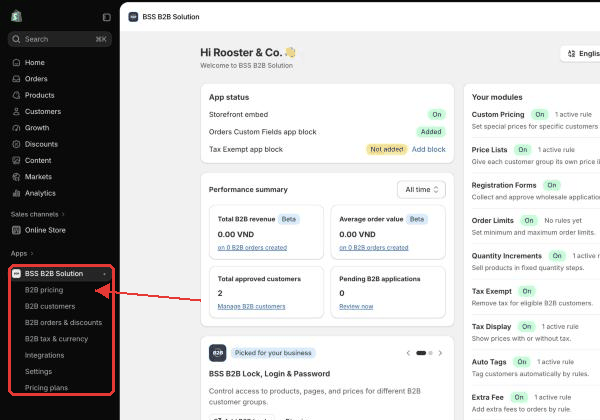
Under the app name in your Shopify admin sidebar you get 7 items:

| Sidebar item               | What is inside                                                                                                     |
| -------------------------- | ------------------------------------------------------------------------------------------------------------------ |
| **B2B pricing**            | Custom Pricing, Price Lists, Volume Pricing, Extra Fee, Shipping Rate                                              |
| **B2B customers**          | Registration Forms, Auto Tags                                                                                      |
| **B2B orders & discounts** | Manual Orders, Net Terms, Order Limits, Quantity Increments, Orders Custom Fields, Discount Codes, Buy One Get One |
| **B2B tax & currency**     | Tax Exempt, Tax Display, Multi-currency                                                                            |
| **Integrations**           | Public API (API key, request history, guide) and other app integrations                                            |
| **Settings**               | General and other app-wide settings                                                                                |
| **Pricing plans**          | Compare plans, start a trial, switch plan                                                                          |

Click the app name at the top (**Home page**) to return to the dashboard.

<figure><img src="https://1478990334-files.gitbook.io/~/files/v0/b/gitbook-x-prod.appspot.com/o/spaces%2FGolQYRPH9iUGYatlTXwl%2Fuploads%2Fgit-blob-d47f2322828b480635882d63999243ac1efb2ce0%2Fcms-navigate-01.png?alt=media" alt="The B2B Solution sidebar menu"><figcaption><p>The B2B Solution sidebar menu</p></figcaption></figure>

{% hint style="info" %}
Discount Codes and Buy One Get One sit under **B2B orders & discounts**, so the sidebar item stays highlighted while you work on them.
{% endhint %}

## Home dashboard

Home is the first page you see. At the top right you find the **language picker** and the **What's new** button (see below). A chat bubble sits at the bottom right.

Home shows these cards:

* **Needs your attention**: pending B2B applications (**Review applications**) and a turned-off app embed (**Turn on the app embed in your theme**). The card only lists what still needs doing.
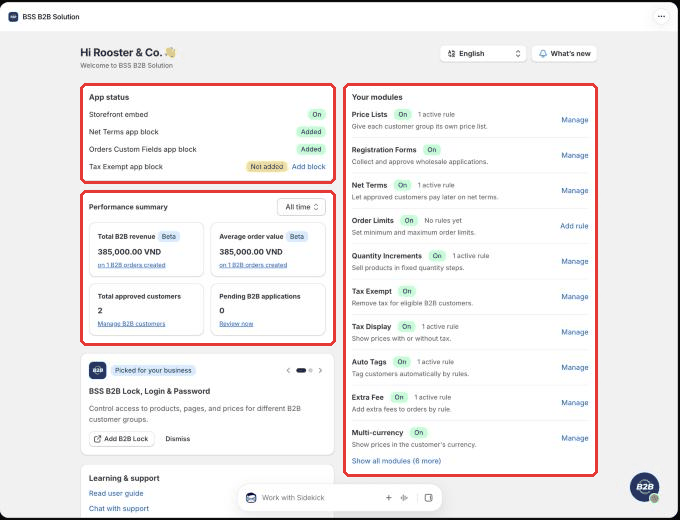
* **App status**: **Storefront embed** **On** or **Off**, plus the app blocks for **Orders Custom Fields** and **Tax Exempt** with **Add block**. See [Enable or Disable the App in Your Theme](/b2b-wholesale-solution/getting-started/enable-or-disable-the-app-in-your-theme.md).
* **Performance summary**: **Total B2B revenue**, **Average order value**, **Total approved customers** and **Pending B2B applications**, for **All time**, **Last month** or **This month**.
* **B2B Suite**: cards for the other BSS apps (for example **Add B2B Lock**).
* **Learning & support**: **Explore demo store** and **Read user guide**, plus a feedback card.
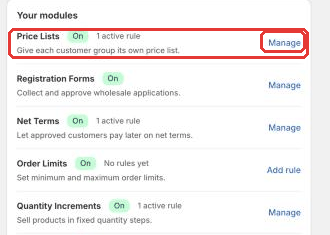
* **Your modules** (right column): one row per module, most important first, with **On** or **Off**, the count of active rules and a **Manage** button. Click **Show all modules** for the rest.

<figure><img src="https://1478990334-files.gitbook.io/~/files/v0/b/gitbook-x-prod.appspot.com/o/spaces%2FGolQYRPH9iUGYatlTXwl%2Fuploads%2Fgit-blob-2eddd823ea022a21052d7d081fe9dfdc0837f9bd%2Fcms-navigate-02.png?alt=media" alt="Home with Needs your attention, App status, Performance summary and Your modules"><figcaption><p>Home with Needs your attention, App status, Performance summary and Your modules</p></figcaption></figure>

<figure><img src="https://1478990334-files.gitbook.io/~/files/v0/b/gitbook-x-prod.appspot.com/o/spaces%2FGolQYRPH9iUGYatlTXwl%2Fuploads%2Fgit-blob-8032802f1d405a84f7f2ff6decdb45b2bf518108%2Fcms-navigate-03.png?alt=media" alt="Your modules on Home"><figcaption><p>Your modules on Home</p></figcaption></figure>

## Group pages and module tabs

Click **B2B pricing**, **B2B customers**, **B2B orders & discounts** or **B2B tax & currency** and the app opens the first module of that group. A row of tabs at the top lists every module of that group, for example **Custom Pricing · Price Lists · Volume Pricing · Extra Fee · Shipping Rate**. Click a tab to switch module.

<figure><img src="https://1478990334-files.gitbook.io/~/files/v0/b/gitbook-x-prod.appspot.com/o/spaces%2FGolQYRPH9iUGYatlTXwl%2Fuploads%2Fgit-blob-f79c441dbd0cffd4014595bb97004c0f79ede223%2Fcms-navigate-04.png?alt=media" alt="Module tabs on a group page"><figcaption><p>Module tabs on a group page</p></figcaption></figure>

## Inside a module

Every module page follows the same layout.

### Title bar

* The **module name** with a status badge and the **on/off switch** (**Turn on or off**). Turn a module off to stop it on the storefront without deleting any rule.
* The badge reads **On** (the module is on and active rules take effect), **Off** (rules are saved but the module is off) or **App embed off**. Hover it for the reason. When a module is off, the title row shows the **Off** badge, a **Why isn't this live yet?** link and the switch, with the note **is off. Your rules are saved but customers don't see them.**
* On the right: **Guide** (opens the Help center topic for this page), the module's section buttons, **More actions** for the remaining sections, and the main button such as **Add rule**.

The header shows only the first 2 sections as buttons (for example **Settings** and **Storefront setup**). Any others go under **More actions**. A module with 2 sections or fewer shows them directly, for example Shipping Rate shows **Settings** and **Export**. Sections are header buttons, not tabs. The only in-page tabs are **Forms / Applications** in Registration Forms and **Rules / Orders** in Net Terms. Inside a section a back arrow (**Back to** ) returns you.

<figure><img src="https://1478990334-files.gitbook.io/~/files/v0/b/gitbook-x-prod.appspot.com/o/spaces%2FGolQYRPH9iUGYatlTXwl%2Fuploads%2Fgit-blob-8d69a94f24125f465782c9f4f10d4e243ee2a52a%2Fcms-navigate-05.png?alt=media" alt="Module title bar"><figcaption><p>Module title bar</p></figcaption></figure>

### Modules, groups and sections

| Module               | Group (sidebar item)   | Home tabs / sections in the header                                                                                                           |
| -------------------- | ---------------------- | -------------------------------------------------------------------------------------------------------------------------------------------- |
| Custom Pricing       | B2B pricing            | Rules, Settings, Storefront setup, Import & export, Theme settings                                                                           |
| Price Lists          | B2B pricing            | Rules, Settings, Storefront setup, Import & export                                                                                           |
| Volume Pricing       | B2B pricing            | Rules, Settings, Storefront setup, Translations, Import & export                                                                             |
| Extra Fee            | B2B pricing            | Rules, Settings, Storefront setup, Translations, Export                                                                                      |
| Shipping Rate        | B2B pricing            | Rules, Settings, Export                                                                                                                      |
| Registration Forms   | B2B customers          | Tabs: Forms, Applications. Then Email templates, Conditional logic, Tax ID checker, Translations, reCAPTCHA, Import & export, Theme settings |
| Auto Tags            | B2B customers          | Rules, Export, Apply to existing customers, History                                                                                          |
| Manual Orders        | B2B orders & discounts | Orders (order list and create order)                                                                                                         |
| Net Terms            | B2B orders & discounts | Tabs: Rules, Orders. Then Settings, Storefront setup, Translations, Export, Notifications                                                    |
| Order Limits         | B2B orders & discounts | Rules, Settings, Translations, Export                                                                                                        |
| Quantity Increments  | B2B orders & discounts | Rules, Settings, Translations, Export                                                                                                        |
| Orders Custom Fields | B2B orders & discounts | Storefront                                                                                                                                   |
| Discount Codes       | B2B orders & discounts | Rules, Settings, Storefront setup, Translations, Usage history                                                                               |
| Buy One Get One      | B2B orders & discounts | Rules, Storefront setup                                                                                                                      |
| Tax Exempt           | B2B tax & currency     | Settings, Storefront setup, Translations, Bulk tax exempt                                                                                    |
| Tax Display          | B2B tax & currency     | Rules, Settings, Storefront setup, Translations                                                                                              |
| Multi-currency       | B2B tax & currency     | Settings, Storefront setup                                                                                                                   |

The exact buttons you see depend on your store. Public API lives under **Integrations**, not in a module.

### The rule list

**Rules** shows **Showing X of Y rules** and lists your rules with **Name**, **Applies to**, **Products** (or the discount, fee or limit, depending on the module), **Status** and **Actions**. **Quick create** and **Add rule** sit at the top. You can search, filter, sort, duplicate and delete rules. You can select several rules and act on them in bulk.

* **Status** is a switch. Turn it off to disable a rule without deleting it.
* A **Scheduled** badge shows next to the switch when the rule's start date is still ahead, and **Expired** when its end date has passed. In both cases the rule does not apply even though the switch is on.
* The label **Enable** or **Disable** is used in imports and bulk actions.

### Empty state, Quick create and Import

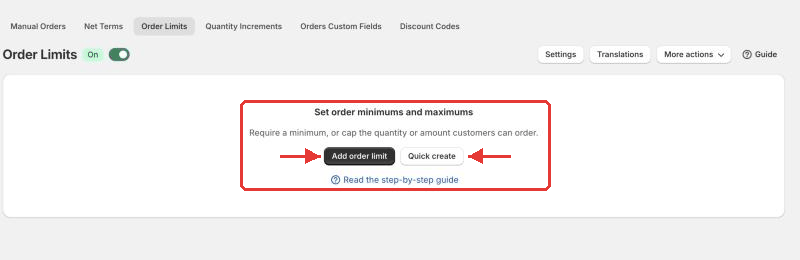
A module with no rules shows a short explanation and buttons, for example **Add price rule**, **Quick create** and **Import from CSV**, plus a **Read the step-by-step guide** link.

* **Quick create** turns one table row into one rule. For Custom Pricing you choose who the row applies to (a **Customer tag**, **Specific customers**, all customers or logged-in customers), then fill **Adjustment type** and **Value**, and the rule name is written for you. Use **Add rows** or **Paste tags** to add many at once, and start from a template such as **Wholesale 10%**. Quick rules apply to all products and all markets, and you can open a rule afterwards to narrow it. It exists for Custom Pricing, Price Lists, Volume Pricing, Extra Fee, Shipping Rate, Auto Tags, Net Terms, Order Limits, Quantity Increments, Discount Codes, Buy One Get One and Tax Display.
* **Import from CSV** opens the module's **Import & export** section. Modules with **Export** only can export but not import.

<figure><img src="https://1478990334-files.gitbook.io/~/files/v0/b/gitbook-x-prod.appspot.com/o/spaces%2FGolQYRPH9iUGYatlTXwl%2Fuploads%2Fgit-blob-74d7f7c310a15ac47a2d2e191bc85ac0968ba415%2Fcms-navigate-06.png?alt=media" alt="Empty state with Add and Quick create"><figcaption><p>Empty state with Add and Quick create</p></figcaption></figure>

### Quick edit

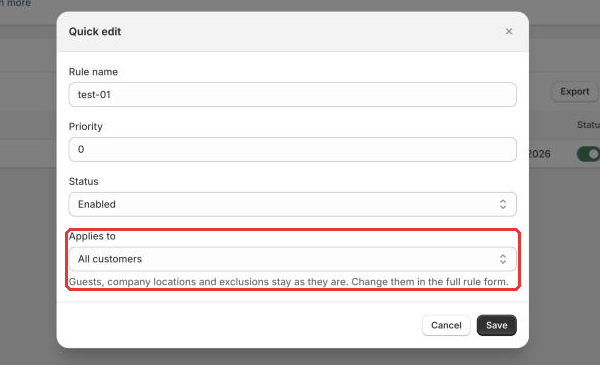
In the rules list, the row action **Quick edit** changes a rule without opening the full form: **Rule name**, **Priority**, **Status** and, for most pricing modules and Tax Display, **Applies to**. Select several rules to change their status together. Each module guide lists what its Quick edit covers.

<figure><img src="https://1478990334-files.gitbook.io/~/files/v0/b/gitbook-x-prod.appspot.com/o/spaces%2FGolQYRPH9iUGYatlTXwl%2Fuploads%2Fgit-blob-19ceab6ae956acc09e3b4f7d950a31619aec11c2%2Fcms-quickedit-01.png?alt=media" alt="Quick edit a rule from the list"><figcaption><p>Quick edit a rule from the list</p></figcaption></figure>

### The full rule form and going live

**Add rule** opens the full rule form. It is one page of cards, not a stepper. For Custom Pricing the cards are **Rule**, **Customers**, **Products**, **Markets**, **Price** and **Exclusions and schedule (optional)**, with **Advanced** settings collapsed behind **Show**. Each module has its own cards, described in its own guide.

A card on the right, **Make live**, shows a **Not live yet** or **Live** badge and a checklist that updates as soon as you save:

1. **Rule saved**
2. **Rule is enabled**. It shows **Rule is disabled** when the rule's status is off. It also stays unticked while the rule is scheduled (its start date has not come yet) or expired (its end date has passed). Change the dates to apply it again.
3. **module is on**, with **Turn on module** if it is off
4. **App embed is on in your theme**, with **Open theme editor** and **Check again**

Some modules add a theme check (for example **Custom prices in your theme**) with **Ask support**, which is free.

When you change something, the Shopify **save bar** appears at the top with **Save** and **Discard**. Leaving the page with unsaved changes asks you to confirm. After you save a new rule, the page opens on the go-live checklist.

<figure><img src="https://1478990334-files.gitbook.io/~/files/v0/b/gitbook-x-prod.appspot.com/o/spaces%2FGolQYRPH9iUGYatlTXwl%2Fuploads%2Fgit-blob-0fbde5f950aa05c241e2b6c73dcdaeacda9f5e72%2Fcms-navigate-07.png?alt=media" alt="Rule form with the Make live checklist"><figcaption><p>Rule form with the Make live checklist</p></figcaption></figure>

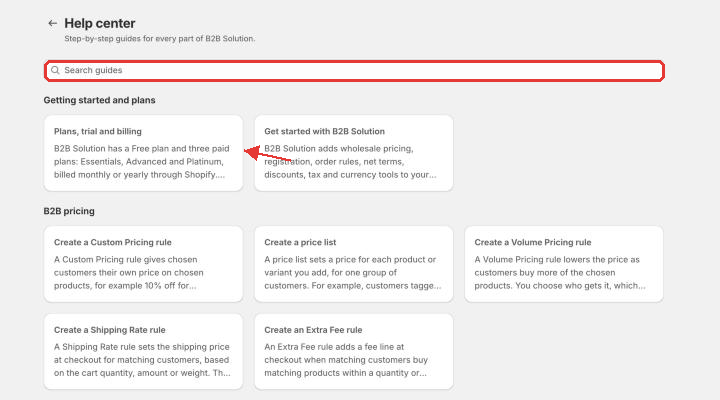
## Help center

The Help center holds step-by-step guides for every part of B2B Solution.

**Ways to open it**

* Click **Guide** in a module's title bar. It opens the guide closest to that page.
* Use the footer of any page: **Guide for this page:** and **More guides**.
* Click the **Read the step-by-step guide** link in an empty state, or the **Why isn't this live yet?** link.
* Go to the Help center itself and use **Search guides**.

Guides are grouped as **Getting started and plans**, **B2B pricing**, **Customers and registration**, **Orders and discounts**, **Tax and currency**, **Storefront display and theme**, **Settings**, **Integrations**, **Import and export**, **Public API** and **Fix a problem**. When you arrive from **More guides**, the guides for that page show first under **Guides for the page you came from**.

Each guide shows **Step by step** with a **Step x of y** counter, warnings and tips, **File columns** for import guides, **Questions** (FAQ) and an **Open in the app** button that takes you to the right screen.

Useful guides to start with:

| Guide                                           | Use it when                                                  |
| ----------------------------------------------- | ------------------------------------------------------------ |
| **Get started with B2B Solution**               | You are new to the app                                       |
| **Install B2B Solution in your Shopify theme**  | You need the app embed, app blocks or automatic installation |
| **B2B Solution does not show on my storefront** | Nothing from the app appears on your store                   |
| **Keep your store fast with B2B Solution**      | You worry about page speed                                   |
| **B2B prices not showing on your storefront**   | A customer still sees the regular price                      |

<figure><img src="https://1478990334-files.gitbook.io/~/files/v0/b/gitbook-x-prod.appspot.com/o/spaces%2FGolQYRPH9iUGYatlTXwl%2Fuploads%2Fgit-blob-32f6b5042fb1346ee19260b843f324ce754b4585%2Fcms-navigate-08.png?alt=media" alt="In-app Help center"><figcaption><p>In-app Help center</p></figcaption></figure>

Need a person? Message us in the live chat bubble at the bottom right at any time.

## What's new and release notes

Click **What's new** at the top right of Home to see the latest released updates and **Coming in the next update**. Click **View all updates** to open the full release notes, grouped as **Features**, **Improvements** and **Bug fixes**. Use **Suggest a feature** to tell the product team what you would like next.

## Language picker

The language picker at the top right of Home changes the admin language. Your choice is remembered in your browser. Storefront texts are translated separately, in each module's **Translations** section.

{% hint style="info" %}
If you need further assistance, please feel free to reach us at [**support@bss-b2b.solutions**](mailto:support@bss-b2b.solutions) or [**Live Chat**](https://go.crisp.chat/chat/embed/?website_id=9f64b5a9-1a02-4190-93b8-8ef56b19f740).
{% endhint %}