> For the complete documentation index, see [llms.txt](https://docs-shpf.bsscommerce.com/b2b-wholesale-solution/llms.txt). Markdown versions of documentation pages are available by appending `.md` to page URLs; this page is available as [Markdown](https://docs-shpf.bsscommerce.com/b2b-wholesale-solution/getting-started/set-up-your-first-rule-with-the-onboarding-guide.md).
# Set Up Your First Rule with the Onboarding Guide
Right after you install the app, a short onboarding walks you through your first B2B rule or form, turns on the app embed and helps you pick a plan. You then land on the Home dashboard.
## What the onboarding does
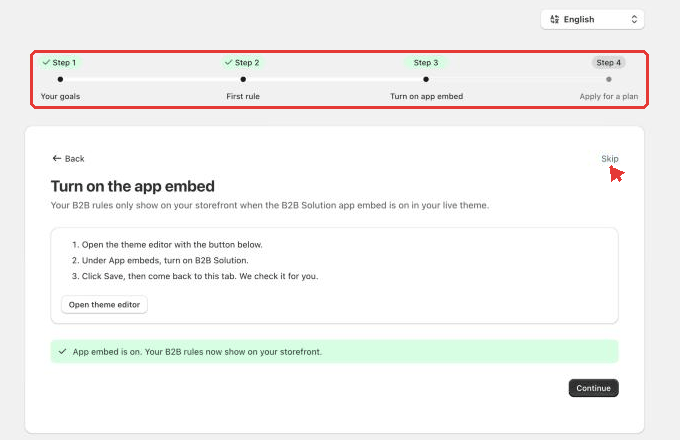
The first time you open the app, you go through a short guided setup instead of landing on a blank dashboard. It has **4 steps**, shown in a progress bar at the top:
| # | Step name in the progress bar | What you do |
| - | --------------------------------------------------------------- | --------------------------------------------------------------------- |
| 1 | **Your goals** | Tell us what you are looking for |
| 2 | **First rule** | Review and create a pre-filled first rule or form |
| 3 | **Turn on app embed** | Switch on the B2B Solution app embed in your theme |
| 4 | **Choose a plan** (development stores see **Apply for a plan**) | Start a free trial, continue on Free, or apply for a Development plan |
The onboarding progress bar and the Skip button
{% hint style="info" %}
Every step has a **Skip** button at the top right, and a **Back** button (from step 2). Skipping takes you straight to the Home dashboard. Nothing in the onboarding is required to keep using the app.
{% endhint %}
## Step 1: Your goals
The screen asks **What are you looking for?** Pick the one option that matters most right now. We set it up together on the next step.
| Option | What it sets up |
| ---------------------------------------- | ------------------------------------------------------------------------------------------------------------ |
| **Special prices for certain customers** | A Custom Pricing rule for customers with a tag |
| **Wholesale registration and approval** | A B2B registration form (Registration Forms) |
| **Orders on behalf of buyers** | A first wholesale price rule, because draft orders charge whatever your B2B prices say |
| **Volume discounts** | A Volume Pricing rule with quantity breaks |
| **A price list per customer** | A price rule for selected customers |
| **Something else** | Type what you need in the text box. Our team follows up, and you start with a wholesale price rule meanwhile |
Below the options you can:
* Tick **I want to receive emails** if you want B2B Solution updates and setup tips. Leave it unticked to opt out.
* Click **Chat with our team** if you are not sure which option to pick.
Click **Next** to continue. **Next** stays disabled until you pick an option.
## Step 2: First rule
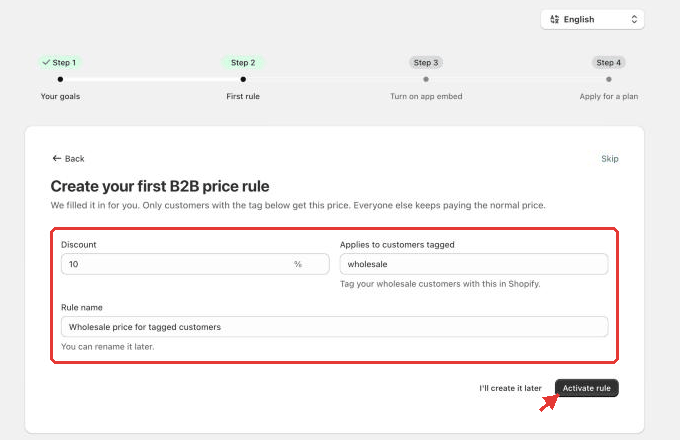
The app opens a form for the option you picked, already filled in with sensible defaults, so you do not build anything from scratch. The heading reads **You picked:** .
What you can edit depends on your choice:
| You picked | Fields you can edit | What is created |
| -------------------------------------------------------------------------------- | ----------------------------------------------------------------------------------------------------------------------------------------------------------------------------- | ------------------------------------------------------------------------------------------------------------------------------------------------------------- |
| Special prices for certain customers, Orders on behalf of buyers, Something else | **Rule name**, **Applies to customers tagged**, **Discount** (percent off or amount off) | A Custom Pricing rule. Only customers with the tag get the price. Everyone else keeps paying the normal price |
| Volume discounts | **Rule name**, **Applies to customers tagged**, **Quantity from** and **Percent off** for each price break | A Volume Pricing rule. |
| A price list per customer | **Rule name**, **Customers on this price list** (**Select customers** or **Edit customers**), **Discount** | A price rule for the selected customers. Click **No customers yet? Use a tag instead** to target a tag, or **Pick specific customers instead** to switch back |
| Wholesale registration and approval | **Form name**, **Approved applicants get this tag**, **Approve applications automatically**, **Also give them a wholesale price** (with **Discount for approved applicants**) | A registration form. Turn **Approve applications automatically** off to review each application yourself |
Tip: tag your wholesale customers in Shopify with the same tag shown in **Applies to customers tagged**, otherwise the price does not reach them.
Then choose:
* **Activate rule** (or **Publish form** for a registration form) to create it.
* **I'll create it later** to skip creating it now.
The pre-filled first rule
### The confirmation screen
After you create it, the screen **Your \ is live** shows:
* **What it does**, for example the discount and the customers it applies to.
* **You can edit it any time under** the module that holds it: **B2B pricing › Custom Pricing** or **B2B pricing › Volume Pricing** for price rules, **B2B customers › Registration Forms** for forms.
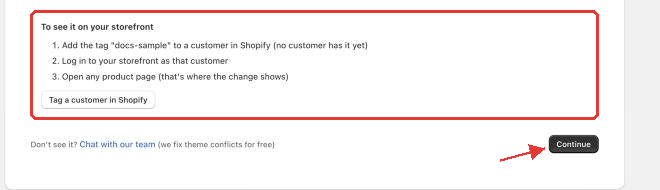
* **To check it yourself**: pick a customer with the tag (or click **Tag a customer in Shopify**), log in to your storefront as that customer and open any product page.
* For a registration form: the **Form URL** with a **Copy form URL** button, and **Open store menus** so you can add the page to your store menu.
* **Don't see it?** Click **Chat with our team**. We fix theme conflicts for free.
Click **Continue** to go on, or **Create another**.
If the module is switched off for your store, a warning tells you to turn it on from the dashboard, otherwise nothing shows on your storefront.
First rule confirmed as live
## Step 3: Turn on app embed
Your B2B rules only show on your storefront when the **B2B Solution** app embed is on in your **live** theme.
{% stepper %}
{% step %}
Click the button to open the theme editor.
{% endstep %}
{% step %}
Under **App embeds**, turn on **B2B Solution**.
{% endstep %}
{% step %}
Click **Save**, then come back to the app tab. The app checks it for you.
{% endstep %}
{% endstepper %}
The step shows one of these results:
* **App embed is on. Your B2B rules now show on your storefront.** Continue.
* **Not on yet. Turn it on and save in the theme editor, then check again.**
* **We couldn't check your theme right now. Try again in a moment.**
Click **Skip** (top right) if you want to do it later. You can always turn it on from the Home dashboard, see [Enable or Disable the App in Your Theme](/b2b-wholesale-solution/getting-started/enable-or-disable-the-app-in-your-theme.md).
Turn on the app embed
## Step 4: Choose a plan
The last step shows **Your recommended plan: start your 14-day free trial**. The recommended plan is picked from the option you chose in step 1:
* Only **Wholesale registration and approval** points to **Essentials**.
* Most other choices point to **Advanced**.
Prices are shown per month. Yearly billing is cheaper, and you can switch any time under **Pricing plans**. You can also switch to a different plan during your free trial.
* Pick a plan to start its free trial, or click **Continue with Free plan** and upgrade later.
* Click **Book a free setup call (optional)** if you want our team to set it up with you.
* Click **I'll do this later** to leave without choosing.
{% hint style="info" %}
**Development stores** see **Apply for a plan** instead. Fill in the short form (only the reason is required) and click **Send request**. Once our team approves it, the store can use every feature for free.
{% endhint %}
Step 4 on a development store: Apply for a plan
## After onboarding: Home
When onboarding ends (or when you skip it), you land on the **Home** dashboard. It shows what still needs doing and how your B2B setup is performing:
* **Needs your attention**: pending B2B applications (**Review applications**) and a turned-off app embed (**Turn on the app embed in your theme**).
* **App status**: whether the **Storefront embed** is **On** or **Off**, plus the app blocks for **Orders Custom Fields** and **Tax Exempt**. See [Enable or Disable the App in Your Theme](/b2b-wholesale-solution/getting-started/enable-or-disable-the-app-in-your-theme.md).
* **Performance summary** and **Your modules**, where you turn modules on and open them with **Manage**.
See [Navigate the App](/b2b-wholesale-solution/getting-started/navigate-the-app.md) for every card on Home.
Home after onboarding
{% hint style="info" %}
Need the steps again later? Open the in-app **Help center** and search **Get started with B2B Solution**. See [Navigate the App](/b2b-wholesale-solution/getting-started/navigate-the-app.md).
{% endhint %}
{% hint style="info" %}
If you need further assistance, please feel free to reach us at [**support@bss-b2b.solutions**](mailto:support@bss-b2b.solutions) or [**Live Chat**](https://go.crisp.chat/chat/embed/?website_id=9f64b5a9-1a02-4190-93b8-8ef56b19f740).
{% endhint %}