# Install & Open BSS B2B Lock

This page walks you through how to **install BSS B2B Lock** on your Shopify store and **open it from your Shopify admin**, plus one important step to make sure it actually runs on your theme.

***

### 1. Install BSS B2B Lock from the Shopify App Store

You can install the app either from the public App Store page or directly from your Shopify admin.

#### Option A – From the Shopify App Store

1. Go to the **Shopify App Store**.
2. Search for **“BSS B2B Lock”**. [Shopify App Store](https://apps.shopify.com/login-to-access-pages?utm_source=userguide)
3. Open the app listing and click **Install** (or **Add app**).
4. Shopify will ask you to confirm permissions → click **Install app**.

#### Option B – From your Shopify Admin

1. Log in to your **Shopify admin**.
2. Go to **Apps** in the left sidebar.
3. Click **Customize your store** (or **Shopify App Store** link).
4. Search for **“BSS B2B Lock”**. [Shopify App Store](https://apps.shopify.com/partners/bss-commerce-b2b?utm_source=userguide)
5. Click the app → **Install** → confirm permissions.

Once installed, B2B Lock will appear in your **Apps** list in the Shopify admin.

***

### 2. Open B2B Lock from Shopify Admin

After installation:

1. In your **Shopify admin**, go to **Apps**.
2. Find **BSS B2B Lock, Login & Password** in the list.
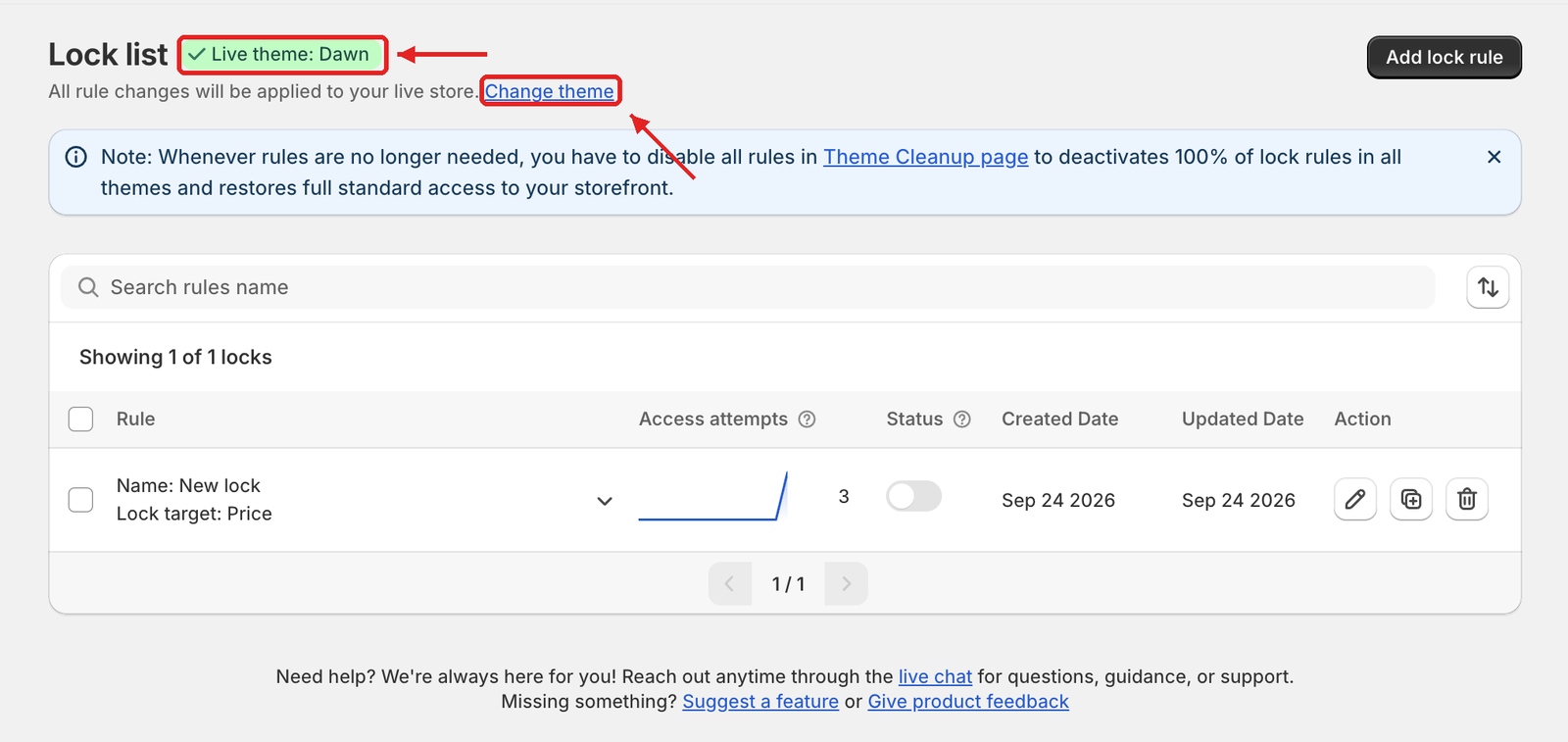
3. Click it to **open the app dashboard**.

From here, you’ll see the main dashboard and navigation (e.g., **Locks**, **Checkout Locks**, etc.) depending on your version and plan.

***

### 3. Turn on the theme app embed (required for storefront effects)

To make sure B2B Lock can actually **hide prices, lock pages, and control access on your storefront**, you need to enable its **App Embed** in your current theme.

1. In **Shopify admin**, go to **Online Store → Themes**.
2. On your published theme, click **Customize**.
3. In the theme editor, open the **App embeds** panel (usually on the left side).
4. Find the embed for B2B Lock (it may appear as **“B2B Login by BSS”** or **“B2B Lock, Login & Password”** depending on your version).
5. Toggle it **On**.
6. Click **Save** in the top-right corner.

> If the app embed is not enabled, your rules may look correct in the app but **won’t affect the storefront**.

***

### 4. What to do next

Once B2B Lock is installed, opened, and the app embed is on, you’re ready to:

* Go to **Locks → Add lock**
* Create your **first rule** (for example: *hide prices from guest users*).


---

# Agent Instructions: Querying This Documentation

If you need additional information that is not directly available in this page, you can query the documentation dynamically by asking a question.

Perform an HTTP GET request on the current page URL with the `ask` query parameter:

```
GET https://docs-shpf.bsscommerce.com/bss-b2b-lock-login-password-hide-price/getting-started/install-and-open-bss-b2b-lock.md?ask=<question>
```

The question should be specific, self-contained, and written in natural language.
The response will contain a direct answer to the question and relevant excerpts and sources from the documentation.

Use this mechanism when the answer is not explicitly present in the current page, you need clarification or additional context, or you want to retrieve related documentation sections.