> For the complete documentation index, see [llms.txt](https://docs-shpf.bsscommerce.com/bss-b2b-lock-login-password-hide-price/llms.txt). Markdown versions of documentation pages are available by appending `.md` to page URLs; this page is available as [Markdown](https://docs-shpf.bsscommerce.com/bss-b2b-lock-login-password-hide-price/lock-core-concepts/access-management-passcode-request.md).
# Access Management (Passcode Request)
When customers encounter locked content, they shouldn't hit a dead end. Access Management lets them request a passcode directly from your store — and lets you approve it with just a few clicks.
Manage Passcode Requests and Approve Customer Access Automatically
The system handles the email delivery automatically, so you stay in control without the manual back-and-forth.
Availability may vary by plan or setup. Check your current plan before configuring.
***
> **💡 Best Practice:** Enable email notifications before you start approving requests. Without a notification email set up, you won't know when a new request comes in — and customers will be left waiting.
***
## On This Page
1. [Eligibility Requirements](#eligibility-requirements)
2. [Understanding Access Management](#understanding-access-management)
3. [Availability & Limitations](#availability-and-limitations)
4. [How to Enable Access Management](#how-to-enable-access-management)
5. [How to Approve a Passcode Request](#how-to-approve-a-passcode-request)
6. [How to Decline a Request](#how-to-decline-a-request)
7. [Customize the Passcode Email Template](#customize-the-passcode-email-template)
8. [Testing Your Setup](#testing-your-setup)
9. [Customizable Fields](#customizable-fields)
10. [Troubleshooting Common Issues](#troubleshooting-common-issues)
11. [Still Need Help?](#still-need-help)
***
## Eligibility Requirements
Before you begin, confirm the following:
* You are using **BSS** **B2B Lock**
* You have at least one active lock rule using a **Passcode**
* **Request Passcode** is enabled inside that lock rule
* You have a valid email address to receive request notifications
* You have access to **Settings** in the app dashboard
***
## Understanding Access Management
**What it is:** Access Management is a built-in request flow that lets customers ask for a passcode when they can't access locked content. You review the request, approve it, and the app sends the passcode email automatically.
**What you can do:** Receive request notifications, approve or ignore requests, preview the passcode email before sending, and customize the email template to match your brand.
**Where it applies:** Only on lock rules where **Request Passcode** is enabled. Rules without this setting will not trigger the request flow.
***
## Availability & Limitations
| Item | Detail |
| -------------------------- | ------------------------------------------------------------------------------------------ |
| **Plan Gate** | Available during **Trial** and on all **Paid Plans** (restricted on Free Plan) |
| **Request trigger** | Only works on rules with Request Passcode enabled |
| **Default filter** | Request dashboard defaults to **Last 7 days** view for fast triage |
| **Notification method** | Automated admin notification emails |
| **Email customization** | Fully customizable via **Settings → Template Email (Passcode)** with touchpoint merge tags |
| **Passcode delivery** | Approved and sent by merchant with 1 click |
| **Request status options** | Pending, Approved |
> **⚠️ Caution:** There is no automatic decline email. If you reject a request, you can ignore the entry or notify the customer manually.
***
## How to Enable Access Management
**Step 1:** Go to **BSS** **B2B Lock → Access Management**
**Step 2:** Enable **Email notification**
**Step 3:** Enter the email address where you want to receive request alerts
**Step 4:** Click **Save**
**Step 5:** Go to **Locks → Edit Rule → Passcode Request**
**Step 6:** Enable **Request Passcode** inside the rule
**Step 7:** Click **Save**
> **⚠️ Caution:** Both settings must be active — email notification in Access Management AND Request Passcode in the rule. Missing either one will break the flow.
***
## How to Approve a Passcode Request
Once a customer submits a request, here's how to process it:
**Step 1:** Go to **BSS** **B2B Lock → Access Management**
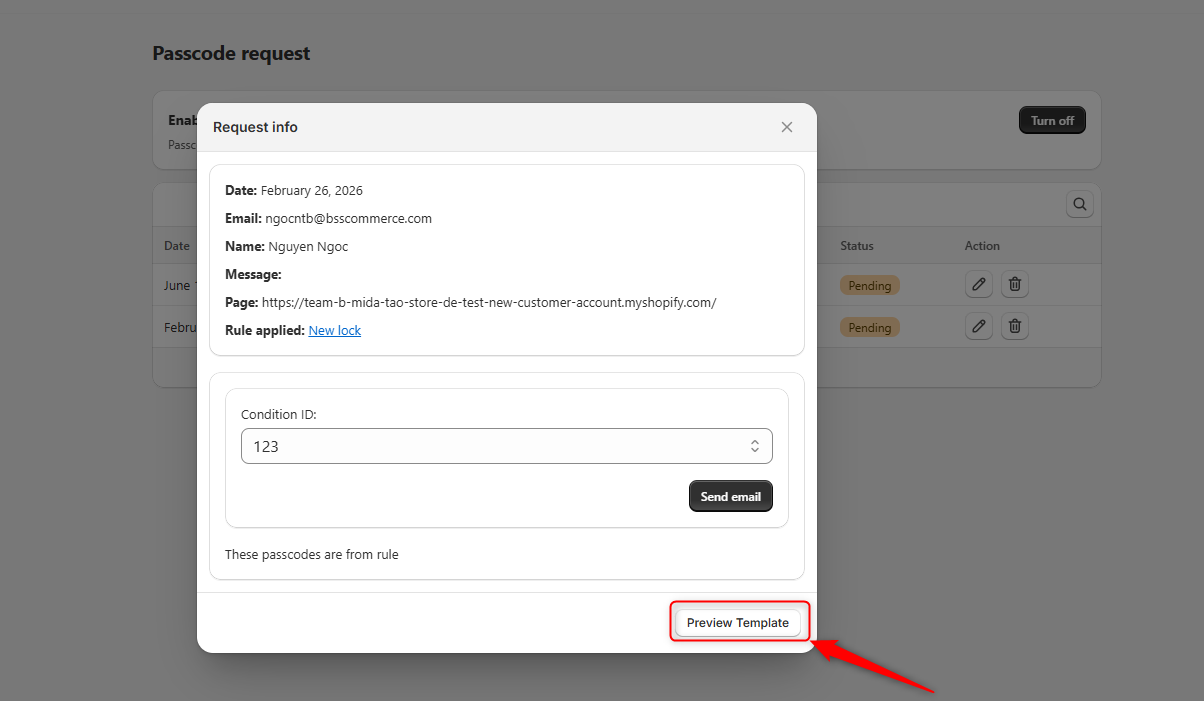
**Step 2:** Click the **edit icon** next to the request showing **Pending** status
**Step 3:** Open the **Condition ID** dropdown and select which passcode to send
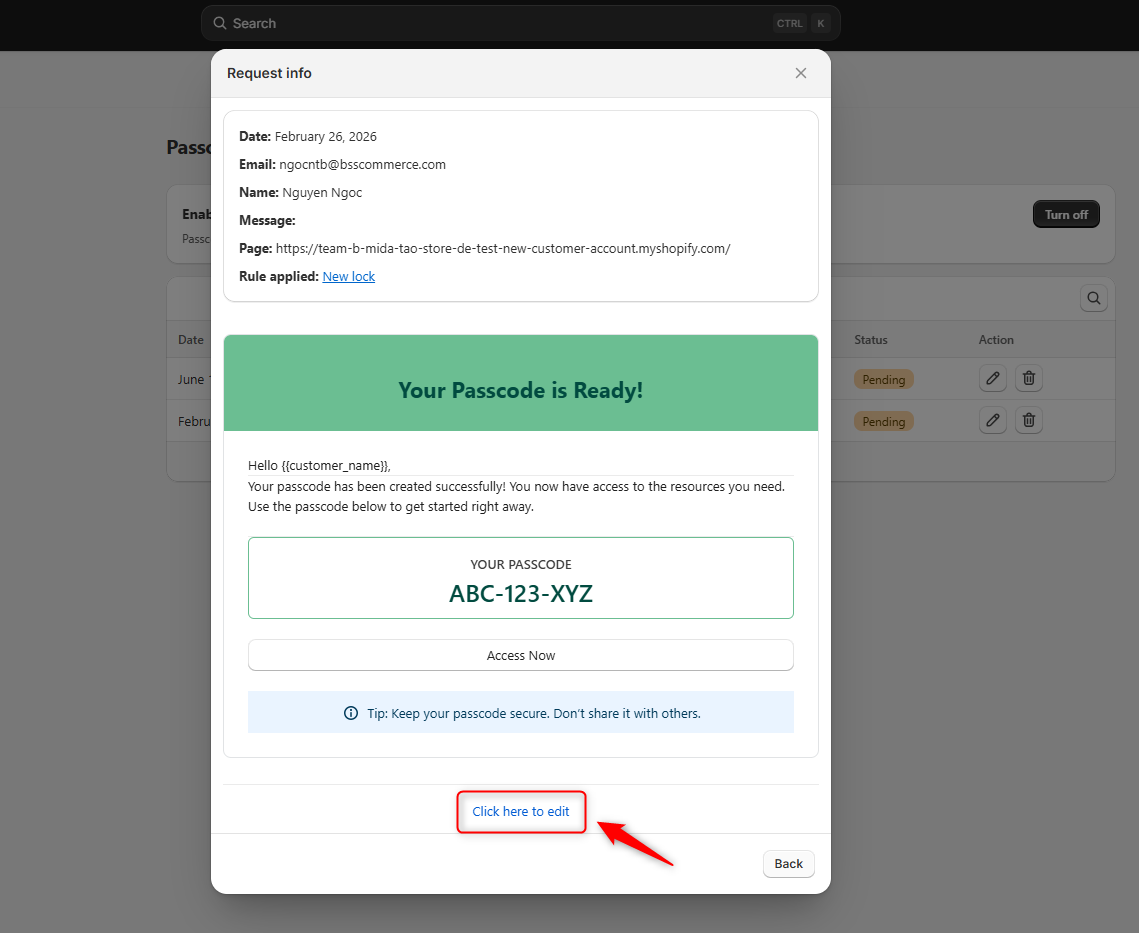
**Step 4:** Click **Preview Template** to see exactly what the customer will receive *(optional but recommended)*
> **💡 Tip:** Always use Preview Template before sending to confirm the passcode and email content look correct. You can also click **"Click here to edit"** at the bottom of the preview to jump directly to the email template editor.
**Step 5:** Click **Send email**
The request status will change to **Approved** and the customer will receive the passcode automatically.
***
## How to Decline a Request
There is currently no one-click decline option. Here is how to handle it:
* **To silently ignore:** Leave the request as Pending — no email will be sent
* **To remove the request:** Click the **trash icon** to delete it
* **To notify the customer:** Send a manual email from your own email client explaining the decision
> **⚠️ Note:** The app does not send any automatic notification to the customer when a request is declined or deleted. If communication matters to your brand, always follow up manually.
***
## Customize the Passcode Email Template
You can edit the email your customers receive when a passcode is approved. This is useful for matching your brand tone, adding instructions, or writing in another language.
You can access the template editor in two ways — directly from the **Preview Template** screen by clicking **"Click here to edit"**, or by going to **Settings → Template Email (Passcode)**.
Email template settings with customizable field
**Step 1:** Go to **Settings → Template Email (Passcode)**
**Step 2:** Expand the **Content Email** section
**Step 3:** Edit the fields you want to update (see table below)
**Step 4:** Click **Save**
## Customizable Fields
| Field | What It Does |
| -------------------------- | ----------------------------------------------------------------- |
| **Greeting Text** | Opening line of the email. Use `{{customer_name}}` to personalize |
| **Introduction Text** | Main message explaining what the email is about |
| **Passcode Section Label** | Label shown above the passcode in the email |
| **Button Label** | Text displayed on the access button |
| **Help / Support Text** | Small tip or support note shown below the passcode |
| **Type Help Text** | Display style of the help text: Notification, Warning, or Error |
> **💡 Tip:** Use `{{customer_name}}` in the Greeting Text to make the email feel personal. Example: *"Hi {{customer\_name}}, your access code is ready."*
***
## Testing Your Setup
**Step 1:** Open your storefront and visit a page protected by a rule with Request Passcode enabled
**Step 2:** Submit a test passcode request using a test customer account
**Step 3:** Check that you receive the notification email at the address you configured
**Step 4:** Go to **Access Management**, find the request, and approve it
**Step 5:** Check the test customer's inbox to confirm the passcode email arrived correctly
**Step 6:** Confirm the passcode in the email actually unlocks the content
***
## Troubleshooting Common Issues
**Not receiving request notification emails**
* Confirm **Email notification** is enabled in Access Management
* Check that the notification email address is entered correctly
* Check your spam or junk folder
**Request Passcode option not appearing on the storefront**
* Confirm **Request Passcode** is enabled inside the specific lock rule
* Confirm the rule is active and applied to the correct page or product
**Customer not receiving the passcode email after approval**
* Ask the customer to check their spam folder
* Confirm you clicked **Send email** and the status changed to Approved
* Double-check the email template has no broken variables
**Language not displayed as expected in the email**
* The email language depends on how you configure the template fields
* Go to **Settings → Template Email (Passcode)** and update the content to your desired language manually
***
## Still Need Help?
If Access Management is still not working after trying the steps above, contact the support team with the following details:
* Your shop name
* The name of the rule using passcode request
* A description of the issue
* A screenshot of the problem
Reach out via the **contact support link** in the app, or email ****