> For the complete documentation index, see [llms.txt](https://docs-shpf.bsscommerce.com/bss-b2b-lock-login-password-hide-price/llms.txt). Markdown versions of documentation pages are available by appending `.md` to page URLs; this page is available as [Markdown](https://docs-shpf.bsscommerce.com/bss-b2b-lock-login-password-hide-price/lock-core-concepts/goal-based-guides-i-want-to.../feature-reference/hide-lock-pages.md).

# Hide / Lock Pages

B2B Lock doesn’t only work on products and collections – it can also hide or lock pages across your storefront.

When you use page-related targets in **Step 1 – Lock Target**, you’re telling the app to protect:

* Your **Entire store**, or
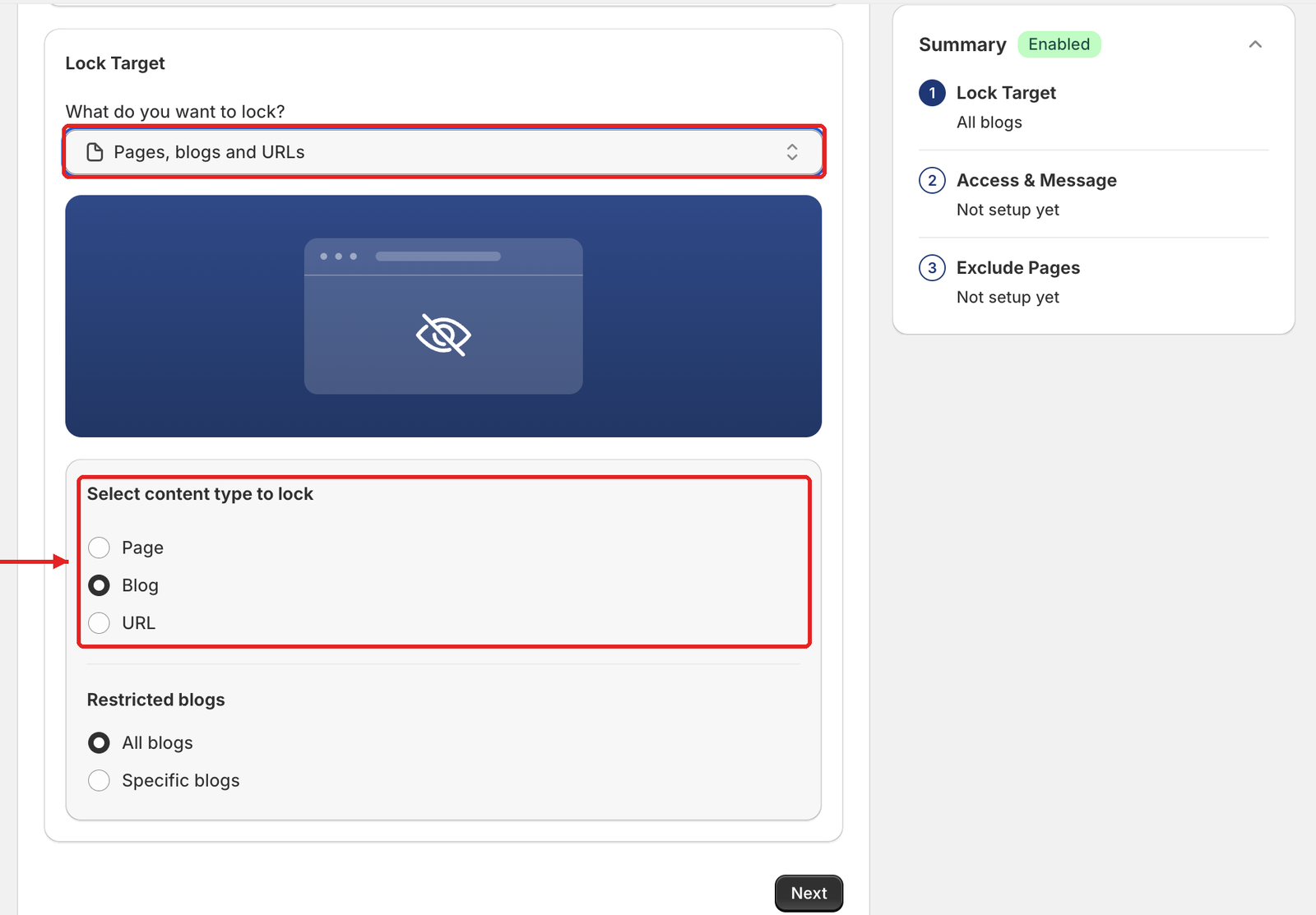
* **Pages, blogs and URLs** (CMS pages, blog posts, landing pages, custom URLs, etc.)

<figure><img src="https://684288492-files.gitbook.io/~/files/v0/b/gitbook-x-prod.appspot.com/o/spaces%2FJh4ZJQcYHPWkPeDOGrHj%2Fuploads%2Fgit-blob-fc4cf22ffbe2bf9a3808f70808cd0ca519227e6e%2Fstep1-pages-blogs-urls.png?alt=media" alt="Pages, blogs and URLs target with the Page, Blog and URL content type options highlighted"><figcaption><p>Pick Pages, blogs and URLs, then choose the content type to lock.</p></figcaption></figure>

Then in **Step 2 – Access & Message**, you choose *how* visitors unlock them: via **login**, **passcode**, or **secret link**.

***

#### **1. Entire store vs pages, blogs and URLs**

**Entire store**

**What it does**

* Puts your **whole storefront** behind a gate.
* All pages (home, collections, products, CMS pages) are protected by the same rule.

**Use when**

* You run a **private / wholesale-only store**.
* You don’t want the general public to explore your catalog.

**Typical setup**

* Step 1: **What do you want to lock?** → **Entire store**
* Step 2: **User type** → **Tagged customers** (e.g. `wholesale`) or **Signed-in customers**. Then show a clear lock screen (login + “request access” link) via **Preview** → **Customize message**.
* Step 3: Tick the pages that stay public under **Exclude from lock rules** (e.g. **Home page**, **Policy pages**, or a “Contact” page under **Specific pages**).

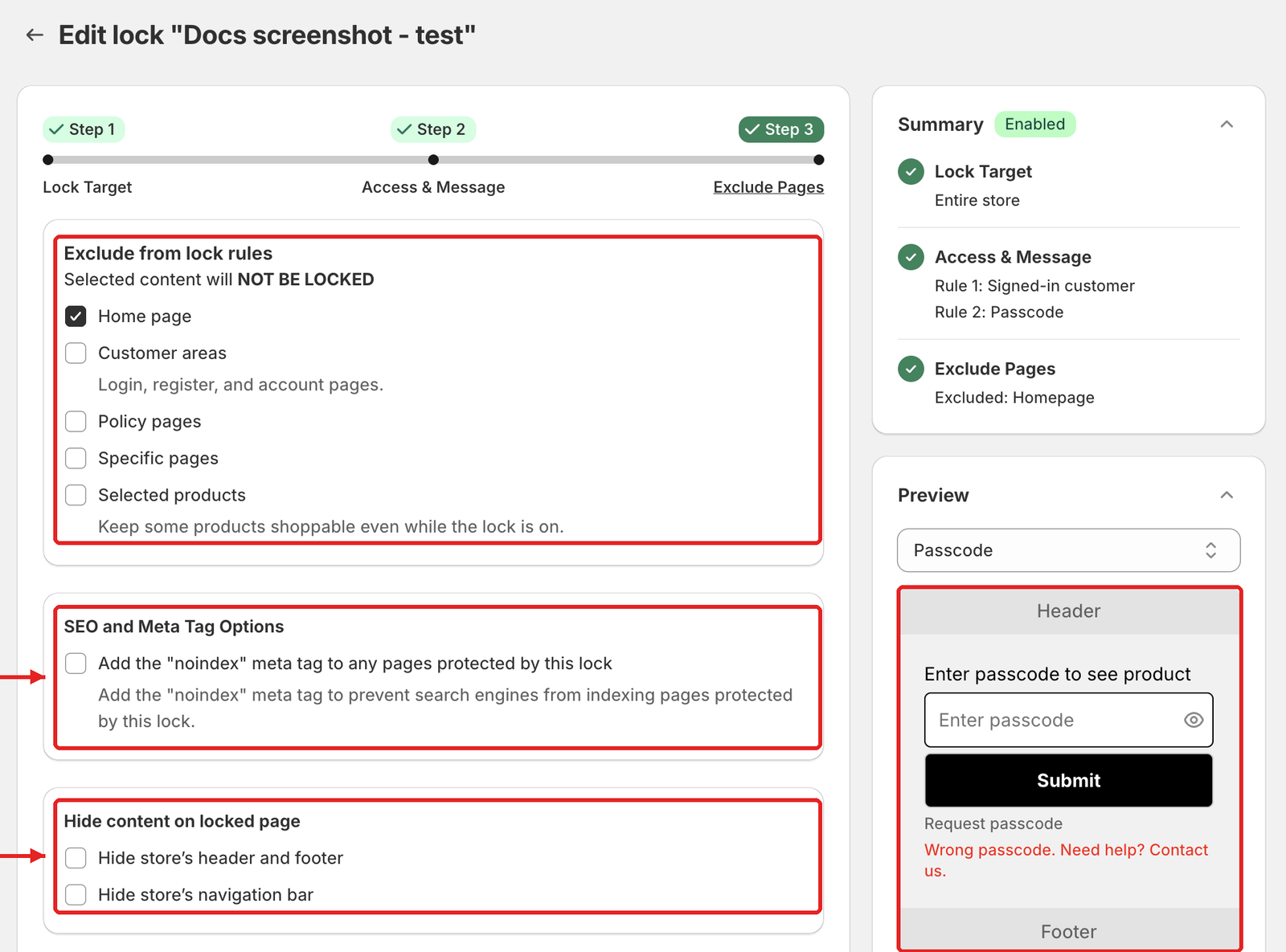
For page locks, Step 3 also offers:

* **SEO and Meta Tag Options** → **Add the "noindex" meta tag to any pages protected by this lock**, so search engines don't index the locked pages.
* **Hide content on locked page** → **Hide store's header and footer** and **Hide store's navigation bar**, for a clean, focused lock screen.

<figure><img src="https://684288492-files.gitbook.io/~/files/v0/b/gitbook-x-prod.appspot.com/o/spaces%2FJh4ZJQcYHPWkPeDOGrHj%2Fuploads%2Fgit-blob-ba4c12c984d470b6a79649acf8f058e0970d7987%2Fstep3-entire-store-seo-hide-content.png?alt=media" alt="Step 3 for an Entire store lock showing Exclude from lock rules, SEO and Meta Tag Options and Hide content on locked page"><figcaption><p>Step 3 for page locks: exclusions, noindex and hiding the store header, footer and navigation bar.</p></figcaption></figure>

***

**Pages, blogs and URLs**

**What it does**

* Locks **only selected pages**: e.g. `/wholesale`, `/partners`, `/docs`, `/resources`, `/campaign-2025`.
* Any other pages remain public unless covered by other rules.

**Use when**

* You have **wholesale info**, **partner resources**, or **VIP content** that should not be public.
* You want the store mostly open, but certain content areas gated.

**Typical setup**

* Step 1: **What do you want to lock?** → **Pages, blogs and URLs**
* Step 1: Under **Select content type to lock**, choose **Page**, **Blog** or **URL**, then pick the pages or blogs (**All** or **Specific**), or type a URL path and click **Add**
* Step 2: Add a condition → **User type** (signed-in or tagged customers), **Passcode**, or secret link. Then customize the message + CTA for that specific audience via **Preview** → **Customize message**
* Step 3: Exclude any pages that must stay public, set **noindex** and **Hide content on locked page** if needed, and click **Save**

This approach is more granular and works well in hybrid B2B + B2C setups.

***

#### **2. Locking with login (customer accounts)**

**How it works**

<figure><img src="https://684288492-files.gitbook.io/~/files/v0/b/gitbook-x-prod.appspot.com/o/spaces%2FJh4ZJQcYHPWkPeDOGrHj%2Fuploads%2Fgit-blob-3b8f46e64ea34ad8f5f4604822f770cc16b6e6ca%2Fstep2-access-rules-chips-only.png?alt=media" alt="Step 2 Access rules with an empty Rule 1, the condition chips User type, Passcode, Date &#x26; time and More, and the Add rule button"><figcaption><p>In Step 2, pick User type to lock by login state or customer tags.</p></figcaption></figure>

* In **Step 2**, pick **User type** and choose a condition based on **login state** and/or **customer tags**:
  * **Signed-in customers - Must be logged in**
  * **Tagged customers – Must have specific tags** (e.g. `wholesale`)
* To require both, add them as two conditions in the same rule (AND).

If the visitor:

* **Meets the login/tag condition** → page loads normally.
* **Doesn’t meet it** → sees your lock message.

**Use login when**

* You want a clean, account-based experience (customers log in and see their content).
* You already manage approval and tagging via B2B apps or manual workflows.

**UX tips**

* In **Preview** → **Customize message**, always add:
  * A **Login** link
  * A **Create account / Request access** link
* Explain clearly who the page is for (e.g., “for approved wholesale customers only”).

***

#### **3. Locking with passcode**

**How it works**

* In **Step 2**, pick **Passcode** → **Passcode - Must enter the correct passcode**.
* Type a passcode (e.g., `PARTNER2025`) and click **Add passcode**. Leave the field empty and click **Add passcode** to generate a random one.
* When visitors open the locked page/URL:
  * A passcode prompt is shown.
  * Correct passcode → access granted.
  * Wrong passcode → error message.

**Use passcode when**

* You want **invite-only access** but don’t want to manage accounts/tags.
* You’re running a private campaign or beta test.
* You need a quick, low-friction way to gate content.

**Passcode options** (in the Passcode condition)

* **Passcode case-sensitive**: **Yes** or **No**.
* Several passcodes per rule, with **Import** and **Clear**.
* A correct passcode is remembered for the visitor's session, so users aren’t constantly re-entering it.
* Preview the passcode form in the **Preview** card (message **Passcode**) and edit it with **Customize message**.

***

#### **4. Locking with secret links**

**How it works**

* In **Step 2**, add **More** → **Other condition** → **Secret link – Must access via a special link**.
* The rule expects a **special URL** (often with a token parameter).
* Only visitors arriving via that URL can see the page; everyone else is blocked.

**Use secret link when**

* You want **hidden content** that:
  * Doesn’t appear in navigation.
  * Isn’t easily discoverable via search.
* You run **VIP / early access** campaigns.
* You want a “soft gate” where security is less strict than login/passcode, but still not public.

**Behaviour**

* Visitors using the **secret URL** → page loads normally.
* Visitors using a normal URL without token → see your lock message.

***

#### **5. Choosing between login, passcode, and secret link**

Use this quick guide to pick the right method for locked pages:

**Scenario**

**Best Method**

**Why**

Private wholesale or partner pages, long-term

**Login + tags**

Strong control, tied to real customer accounts

One-off invite-only campaign or small partner group

**Passcode**

Easy to share, no account management

VIP early access, light gating, marketing-focused

**Secret link**

Frictionless for invited users, hidden from casual visitors

Full B2B / private store

**Entire store + login/tags**

The whole store behaves as a gated portal

In all cases, remember:

* **Login** is best for **ongoing relationships** and tight segmentation.
* **Passcode** is best for **quick, manual gatekeeping**.
* **Secret link** is best for **hidden but convenient** access.

Combined with the targets (**Entire store** vs **Pages, blogs and URLs**), you can design anything from a fully private wholesale store to a few softly gated partner pages inside a public site.

***

## **Still Need Help?**

If you have questions or need assistance configuring BSS B2B Lock, our dedicated support team is here to help.

* **In-App Assistance:** Click **Need help?** or use the in-app chat button within BSS B2B Lock.
* **Email Support:** Contact us at [**support-sbc@bsscommerce.com**](mailto:support-sbc@bsscommerce.com) with your store URL and specific rule details.