> For the complete documentation index, see [llms.txt](https://docs-shpf.bsscommerce.com/bss-b2b-lock-login-password-hide-price/llms.txt). Markdown versions of documentation pages are available by appending `.md` to page URLs; this page is available as [Markdown](https://docs-shpf.bsscommerce.com/bss-b2b-lock-login-password-hide-price/lock-core-concepts/goal-based-guides-i-want-to.../feature-reference/hide-products-and-collections.md).

# Hide Products & Collections

When you use the Products or Collections target in Step 1 – Lock Target, you’re not just hiding prices – you’re hiding the items themselves from parts of your storefront.

When you pick **Products** or **Collections** in **What do you want to lock?** in Step 1 – Lock Target, you’re not just hiding prices – you’re hiding **the items themselves** (or their pages) from parts of your storefront.

This is different from “Price and add to cart”:

* **Price and add to cart** → product is visible, price is not.
* **Products / Collections** → product or collection can disappear entirely for blocked visitors, or only its page is locked.

***

### 1. What the “Products” target does

**Target:** products.

When you choose **Products** as the target:

* Under **Restricted products**, choose **All product**, **By tags**, **By collections**, or **Specific products**. With **Specific products**, search or open the **Select products** picker.
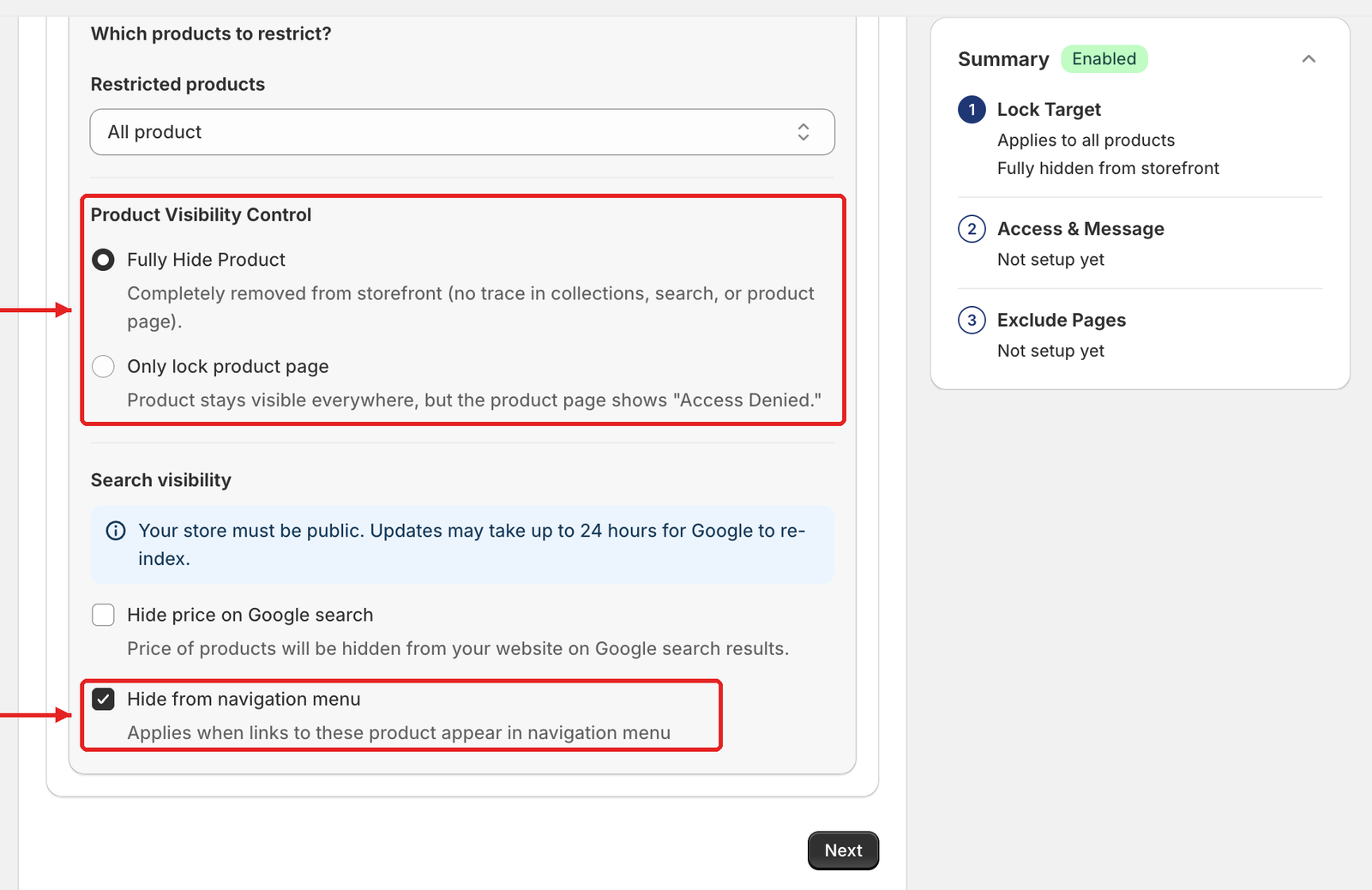
* Under **Product Visibility Control**, choose how blocked visitors experience these products:
  * **Fully Hide Product** — "Completely removed from storefront (no trace in collections, search, or product page)." Products are **removed from product grids** (collections, search results, related products, etc.) and the product page is locked.
  * **Only lock product page** — "Product stays visible everywhere, but the product page shows "Access Denied."" Product cards stay in collections and search; opening the product shows the lock message.
* Under **Search visibility**:
  * **Hide price on Google search** — "Price of products will be hidden from your website on Google search results." The notice above it reads: "Your store must be public. Updates may take up to 24 hours for Google to re-index."
  * **Hide from navigation menu** (ticked by default) — "Applies when links to these product appear in navigation menu". It applies to both visibility modes.

<figure><img src="https://684288492-files.gitbook.io/~/files/v0/b/gitbook-x-prod.appspot.com/o/spaces%2FJh4ZJQcYHPWkPeDOGrHj%2Fuploads%2Fgit-blob-18b9cfd405f1ba29861d48955aa0f130a7e645f7%2Fstep1-products-fully-hide.png?alt=media" alt="Products target with Product Visibility Control set to Fully Hide Product and Hide from navigation menu highlighted"><figcaption><p>Fully Hide Product removes the products from the storefront.</p></figcaption></figure>

<figure><img src="https://684288492-files.gitbook.io/~/files/v0/b/gitbook-x-prod.appspot.com/o/spaces%2FJh4ZJQcYHPWkPeDOGrHj%2Fuploads%2Fgit-blob-cbe2dee53292e041fd28b57e9d89decfeabd7028%2Fstep1-products-only-lock-page.png?alt=media" alt="Products target with Only lock product page selected and the Summary card showing Product page shows Access denied"><figcaption><p>Only lock product page keeps products in listings and locks the product page.</p></figcaption></figure>

**Typical uses**

* Wholesale-only products that retail customers must never see (**Fully Hide Product**).
* Exclusive SKUs for partners, distributors, or VIP customers.
* Products that can be discovered in listings, but whose details are for approved buyers only (**Only lock product page**).
* Products still in testing or beta, only for selected accounts.

***

### 2. What the “Collections” target does

**Target:** whole collections.

When you choose **Collections**:

* Under **Which collections to restrict?**, choose **All** or **Specific**. With **Specific**, search or open the **Select collections** picker.
* Under **Visibility settings**, choose what blocked visitors lose. All 4 are ticked by default:
  * **Hide collection cards** — "Applies to all collection cards within the selected collections."
  * **Hide product cards** — "Applies to all product cards within the selected collections."
  * **Hide product pages** — "Applies to all product pages within the selected collections."
  * **Hide from navigation menu** — "Applies when links to these collection appear in navigation menu"
* If someone opens the collection URL directly, they see a **lock message** instead of the product grid.

<figure><img src="https://684288492-files.gitbook.io/~/files/v0/b/gitbook-x-prod.appspot.com/o/spaces%2FJh4ZJQcYHPWkPeDOGrHj%2Fuploads%2Fgit-blob-e01d6bc88bac30d35f84c402178a244b4560a5e8%2Fstep1-collections-visibility-settings.png?alt=media" alt="Collections target with All and Specific options and the four Visibility settings checkboxes, all ticked"><figcaption><p>Collections: choose the collections, then the Visibility settings.</p></figcaption></figure>

{% hint style="info" %}
**For collection rules created earlier:** rules set up before **Hide collection cards** and **Hide product cards** became separate options behave as if both are ticked.
{% endhint %}

**Typical uses**

* Wholesale/B2B catalog separated into its own collection(s).
* Distributor-only collections by region or tier.
* VIP collections that should not show up in public navigation.

***

### 3. Hide product cards vs lock collections

It’s important to understand the difference between hiding **product cards** and locking **collections**:

#### Hiding product cards (Products target → Fully Hide Product)

* You keep the **collection itself** visible (e.g., “All products” or “New arrivals”).
* Inside that collection, **individual product cards** are hidden based on your rules.
* Result for blocked visitors:
  * They see the collection page, but **some products simply don’t appear** in the grid.
  * The layout may adjust automatically based on your theme (e.g., items shift left, no blank slots).

This is useful when:

* You want **mixed collections** where some products are public and some are restricted.
* You don’t want to create separate collections for every audience.

#### Locking collections (Collections target)

* The **collection as a whole** is gated.
* Blocked visitors, with the default **Visibility settings**:
  * Don’t see that collection in menus or collection lists.
  * Don’t see its products in grids, and can't open their product pages.
  * If they somehow open the exact collection URL, they see a **lock screen** instead of any grid.
* Untick a **Visibility settings** option to keep that part visible — e.g. untick **Hide collection cards** to keep the collection listed while its products stay hidden.

This is useful when:

* You want very **clean separation** between retail and wholesale.
* Each audience should have its own “catalog view” without overlap.

***

### 4. How rules affect collections, search, and grids

Because hiding products/collections affects how things render visually, it’s helpful to know what to expect in different places.

#### A. Collection pages (product grids)

**If you fully hide products (Products → Fully Hide Product):**

* Blocked visitors:
  * Won’t see those products in the grid.
  * Remaining products shift to fill the grid (no item should show with a visible product card, but if your theme expects a fixed number of items, you may see layout differences).

**If you lock the collection (Collections target):**

* Blocked visitors:
  * Won’t see the collection in navigation or collection lists (with **Hide from navigation menu** and **Hide collection cards** ticked).
  * Opening the collection URL shows a lock message instead of any grid.

#### B. Search results

* If products are hidden:
  * Blocked visitors generally won’t see them in **search results**, depending on theme and integration.
* If collections are hidden:
  * Collection links may not show in search (again theme-dependent), and if opened, they’re locked.

If search is critical to your UX, always test:

* As a guest/unapproved user.
* As an approved/tagged user.

Make sure search results match your expectations for each segment.

#### C. Featured collections and product blocks on homepage

If your theme uses **featured collections** or **product sliders** on the homepage:

* **Products → Fully Hide Product**:
  * Restricted products simply don’t appear for blocked users; the slider shows fewer products.
* **Collections**:
  * If you’ve hidden the featured collection itself, blocked users may:
    * Not see that section at all, or
    * See a message/empty state depending on how the theme handles it.

Always review your homepage and key landing pages after creating or editing hide rules.

#### D. Handling “blank” or unexpected layout gaps

In some themes, if products are removed at runtime, you might see:

* Empty spaces where products would have been.
* Slightly uneven grids when many products are hidden.

If that happens:

* Prefer **hiding whole collections** instead of many individual products, or
* Create dedicated **wholesale-only collections** and hide the entire collection from non-B2B users, or
* Reduce mixing of public and restricted products in the same collection.

This gives a cleaner visual experience, especially for non-B2B visitors.

***

### 5. Choosing the right approach

Use this as a quick decision guide:

* **I want a clean, separate B2B catalog, invisible to retail**\
  → Use the **Collections** target for wholesale collections.
* **I want some products in a collection to be wholesale-only**\
  → Use the **Products** target with **Fully Hide Product** on those SKUs and test collection grids.
* **I want products to stay discoverable, but only approved buyers can open them**\
  → Use the **Products** target with **Only lock product page**.
* **I want one URL to behave completely differently for B2B vs B2C**\
  → Combine the **Products** or **Collections** target with **User type → Tagged customers** and clear lock messages.

Once you understand the difference between hiding **products** and **collections**, you can design catalog structures that both **look good** and **respect your B2B rules** across all parts of the storefront.

***

## **Still Need Help?**

If you have questions or need assistance configuring BSS B2B Lock, our dedicated support team is here to help.

* **In-App Assistance:** Click **Need help?** or use the in-app chat button within BSS B2B Lock.
* **Email Support:** Contact us at [**support-sbc@bsscommerce.com**](mailto:support-sbc@bsscommerce.com) with your store URL and specific rule details.
