> For the complete documentation index, see [llms.txt](https://docs-shpf.bsscommerce.com/bss-b2b-lock-login-password-hide-price/llms.txt). Markdown versions of documentation pages are available by appending `.md` to page URLs; this page is available as [Markdown](https://docs-shpf.bsscommerce.com/bss-b2b-lock-login-password-hide-price/lock-core-concepts/goal-based-guides-i-want-to.../feature-reference/rule-builder-deep-dive.md).

# Rule Builder Deep Dive

This section explains every part of the Rule Builder in detail.

This section explains **every part of the Rule Builder** in detail.\
Use it as a reference when you’re not sure what a field means or how a setting will behave.

The Rule Builder always follows the same 3-step flow:

> **Step 1 – Lock Target → Step 2 – Access & Message → Step 3 – Exclude Pages**

The right column holds two sticky cards, **Summary** and **Preview**, that stay in view while you work through the steps.

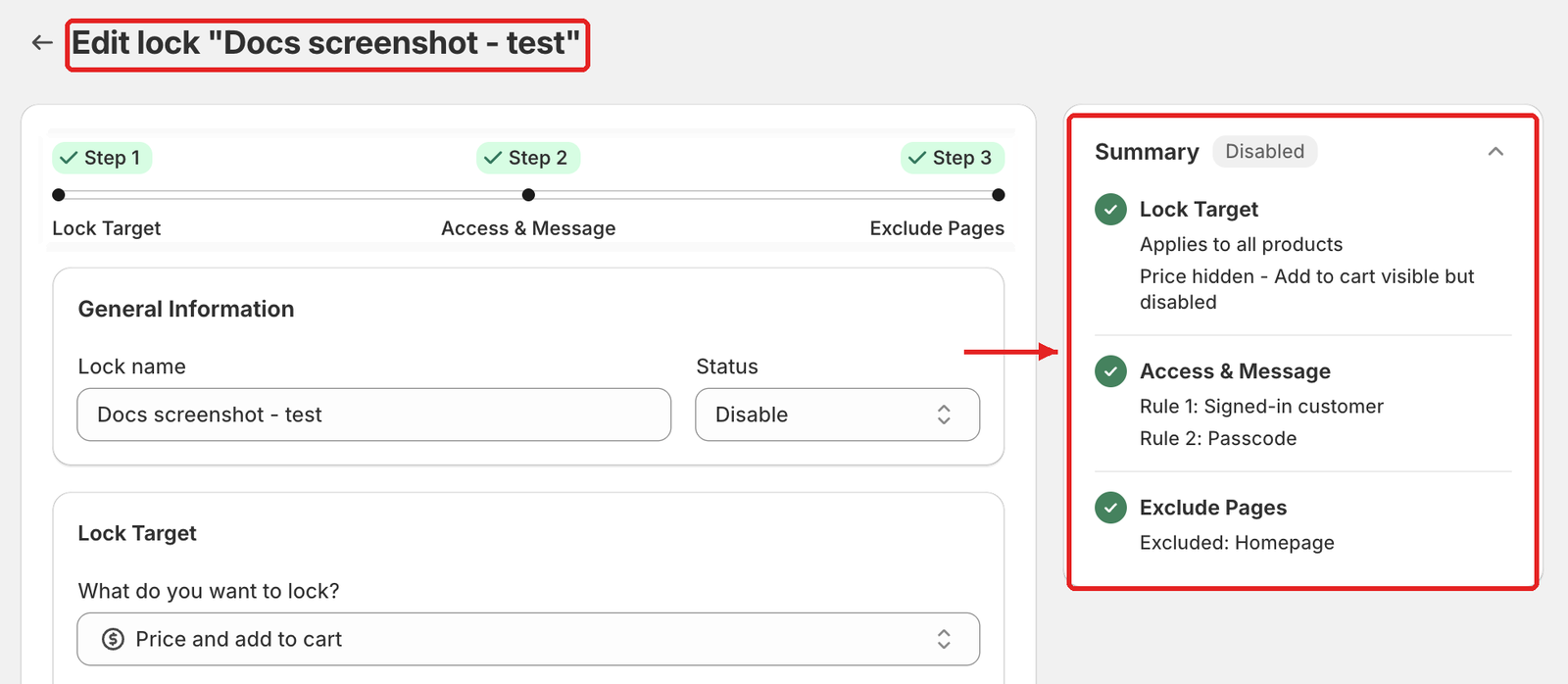
<figure><img src="https://684288492-files.gitbook.io/~/files/v0/b/gitbook-x-prod.appspot.com/o/spaces%2FJh4ZJQcYHPWkPeDOGrHj%2Fuploads%2Fgit-blob-aa733dfcdd2dcf2d2212826a554765877a034dcf%2Frule-saved-no-stepper.png?alt=media" alt="Edit lock page with all three steps ticked in the stepper and a complete Summary card"><figcaption><p>A saved rule: all three steps show a ✓ and the Summary card lists every choice.</p></figcaption></figure>

### Navigating the Rule Builder

#### Stepper

* The stepper at the top shows **Lock Target**, **Access & Message** and **Exclude Pages**.
* The current step is a green pill. A completed step is a green pill with a ✓.
* Click the name of a **completed** step (✓) to go back to it. Everything you entered is kept. You can't jump ahead to a step you haven't completed yet: finish the current step and click **Next**.
* Use **Next** and **Back** at the bottom of each step. Step 3 has **Save**.

#### Summary card

The **Summary** card shows the rule's status badge (**Enabled** / **Disabled**) and one line per step, with a check icon once the step is done:

* **Lock Target** — e.g. *"Applies to all products / Price hidden - Add to cart visible but disabled"*, *"2 products"* or *"1 specific collections"*.
* **Access & Message** — e.g. *"Rule 1: Signed-in customer / Rule 2: Passcode"*.
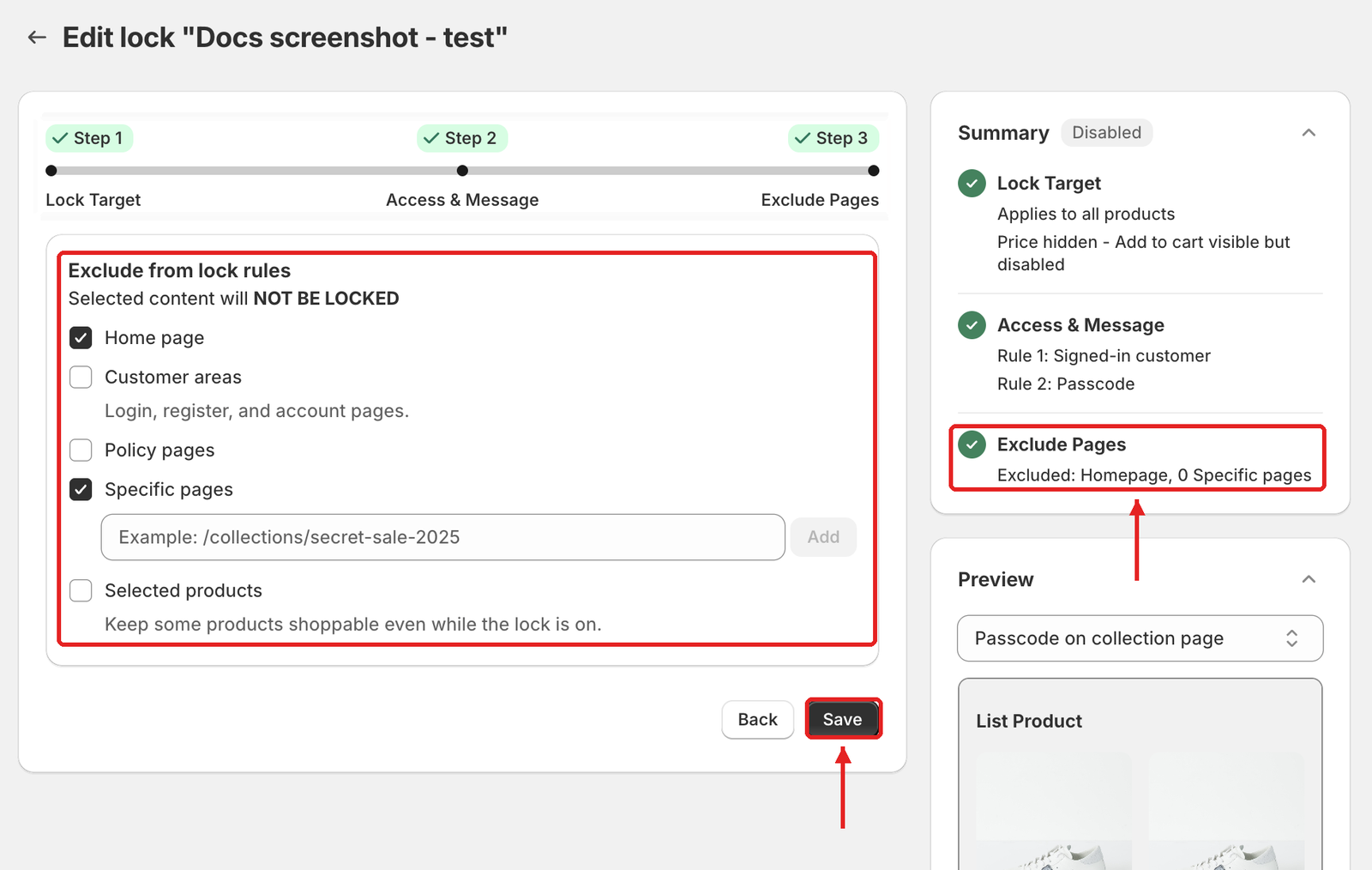
* **Exclude Pages** — e.g. *"Excluded: Homepage, 0 Specific pages"*.

A step you haven't configured yet shows *"Not setup yet"*.

#### Preview card

In Step 2 and Step 3, once a rule has at least one condition set, the **Preview** card appears under **Summary**. Pick a message from its dropdown (e.g. **Message Hide Price**, **Passcode**, **Access Denied Message**) to see a live storefront mock that updates in real time. Click **Customize message** to edit it (see section 8, **Lock message**, below).

#### Contextual Save Bar

On an existing lock, Shopify's Contextual Save Bar appears at the top of the page as soon as you change anything, with **Unsaved changes**, **Discard** and **Save**. Click **Save** there at any step. On a new lock, the bar appears once you reach Step 3. You can also click **Save** at the bottom of Step 3.

<figure><img src="https://684288492-files.gitbook.io/~/files/v0/b/gitbook-x-prod.appspot.com/o/spaces%2FJh4ZJQcYHPWkPeDOGrHj%2Fuploads%2Fgit-blob-bb584a578fca189b25966c2fd4bf77c595be43e6%2Fcontextual-save-bar.png?alt=media" alt="Shopify Contextual Save Bar with Unsaved changes, Discard and Save"><figcaption><p>Save from the Contextual Save Bar.</p></figcaption></figure>

***

### Step 1 – Lock Target

In Step 1, you define the **identity** and **scope** of the lock:

* What you call this rule (for your own management).
* Which part of the store it applies to.

#### 1. General Information

**Lock name**

* Internal name shown in the **Lock list**. It is required; leaving it empty shows *"Rule name is required"*.
* Best practice: use a clear, descriptive pattern, e.g.:
  * `Hide prices from guests`
  * `Wholesale collection – only for wholesale tag`
  * `Lock entire site – B2B only`

**Status (Enable / Disable)**

* **Enable**: rule is applied to your storefront.
* **Disable**: rule is saved but not enforced.
* Use Disable to temporarily turn off a lock without deleting it.

***

#### 2. Target: what you lock

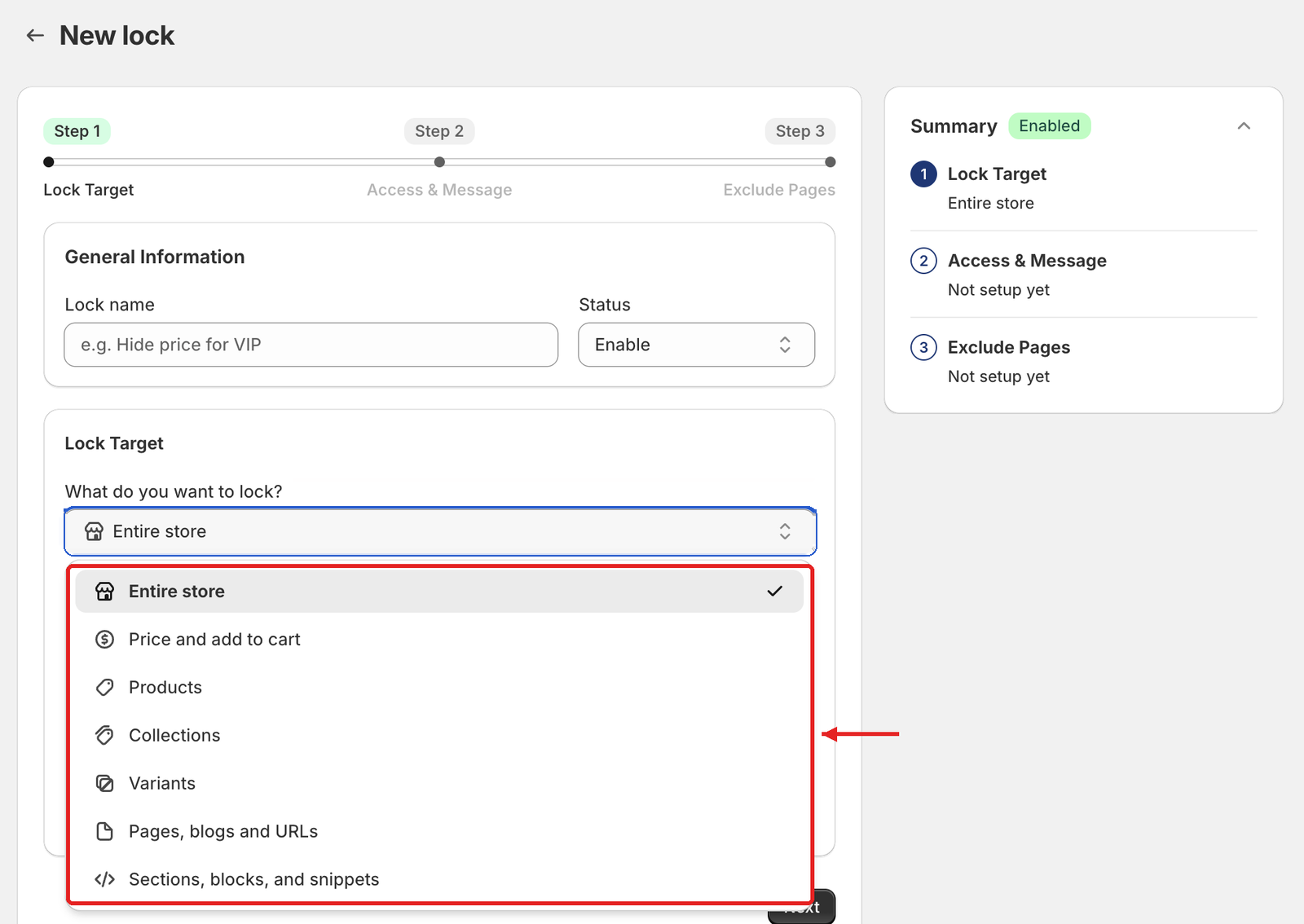
In the **Lock Target** card, open **What do you want to lock?** and pick a target:

1. **Entire store**
   * Locks the whole storefront behind your access rules.
   * Use for B2B-only or private stores.
2. **Price and add to cart**
   * Keeps products visible but hides the price, the Add to cart button, or both, for blocked visitors.
3. **Products**
   * Hides selected products completely, or locks only their product pages.
4. **Collections**
   * Hides selected collections, their product cards and product pages, and their menu links, for blocked visitors.
5. **Variants**
   * Hides variants that match an option value (e.g. all variants where *"Size"* equals *"XL"*).
6. **Pages, blogs and URLs**
   * Targets pages, blogs, or custom URLs.
   * Typically used for wholesale info pages, partner portals, documentation, or landing pages.
7. **Sections, blocks, and snippets**
   * Hides theme sections, blocks or snippets, picked by name (**Native Section/Block**) or matched by a **Custom CSS Selector**.

<figure><img src="https://684288492-files.gitbook.io/~/files/v0/b/gitbook-x-prod.appspot.com/o/spaces%2FJh4ZJQcYHPWkPeDOGrHj%2Fuploads%2Fgit-blob-de45dce2909d3223eee8c318a1aa5e554a4709e3%2Fstep1-lock-target-dropdown-options.png?alt=media" alt="The What do you want to lock? dropdown open with all 7 targets"><figcaption><p>The 7 lock targets.</p></figcaption></figure>

***

#### 3. Scope selection

After choosing a target, define its **scope**:

* **Price and add to cart** → **Restricted products**: **All product**, **By tags**, **By collections**, **Specific products**, or **Specific variants**.
* **Products** → **Restricted products**: **All product**, **By tags**, **By collections**, or **Specific products** (search, or pick in **Select products**).
* **Collections** → **Which collections to restrict?**: **All** or **Specific** (search, or pick in **Select collections**).
* **Variants** → **Restricted variants** → **Variant options**: the variant option and value to match (**Search variant options**). The card notes: *"Locking variants does not support age verification, email subscriptions, or secret link access"*.
* **Pages, blogs and URLs** → **Select content type to lock**: **Page** (**All pages** / **Specific pages**), **Blog** (**All blogs** / **Specific blogs**), or **URL** (type a path and click **Add**).
* **Sections, blocks, and snippets** → **Select target to lock** → **Target selection mode**:
  * **Native Section/Block** — "Use Shopify theme sections/blocks with Liquid context." Then pick in **Name of section, block, or snippet**.
  * **Custom CSS Selector** — "Use .className or #elementId for third-party JS or custom elements."

This ensures the lock is applied only where you intend.

***

#### 4. Price-specific options (for Price and add to cart)

When the target is **Price and add to cart**, two extra groups appear:

* **What do you want to hide?**
  * **Hide price**, then either **Disable Add to cart** ("Still visible – can't be clicked.") or **Hide Add to cart** ("Completely invisible.").
  * **Keep price visible, hide Add to cart** ("Price stays visible; only the button is removed.").
* **Search visibility** → **Hide price on Google search**
  * Keeps prices out of Google search results. Your store must be public, and Google can take up to 24 hours to re-index.
  * Useful for protecting B2B or contract pricing.

With **Specific variants** selected, the **What do you want to hide?** and **Search visibility** options are not shown.

<figure><img src="https://684288492-files.gitbook.io/~/files/v0/b/gitbook-x-prod.appspot.com/o/spaces%2FJh4ZJQcYHPWkPeDOGrHj%2Fuploads%2Fgit-blob-4d530868f8bd02caac149617e41968b8a8dd6c92%2Fstep1-price-hide-options.png?alt=media" alt="Price and add to cart: What do you want to hide? options and Hide price on Google search"><figcaption><p>Price options for the Price and add to cart target.</p></figcaption></figure>

***

#### 5. Product and collection visibility options

**Products** → **Product Visibility Control**:

* **Fully Hide Product** — "Completely removed from storefront (no trace in collections, search, or product page)."
* **Only lock product page** — "Product stays visible everywhere, but the product page shows "Access Denied.""
* Plus, under **Search visibility**, **Hide price on Google search** and **Hide from navigation menu** (ticked by default, for both modes).

**Collections** → **Visibility settings** (all ticked by default):

* **Hide collection cards**
* **Hide product cards**
* **Hide product pages**
* **Hide from navigation menu**

For details, see [Hide Products & Collections](/bss-b2b-lock-login-password-hide-price/lock-core-concepts/goal-based-guides-i-want-to.../feature-reference/hide-products-and-collections.md).

***

### Step 2 – Access & Message

In Step 2, you define **who can unlock or see** the content you targeted in Step 1.

You do this by adding **conditions** to **rules**. Each condition is like a test:

> “If this statement is true for the visitor, then they are allowed.”

<figure><img src="https://684288492-files.gitbook.io/~/files/v0/b/gitbook-x-prod.appspot.com/o/spaces%2FJh4ZJQcYHPWkPeDOGrHj%2Fuploads%2Fgit-blob-3b8f46e64ea34ad8f5f4604822f770cc16b6e6ca%2Fstep2-access-rules-chips-only.png?alt=media" alt="Step 2 with an empty Rule 1, the condition chips and + Add rule"><figcaption><p>Pick a condition chip to add the first condition to Rule 1.</p></figcaption></figure>

#### 6. Main condition types

Pick a condition chip under **Select a condition to add to the rule**, then choose the option in **Select access rule**. For **User type**, **Email**, **Location** and **Other condition**, you can tick **Reverse access rule** to invert the condition.

**User type**

* **Everyone - No restrictions** — the app notes: *"When this condition is selected, it will take the highest priority."*
* **Signed-in customers - Must be logged in** — used for “Hide prices from guests” and “Lock page for logged-in users only”.
* **Tagged customers – Must have specific tags** — Shopify customer tags like `wholesale`, `b2b-approved`, `silver`, `gold`. Core of most B2B & segmentation flows.
* **Specific customers – Must match exact email** — grants access only to selected customer accounts.
* **Request access – visitor request, you approve**
* **Customer must be in this company name** / **Customer must be in this company location** / **B2B customer – Shopify B2B only** — Shopify B2B conditions.

**Passcode**

* **Passcode - Must enter the correct passcode**. Good for invite-only content without creating accounts.
* Add one or more passcodes (leave the field empty and click **Add passcode** to generate one, or use **Import**; **Clear** appears once a passcode is added), and set **Passcode case-sensitive**.
* Under **Extra setting**, choose **Enter passcode once to access all pages**, **Enter passcode once to access each pages**, or **Enter passcode each time to access each pages**.

**Date & time**

* **After date/time → Visible from** or **Before date/time → Visible until**. Time follows your Shopify store's time zone.

**More**

* **Email** — **Email domain - Must use an allowed email domain**: choose a **Condition** (default **Contains**) and add **Values**.
* **Location** — **Specific market – Only for selected Shopify markets**, **IP address – Only for specific IP addresses**, **Location – Only for selected regions**, or **Location – Only for selected countries**.
* **Other condition** — **URL parameter – For UTM, affiliate**, **Secret link – Must access via a special link**, **Age verified – Must confirm age**, and **Custom code (Liquid) – For advanced setup** (lets a developer write Liquid logic, e.g. on metafield values).

For every condition, see [Control Access](/bss-b2b-lock-login-password-hide-price/lock-core-concepts/control-access-access-and-message.md).

***

#### 7. Combining conditions with AND / OR

*"A customer must meet every condition in a rule to get access. Add more rules to let different groups in."*

* **AND** = all conditions inside one rule must be true
  * An **AND** pill joins the conditions, and the rule shows **2 conditions - all must match**.
  * Example: Signed-in customers **AND** Tagged customers `wholesale` → only logged-in wholesale customers get access.
* **OR** = any rule can be true
  * Click **+ Add rule** to add another rule. An **OR** pill joins the rules.
  * Example: Rule 1 Tagged customers `wholesale` **OR** Rule 2 Passcode → either approved wholesale customers or passcode holders get access.

<figure><img src="https://684288492-files.gitbook.io/~/files/v0/b/gitbook-x-prod.appspot.com/o/spaces%2FJh4ZJQcYHPWkPeDOGrHj%2Fuploads%2Fgit-blob-69e18ce82b546f1bb49a8fc76817e5665c05cf93%2Fstep2-and-or-both-rules.png?alt=media" alt="Rule 2 with two conditions joined by AND and the badge 2 conditions - all must match"><figcaption><p>AND inside a rule, OR between rules.</p></figcaption></figure>

You can **stack** several rules for a single lock, for instance:

* Rule 1: allow `wholesale`
* Rule 2: allow `partner`
* Rule 3: allow passcode holders
* Everyone else: blocked → sees lock message

If no rule has a condition yet, clicking **Next** shows *"Add at least one condition to this rule before you continue."* An extra rule left empty next to rules that have conditions doesn't block **Next** and isn't listed in the **Summary**. To remove a rule, click **Remove rule**.

This flexibility removes the need for multiple overlapping locks that are hard to manage.

***

#### 8. Lock message (Preview → Customize message)

When a visitor doesn’t meet your rules, B2B Lock shows a **lock message** instead of the protected content. You edit it from the **Preview** card, not from a step:

1. In the **Preview** card, pick the message in the dropdown.
2. Click **Customize message** to open **Preview & customize message**.
3. Each message has its own tab at the top of the modal, and the editing options depend on the message. For example:

   * A page lock message (e.g. **Login View Pages**) has **Message type**, **Message content** (**Custom message**, or click **Edit with editor**) and **Custom CSS**.
   * **Message Hide Price** has **Edit** / **Edit as HTML**, **Templates**, **Message** (**Text content**, **Text format**, **Text color**), **Redirect settings**, **Advanced customization** and **Custom CSS**.

   Use the desktop / mobile toggle in the **Preview** panel on the right to check both layouts.

<figure><img src="https://684288492-files.gitbook.io/~/files/v0/b/gitbook-x-prod.appspot.com/o/spaces%2FJh4ZJQcYHPWkPeDOGrHj%2Fuploads%2Fgit-blob-1470035576362bede59d95955b4d41afa858f6b3%2Fcustomize-message-modal.png?alt=media" alt="Preview &#x26; customize message modal with Access Denied Message text content and Custom CSS"><figcaption><p>Edit the lock message in Preview &#x26; customize message.</p></figcaption></figure>

Good lock messages **guide** the visitor; they don’t just block them:

* **Headline** — e.g. “Wholesale access only”, “Login to view prices”.
* **Body text** — e.g. “This section is reserved for approved B2B customers. Please log in or request an account.”
* **Links** — “Login”, “Create account”, “Request access”, “Contact us”, pointing to Shopify login, registration, or a contact/registration page.

For B2B-only stores, always make sure the lock screen gives a clear path to **becoming an approved customer** (even if it’s via manual contact).

***

#### 9. Tips for designing clean rules

* Start with the **simplest rule** that meets your need (e.g. just login, or just one tag).
* Add complexity only when you really need it (e.g. combining regions or tags).
* Be consistent with **tags** (e.g., always use `wholesale` instead of mixing `wholesale`, `wholesale_customer`, etc.).
* Keep rule names aligned with conditions, so future you (or your colleague) can understand them at a glance.

***

### Step 3 – Exclude Pages

Step 3 lets you fine-tune edge cases: which content stays unlocked, and, for page locks, SEO and page-display options.

#### 10. Exclude from lock rules

When you lock a broad target (like the entire store), tick what should **not** be locked:

* **Home page**
* **Customer areas** (login, register, and account pages)
* **Policy pages**
* **Specific pages** (type a URL and click **Add**)
* **Selected products** (keep some products shoppable even while the lock is on) — not shown for every target, e.g. not for **Pages, blogs and URLs**

This lets you design more nuanced experiences without creating many separate locks.

<figure><img src="https://684288492-files.gitbook.io/~/files/v0/b/gitbook-x-prod.appspot.com/o/spaces%2FJh4ZJQcYHPWkPeDOGrHj%2Fuploads%2Fgit-blob-77985ebabc43cdcdeae8ec501368d6f01d95ecb7%2Fstep3-exclude-pages-no-stepper.png?alt=media" alt="Step 3 Exclude from lock rules list with the Summary card and the Save button"><figcaption><p>Step 3: choose what stays unlocked, then Save.</p></figcaption></figure>

#### 11. SEO and page display (page locks)

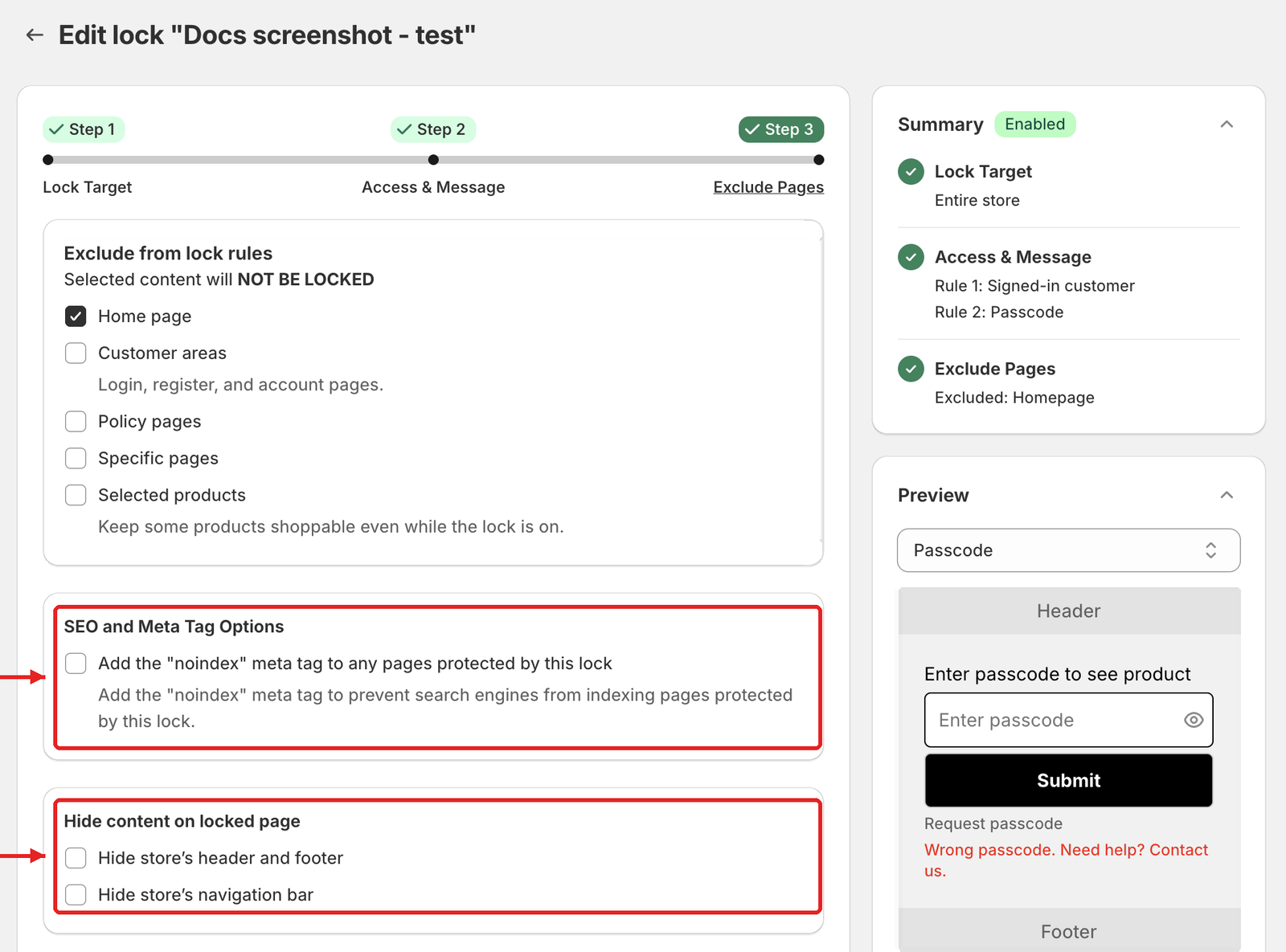
For locks that replace a whole page, such as **Entire store** or **Pages, blogs and URLs**, Step 3 also shows:

* **SEO and Meta Tag Options** → **Add the "noindex" meta tag to any pages protected by this lock**.
* **Hide content on locked page** → **Hide store's header and footer** and **Hide store's navigation bar**.

<figure><img src="https://684288492-files.gitbook.io/~/files/v0/b/gitbook-x-prod.appspot.com/o/spaces%2FJh4ZJQcYHPWkPeDOGrHj%2Fuploads%2Fgit-blob-4509270dd0e0e7a1c6b26b87162ab3e3d77f608e%2Fstep3-entire-store-seo-hide-only.png?alt=media" alt="Step 3 for Entire store with SEO and Meta Tag Options and Hide content on locked page"><figcaption><p>Extra Step 3 options for page locks.</p></figcaption></figure>

#### 12. Save

Click **Save** (in Step 3 or in the Contextual Save Bar). B2B Lock shows *"Saved lock settings"*, syncs your theme in the background, and the title changes to **Edit lock "\<lock name>"**.

For details, see [Exclude Pages & Lock Message](/bss-b2b-lock-login-password-hide-price/lock-core-concepts/lock-page-settings.md).

***

### Putting it all together

The Rule Builder is designed so that:

* **Step 1** answers: *“What am I protecting?”*
* **Step 2** answers: *“Who is allowed to see it?”* — and the **Preview** card answers *“What does everyone else see?”*
* **Step 3** answers: *“Are there exceptions?”*

Once you’re comfortable with each field in these three steps, you can confidently design complex, but maintainable, B2B and access-control scenarios for your Shopify store.

***

## **Still Need Help?**

If you have questions or need assistance configuring BSS B2B Lock, our dedicated support team is here to help.

* **In-App Assistance:** Click **Need help?** or use the in-app chat button within BSS B2B Lock.
* **Email Support:** Contact us at [**support-sbc@bsscommerce.com**](mailto:support-sbc@bsscommerce.com) with your store URL and specific rule details.