> For the complete documentation index, see [llms.txt](https://docs-shpf.bsscommerce.com/bss-b2b-lock-login-password-hide-price/llms.txt). Markdown versions of documentation pages are available by appending `.md` to page URLs; this page is available as [Markdown](https://docs-shpf.bsscommerce.com/bss-b2b-lock-login-password-hide-price/lock-core-concepts/goal-based-guides-i-want-to.../hide-page-sections-and-blocks-conditionally.md).
# Hide page sections & blocks conditionally
Hide specific storefront sections, banner blocks, price tables, or custom theme elements based on customer login status, tags, or passcode.
Hide any storefront section — promotional banner, pricing block, RFQ inquiry form, or product section — based on who is visiting without modifying Liquid code.
***
| **💡 Quick Tips** |
| ------------------------------------------------------------------------------------------------------------------------- |
| • **Native Section/Block mode:** Auto-detects Liquid sections and blocks from your active theme. |
| • **Custom CSS Selector mode:** Target custom HTML elements, classes (`.class`), IDs (`#id`), or third-party app widgets. |
| • **Custom Fallback Message:** Replace the hidden element with custom notice text to avoid awkward blank spaces. |
| • Always test rules in a private/incognito window before going live. |
***
### On This Page
1. [Eligibility Requirements](#eligibility-requirements)
2. [What This Feature Does](#what-this-feature-does)
3. [Availability & Limitations](#availability--limitations)
4. [Step 1 — Lock Target: Create a Lock and Choose the Section](#step-1--lock-target-create-a-lock-and-choose-the-section)
5. [Step 2 — Access & Message: Set Access Conditions & Fallback Message](#step-2--access--message-set-access-conditions--fallback-message)
6. [Step 3 — Exclude Pages and Save](#step-3--exclude-pages-and-save)
7. [Third-Party App Element Support](#third-party-app-element-support)
8. [Common Issues & Troubleshooting](#common-issues--troubleshooting)
***
## Eligibility Requirements
* BSS B2B Lock app installed and active.
* Standard Shopify theme (Online Store 2.0 or compatible Liquid theme).
* Admin staff or store owner permissions.
* Buyer customer tags configured in Shopify Admin (for tag-based conditions).
{% hint style="warning" %}
**Scope Note**: Does not apply to checkout pages or third-party iframe elements without accessible CSS selectors.
{% endhint %}
***
## What This Feature Does
Hides specific parts of your storefront from visitors who do not meet your conditions — without permanently deleting them from your theme.
* **Wholesale-only banners:** Show promotional wholesale banners only to tagged B2B buyers.
* **Hide Inquiry / RFQ Forms:** Hide custom contact or quote request forms from retail shoppers.
* **Hide Custom Price Blocks:** Selectively hide custom pricing tables or discount notices.
* **Granular CSS Targeting:** Hide any element by class name (`.custom-block`) or element ID (`#special-offer`).
***
## Availability & Limitations
| Content Target | Supported | Notes |
| ------------------------------------------ | --------------- | -------------------------------------------------------- |
| **Native Shopify Sections & Blocks** | ✅ Supported | Select from auto-detected list in your active theme |
| **Custom CSS Selectors (`.class`, `#id`)** | ✅ Supported | Target any storefront HTML element |
| **Third-Party App Elements** | ⚠️ Limited | Supported if the element exposes a valid CSS class or ID |
| **Checkout Pages** | ❌ Not Supported | Checkout is outside storefront theme scope |
***
## Step 1 — Lock Target: Create a Lock and Choose the Section
1. Go to **Shopify Admin → Apps → BSS B2B Lock**.
2. From the **Lock list**, click **Add lock rule**.
3. In the **Start with a preset** modal, choose **Create my own lock**.
4. Click **Continue**.
5. In **General Information**, enter a **Lock name** and confirm **Status** is **Enable**.
6. Under **Lock Target**, open the **What do you want to lock?** dropdown and select **Sections, blocks, and snippets**.
Step 1 — Lock Target. Select Sections, blocks, and snippets
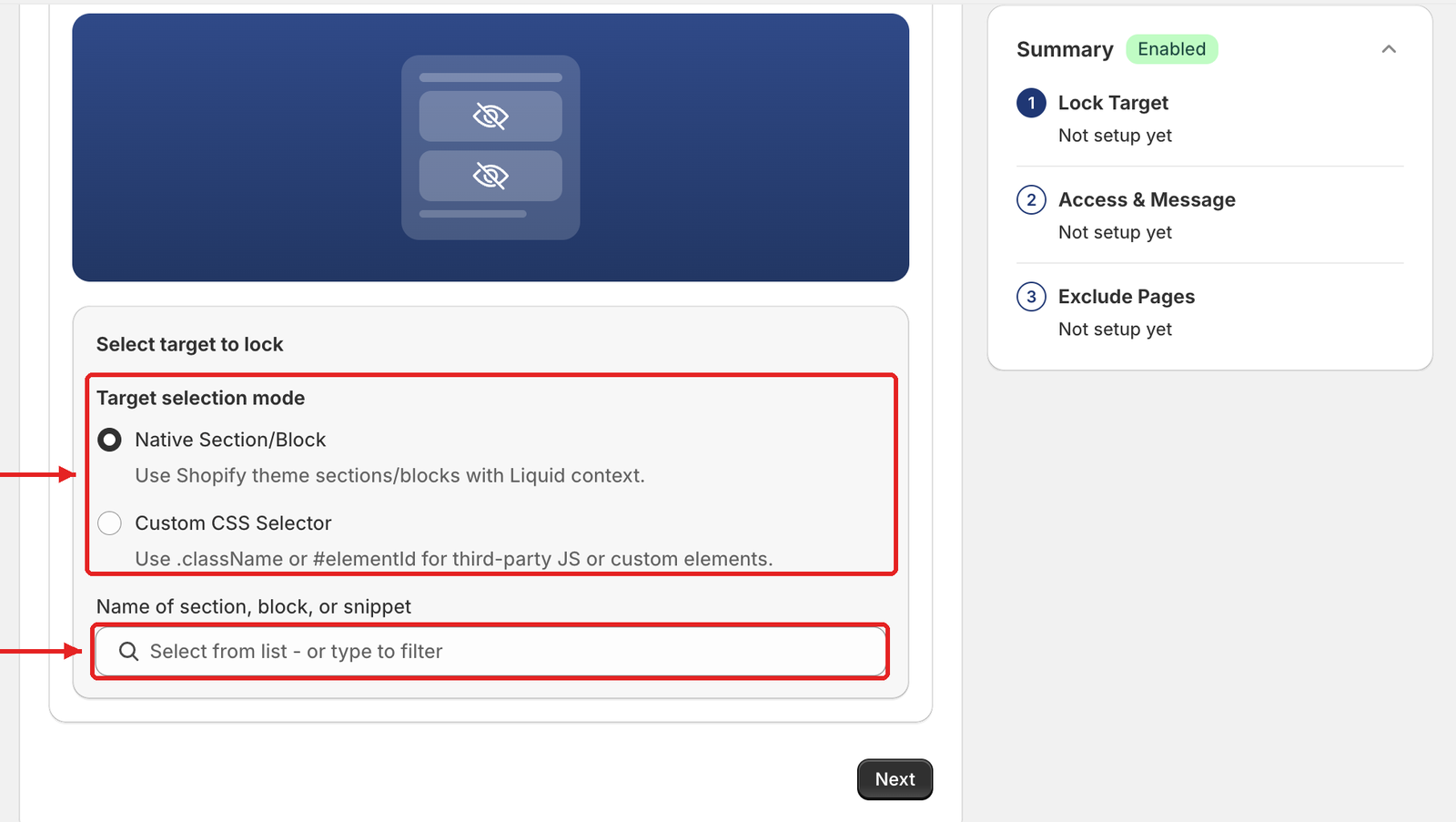
Then choose how to target the element in **Select target to lock** → **Target selection mode**.
Choose Native Section/Block or Custom CSS Selector, then pick the section in Name of section, block, or snippet.
### Option A — Native Section/Block (Recommended for standard themes)
1. Select **Native Section/Block** ("Use Shopify theme sections/blocks with Liquid context.").
2. Click **Name of section, block, or snippet** (*Select from list - or type to filter*) to view all sections auto-detected from your active theme.
3. Tick the target section or block you wish to hide (e.g. **Section apps.liquid**). It appears as a tag below the field, and the Summary card shows e.g. "1 sections locked".
### Option B — Custom CSS Selector (For custom themes & app widgets)
1. Select **Custom CSS Selector** ("Use .className or #elementId for third-party JS or custom elements.").
2. Inspect the element on your live storefront (Right-click → **Inspect**).
3. Copy the exact class (e.g. `.wholesale-announcement`) or ID (e.g. `#b2b-pricing-table`).
4. Enter the selector into the **CSS Selector** field (*e.g. .my-section, #my-block, div.product-list* — "Supported: .className, #elementId or elementName") and click **Add**. The Summary card shows e.g. "1 CSS selector(s) added".
{% hint style="warning" %}
**Selector Accuracy**: The selector must match exactly. A typo will prevent the lock script from identifying the target element on page load.
{% endhint %}
Click **Next**.
***
## Step 2 — Access & Message: Set Access Conditions & Fallback Message
1. In **Rule 1**, click a condition chip (**User type**, **Passcode**, **Date & time**, or **More**) to define who can still see the section — e.g. **User type → Tagged customers** with the tag `wholesale`, or **User type → Signed-in customers**.
2. To require several conditions at once, add them to the same rule (AND). To let another group in, click **+ Add rule** (OR).
3. Set what blocked visitors see in the **Preview** card on the right. For this target the card is edited inline. The dropdown has two options:
* **Hide and show replacement text** (default) — edit **Message content** (e.g. *"Private content, please log in with your customer account to continue."*), **Text format** (Bold / Italic / Underline), **Text size** and **Text color**, with a live **Message preview** below.
* **Hide only (no replacement)**
4. Click **Next**.
***
## Step 3 — Exclude Pages and Save
1. Optionally check pages in **Exclude from lock rules** where the section should stay visible to everyone. Step 3 also shows **SEO and Meta Tag Options** and **Hide content on locked page** for this target.
2. Click **Save** (the button next to **Back**, or **Save** in the **Unsaved changes** bar at the top of the page).
***
## Third-Party App Element Support
You can hide blocks generated by page builders and review apps:
* **Page Builders:** PageFly, Shogun, GemPages, Zipify.
* **Review & Widget Apps:** Judge.me, Loox, Yotpo.
**How to target:**
1. Open your storefront in Chrome/Safari.
2. Right-click the widget → **Inspect**.
3. Copy its container CSS class (e.g. `.pagefly-section-b2b` or `.judgeme-widget`).
4. Paste it as a **Custom CSS Selector** in B2B Lock.
***
## Common Issues & Troubleshooting
### Section still visible after lock is active
* Verify the rule's **Status** toggle is on in the **Lock list**.
* Clear your browser cache and test in a fresh Incognito window.
* For CSS selectors, confirm the selector matches the live HTML structure.
### Section hidden for everyone, including approved buyers
* Check if the **Reverse access rule** condition was accidentally enabled.
* Verify the test customer account has the exact tag assigned in Shopify Admin.
### Section not appearing in the Native list
* The section may be inactive or conditionally loaded by the theme. Use **Custom CSS Selector** mode instead.
***
## **Still Need Help?**
If you have questions or need assistance configuring BSS B2B Lock, our dedicated support team is here to help.
* **In-App Assistance:** Click **Need help?** or use the in-app chat button within BSS B2B Lock.
* **Email Support:** Contact us at [**support-sbc@bsscommerce.com**](mailto:support-sbc@bsscommerce.com) with your store URL and specific rule details.