> For the complete documentation index, see [llms.txt](https://docs-shpf.bsscommerce.com/bss-b2b-lock-login-password-hide-price/llms.txt). Markdown versions of documentation pages are available by appending `.md` to page URLs; this page is available as [Markdown](https://docs-shpf.bsscommerce.com/bss-b2b-lock-login-password-hide-price/lock-core-concepts/goal-based-guides-i-want-to.../show-specific-products-collections-only-to-tagged-customers.md).
# Show specific products/collections only to tagged customers
Show specific products/collections only to tagged customers (Silver vs Gold example).
*(“Allow customers with tags to view products/collections” – Silver vs Gold example)*
**Goal**\
Use **customer tags** to restrict and show different catalogs to different groups (e.g., Silver vs Gold customers).
**When to use this recipe**
* Tiered customer structures: `silver`, `gold`, `vip`, etc.
* Member-only catalogs where items should be completely hidden or access-restricted for unauthorized visitors.
* Exclusive wholesale or early-access product lines.
***
#### Step 0 – Before you start
Plan your customer segmentation:
* Decide on your **customer tags** (e.g., `silver`, `gold`).
* Ensure relevant customer accounts have been assigned these tags in Shopify Admin.
* Identify which **products** or **collections** belong to each tier.
***
#### Example A – Silver customers see only Silver products
**Step 1 – Lock Target**
1. Go to **Locks → Add lock rule**, choose **Create my own lock** in the **Start with a preset** modal, then click **Continue**.
2. **Lock name**: Enter a descriptive name such as `Show Silver products only to Silver customers`.
3. In **What do you want to lock?**, select **Products** (or **Collections** if grouping whole catalogs).
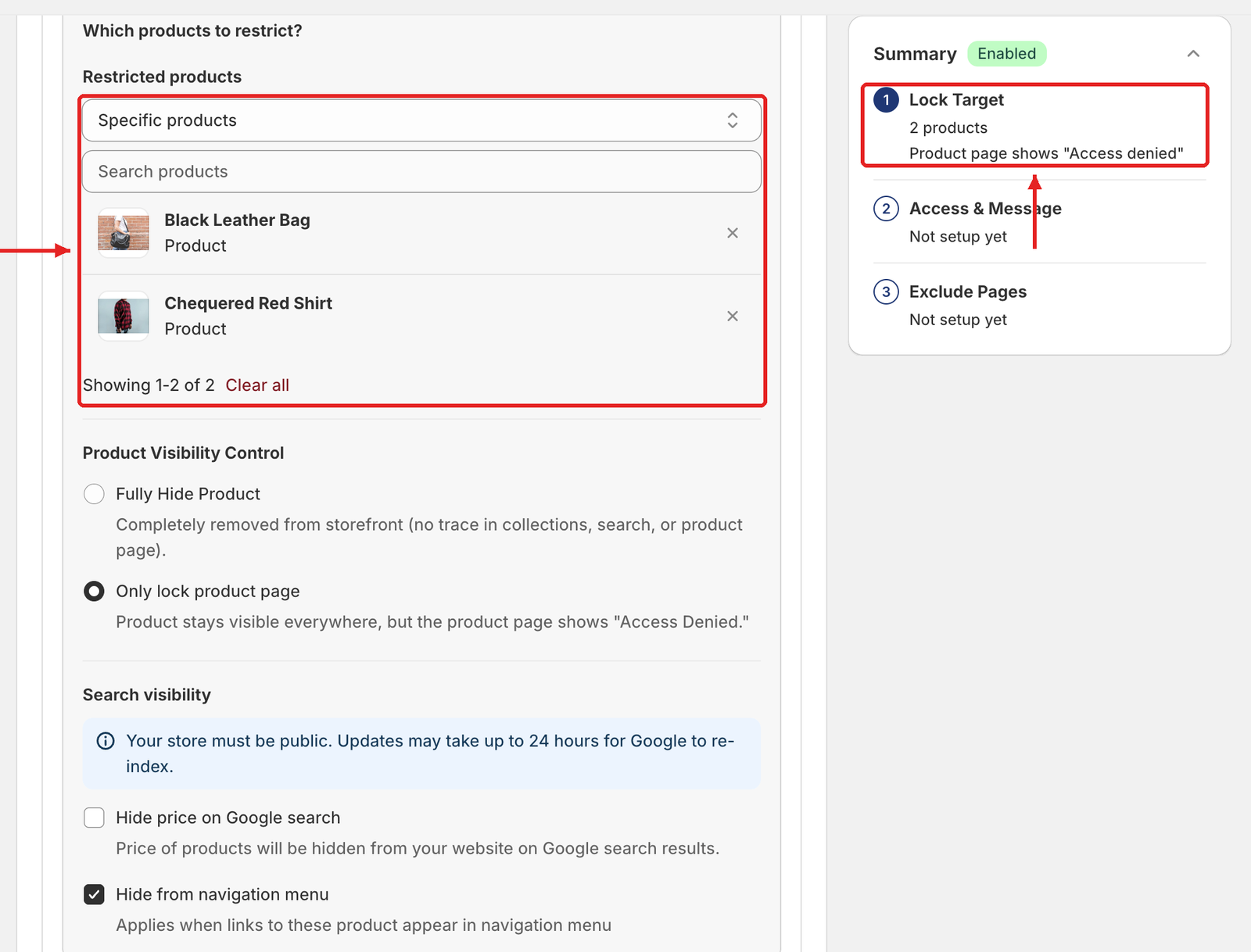
4. Configure **Restricted products**:
* Select **Specific products** (or **By tags** / **By collections**) and pick the Silver-exclusive items.
5. In **Product Visibility Control**, select how restricted products appear to unauthorized visitors:
* **Fully Hide Product**: Completely removes the item from the storefront (no trace in collections, search, or direct product page links). *Recommended if you want exclusive catalog segmentation.*
* **Only lock product page**: The product remains visible across the store, but accessing the product page displays an "Access Denied" lock message.
6. *(Optional)* Under **Search visibility**, configure search engine and navigation indexing preferences (e.g., *Hide from navigation menu*).
7. Click **Next**.
Step 1 — Lock Target. Select the Silver-only products
**Step 2 – Access & Message**
1. Under **Access rules**, configure **Rule 1**:
* Click the **User type** chip.
* Select **Tagged customers – Must have specific tags** and enter the tag `silver`.
2. *(Optional)* Click **+ Add rule** to create an alternative access path joined by **OR** (e.g., **Rule 2** for internal staff or admin tags). Any customer meeting either rule will be granted access.
3. Customize lock notification:
* In the **Preview** panel, click **Customize message** to edit the restriction message shown to untagged visitors or guests (e.g., *"This collection is reserved for Silver tier members. Please sign in or contact support to upgrade."*).
4. Click **Next**.
Step 2 — Access & Message. Separate rules are joined with OR
**Step 3 – Exclude Pages**
1. Under **Exclude Pages**, select any specific URLs or pages that should bypass this lock and remain public to everyone.
2. Review your setup in the **Summary** card on the right.
3. Click **Save**.
***
#### Example B – Gold customers see Gold (plus Silver) products
To configure tiered access where Gold customers can view both Gold and Silver items:
**Part 1: Restrict Gold-only products**
1. Create a second lock rule: `Show Gold products only to Gold customers`.
2. In **Step 1 – Lock Target**, select your Gold products and choose **Fully Hide Product**.
3. In **Step 2 – Access & Message**, add **User type → Tagged customers** with the tag `gold`.
4. Click **Next**, review **Step 3 – Exclude Pages**, and click **Save**.
**Part 2: Grant Gold customers access to Silver products**
1. Reopen your Silver lock rule (`Show Silver products only to Silver customers`).
2. Navigate to **Step 2 – Access & Message**.
3. Click **+ Add rule** to introduce **Rule 2**.
4. Set **Rule 2** condition to **User type → Tagged customers** with tag `gold`.
5. Click **Next** and **Save** changes.
***
#### Summary of Storefront Behavior
With both configurations active:
* **Guests & Untagged Customers**: Cannot view or search Silver- or Gold-exclusive items (or will see lock messages depending on visibility settings).
* **Silver-tagged Customers**: Can view and purchase Silver catalog items, but Gold-tier items remain hidden.
* **Gold-tagged Customers**: Can access both Gold and Silver catalogs seamlessly.
***
#### Check your storefront
1. **Test as a Guest / Untagged User**:
* Confirm that restricted products are either hidden from catalog navigation or prompt an access denied message.
2. **Log in as a Silver Customer**:
* Verify that Silver products appear and are accessible.
* Verify that Gold products remain inaccessible.
3. **Log in as a Gold Customer**:
* Verify access to both Gold and Silver products.
***
## **Still Need Help?**
If you have questions or need assistance configuring BSS B2B Lock, our dedicated support team is here to help.
* **In-App Assistance:** Click **Need help?** or use the in-app chat button within BSS B2B Lock.
* **Email Support:** Contact us at [**support-sbc@bsscommerce.com**](mailto:support-sbc@bsscommerce.com) with your store URL and specific rule details.