> For the complete documentation index, see [llms.txt](https://docs-shpf.bsscommerce.com/bss-b2b-lock-login-password-hide-price/llms.txt). Markdown versions of documentation pages are available by appending `.md` to page URLs; this page is available as [Markdown](https://docs-shpf.bsscommerce.com/bss-b2b-lock-login-password-hide-price/lock-core-concepts/lock-page-content-translation.md).
# Lock Page Content Translation
Showing lock messages, access forms, and price notices in your customer's native language builds trust and reduces friction at the gate.
Translate Your Lock Content to Reach Customers in Their Language.
With Translation Lock, your B2B store can automatically display the right language to the right visitor — no manual switching needed.
Availability may vary by plan or setup. Check your current plan before configuring.
***
> **💡 Best Practice:** Set up translations for every rule you use, not just one. Each rule runs independently, so a translation on Rule A won't carry over to Rule B.
***
## On This Page
1. [Eligibility Requirements](#id-1.-eligibility-requirements)
2. [Understanding Translation Feature](#id-2.-understanding-translation-feature)
3. [Availability & Limitations](#id-3.-availability-and-limitations)
4. [How to Enable Translation Lock](#id-4.-how-to-enable-translation-lock)
5. [How to Configure Translations Per Rule](#id-5.-how-to-configure-translations-per-rule)
6. [Testing Your Setup](#id-6.-testing-your-setup)
7. [Troubleshooting Common Issues](#troubleshooting-common-issues)
8. [Still Heed helps?](#still-need-help)
***
## Eligibility Requirements
Before you begin, confirm the following:
* You have at least one active lock rule configured
***
## Understanding Translation Feature
Translation Lock automatically detects your visitor's browser language and displays your lock content — forms, messages, error notices — in that language.
You can translate Passcode forms, login and register forms, hidden price notices, email subscription forms, and secret link messages.
Translation is configured per rule. Each rule can have its own set of translations for each supported language.
When a customer lands on a locked page, the app reads their browser language. If a matching translation exists for that rule, it shows that version. If not, English displays by default.
***
## Availability & Limitations
| Item | Detail |
| ------------------------- | ------------------------------------------------------- |
| **Supported languages** | All languages are based on your store settings. |
| **Translation scope** | Per rule — not global |
| **Default fallback** | English (if no translation is set for a language) |
| **Components translated** | Only components the rule actively uses |
| **Global setting** | Not available — each rule must be configured separately |
> **⚠️ Caution:** If you update your English content, your other translations will not update automatically. You must update each language manually to keep them in sync.
***
## How to Enable Translation Lock
**Step 1:** Go to **BSS B2B Lock → Settings → Translation**
**Step 2:** Click **Enable** in the top right corner
"Enable" translation feature
Translation Lock is now **Active.** The app will begin detecting browser languages for all your rules. Next, configure translations for each rule.
***
## How to Configure Translations Per Rule
Repeat these steps for each rule you want to translate.
**Step 1: Open a language to edit**
* Go to the **Languages** section
* Click **Edit** next to the language you want to configure (e.g. German)
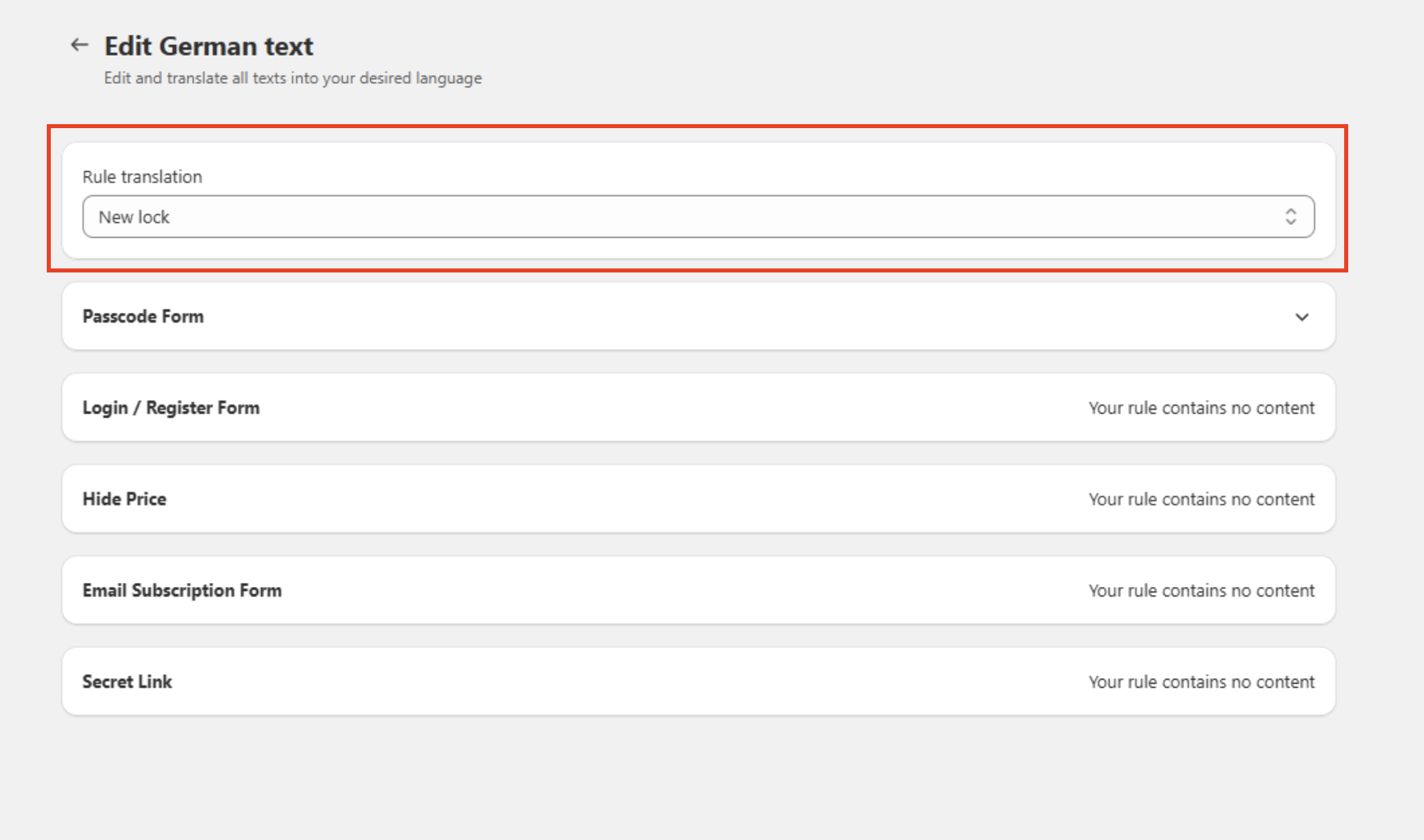
**Step 2: Select the rule**
* At the top of the editor, find the **Rule translation** dropdown
* Select the lock rule you want to translate
> **Note:** If all sections show "Your rule contains no content," it means the selected rule doesn't use any of those features yet. Check that your rule has an active lock type configured before continuing.
**Step 3: Edit each translatable component**
Depending on your rule's features, you'll see one or more of these sections:
* **Passcode Form** — appears if the rule uses a passcode
* **Login / Register Form** — appears if the rule requires login
* **Hide Price** — appears if the rule hides prices
* **Email Subscription Form** — appears if the rule uses email subscription
* **Secret Link** — appears if the rule uses a secret link
> **Note:** If a section shows "Your rule contains no content," that rule doesn't use that component. Skip it and move on.
For example, the **Passcode Form**, here's what each field does:
| Field | What It Shows to the Customer |
| ---------------------------------- | ----------------------------------------- |
| **Passcode message** | Main message on the lock screen |
| **Title for passcode input** | Label above the input field |
| **Custom message when incorrect** | Error shown after a wrong code is entered |
| **Submit button title** | Text on the submit button |
| **Placeholder for passcode input** | Hint text inside the input box |
**Step 4:** Enter your translated text for each field
**Step 5:** Use the **Rich Text Editor** (if available) to apply bold, italic, or list formatting
**Step 6:** Click **Save**
> **⚠️ Caution:** Don't forget to save before switching to another rule or language. Unsaved changes will be lost.
***
## Testing Your Setup
**Step 1:** Open your browser settings and change the display language to other languages.
**Step 2:** Visit a page protected by the rule you just translated
**Step 3:** Confirm the lock content appears in the correct language
**Step 4:** Clear your store cache if the old language still appears
> **💡 Tip:** Test each rule separately. A correct translation on one rule does not confirm others are working.
***
### Troubleshooting Common Issues
**Lock still shows in English after setup**
* Confirm Translation Lock is **Enabled** in Settings
* Confirm you saved the translation for that specific rule
* Check your browser is actually set to the target language
* Clear cache and reload the page
**Component section is missing**
* The rule doesn't use that feature — this is expected behavior
* Check the rule settings to confirm which features are active
**Translation looks outdated**
* You may have updated the English content without updating other languages
* Go back into each language, update the relevant fields, and save again
**Language not displayed as expected**
* The languages available for translation depend on which languages you have added in your store's language settings
* Go to your **Shopify Admin → Settings → Languages** to add or check your active languages
* Once a language is added in Shopify, it will appear as an option to configure in Translation Lock
* If no translation is set for a visitor's language, English will be shown by default
***
## Still Need Help?
If the issue persists after trying the steps above, contact the support team with the following details:
* Your shop name
* The name of the rule with the issue
* Which language is not working
* A screenshot of the problem
* Steps you've already tried
Reach out via the **contact support link** on the Translation settings page, or email **.**