Age Verification

Age Verification displays a popup before visitors can access your store — requiring them to confirm they meet a minimum age requirement.

Protect Your Store with an Age Verification Popup

You can customize the minimum age, button text, colors, and redirect behavior to match your brand and legal requirements.

This feature works with the BSS B2B Lock app and is compatible with B2B-only and hybrid stores. Availability of advanced options (such as Require Date of Birth) may vary — some features are still coming soon.

⭐ Best Practice

Use the {age} placeholder in your Description Text — it automatically fills in the minimum age you set.

Set a dedicated Redirect URL (On Exit) instead of /index — point to an explanation page for a better user experience.

Always test the popup in an incognito window after saving to confirm it appears correctly on your storefront.

On This Page

Eligibility Requirements

Before setting up Age Verification, confirm the following:

• The BSS B2B Lock app is installed on your Shopify store.

• Your store uses Shopify's standard online storefront (not a headless or custom frontend).

• You have Admin access to your Shopify store.

• Your store sells age-restricted products or content that legally requires age gating.

• Compatible with B2B-only stores and hybrid B2B/B2C setups

Understanding Age Verification

What It Is

Age Verification adds a gating popup to your store. Before any visitor can see your content, they must click a confirmation button. If they decline, they are redirected to a URL you specify. The popup appearance, text, and behavior are all fully configurable.

What You Can Do

• Gate your entire store, specific product pages, or specific collections — your choice.

• Set any minimum age — 18, 21, or any custom value.

• Customize all popup text: heading, description, confirm button, and exit button.

• Use the {age} placeholder in the description to automatically insert the age you set.

• Customize colors for the background, title, and both buttons.

• Set a redirect URL so declined visitors land on a specific page instead of the homepage.

Where It Applies

The popup appears on your live storefront, overlaying the page with a blurred background. It activates on every page included in the lock, and once a visitor confirms, the popup does not appear again during that session.

Availability & Limitations

Feature

Status

Notes

Age Verification popup

✅ Live

Works on entire store, products, or collections

Minimum Required Age

✅ Live

Set any numeric age — e.g. 18, 21

Appearance customization

✅ Live

Colors, background, button styles

Modal Content (text)

✅ Live

Heading, description with {age}, button labels

Redirect URL on Exit

✅ Live

Redirect declined visitors to any URL

Upload background image

�� Coming Soon

Image upload for popup background not yet available

Require Date of Birth

�� Coming Soon

DOB input field — not available yet

Custom CSS

✅ Available

For advanced users who want to override default styles

�� Coming Soon: Require Date of Birth is not yet available. The toggle appears in the app but cannot be activated. Wait for the Coming Soon release.

Setting Up Age Verification

1. Create a Lock & Select Content to Restrict

1. Go to your Shopify Admin → Apps → Staging B2B Lock.

2. Click Locks in the left navigation.

3. Click Add lock.

4. Enter a Lock name (e.g. 'Age Gate — Entire Store').

5. Under 'Select content to lock', choose what to restrict:

Figure 1 — Step 1 of the New lock wizard: choose content to lock (Lock entire Store, Hide Products, Hide Collections, and more). The Summary panel on the right updates live.

Lock Option

What It Does

Lock entire Store

Shows the age popup on every page of your store.

Hide Products

Restricts access to specific product pages only.

Hide Collections

Restricts access to specific collection pages only.

Hide Price & Add to Cart

Hides pricing and purchase buttons without blocking page access.

6. Click Next to proceed to Step 2.

2. Select 'Age Verified' as the Access Rule

In the Access & Message step, you will assign the rule that triggers your age popup.

  1. Click Rule to access to expand the access rule section.

  2. Select the Advanced tab in the Grant Access To panel.

  3. Click the dropdown and select Age verified – Must confirm age.

Figure 2 — Access & Message step: Grant Access To panel with Advanced tab selected. The dropdown shows 'Age verified – Must confirm age' option. The Summary on the right updates to 'If the customer verifies age'.

⚠️ Note: The lock priority order is shown at the top of this screen. Age Verification runs after Secret Link and Passcode but before Date & Time and Tag/Specific Customers rules.

4. Click Done to confirm the rule.

5. Click Next to proceed to the Age Verification configuration screen.

3. Set the Minimum Required Age

You are now on the Preview & customize message screen for Age Verification. Changes you make here update the Preview panel in real time.

  1. Expand the General Configuration section.

  2. Set the Minimum Required Age — enter a number (e.g. 18 or 21).

  3. Check the Preview on the right — the description text updates to show the correct age automatically.

Figure 3 — General Configuration: set Minimum Required Age (shown as 21). The live Preview shows the popup with the age inserted in the description. 'Require Date of Birth' is labeled Coming Soon.

�� Coming Soon: The 'Require Date of Birth' toggle is visible but labeled Coming Soon. Do not attempt to enable it — it is not functional yet.

  1. Customize Appearance & Behavior

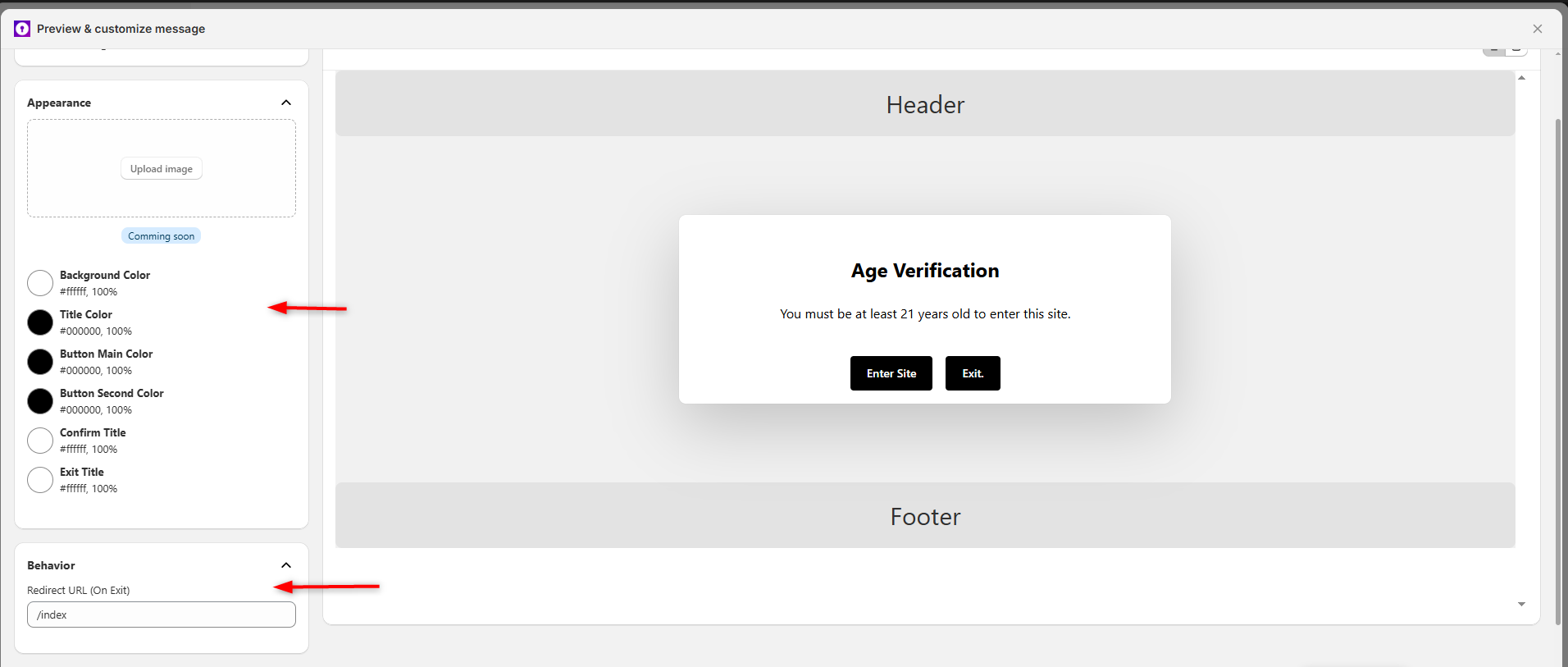
Expand the Appearance and Behavior sections to customize how your popup looks and what happens when a visitor clicks Exit.

Figure 4 — Appearance section: color pickers for Background Color, Title Color, Button Main Color, Button Second Color, Confirm Title, and Exit Title. Behavior section shows Redirect URL (On Exit) field set to /index.

Setting Field

Description & Tips

Background Color

The background color of the popup card (default: white #ffffff).

Title Color

Color of the popup heading text (default: black #000000).

Button Main Color

Background color of the 'Enter Site' (confirm) button.

Button Second Color

Background color of the 'Exit' button.

Confirm Title

Text color on the confirm button (default: white #ffffff).

Exit Title

Text color on the exit button (default: white #ffffff).

Redirect URL (On Exit)

URL visitors are sent to when they click Exit. Default: /index. Recommended: create a dedicated age restriction explanation page.

⚠️ Note: Upload image (background image for the popup) is labeled Coming Soon and cannot be used yet.

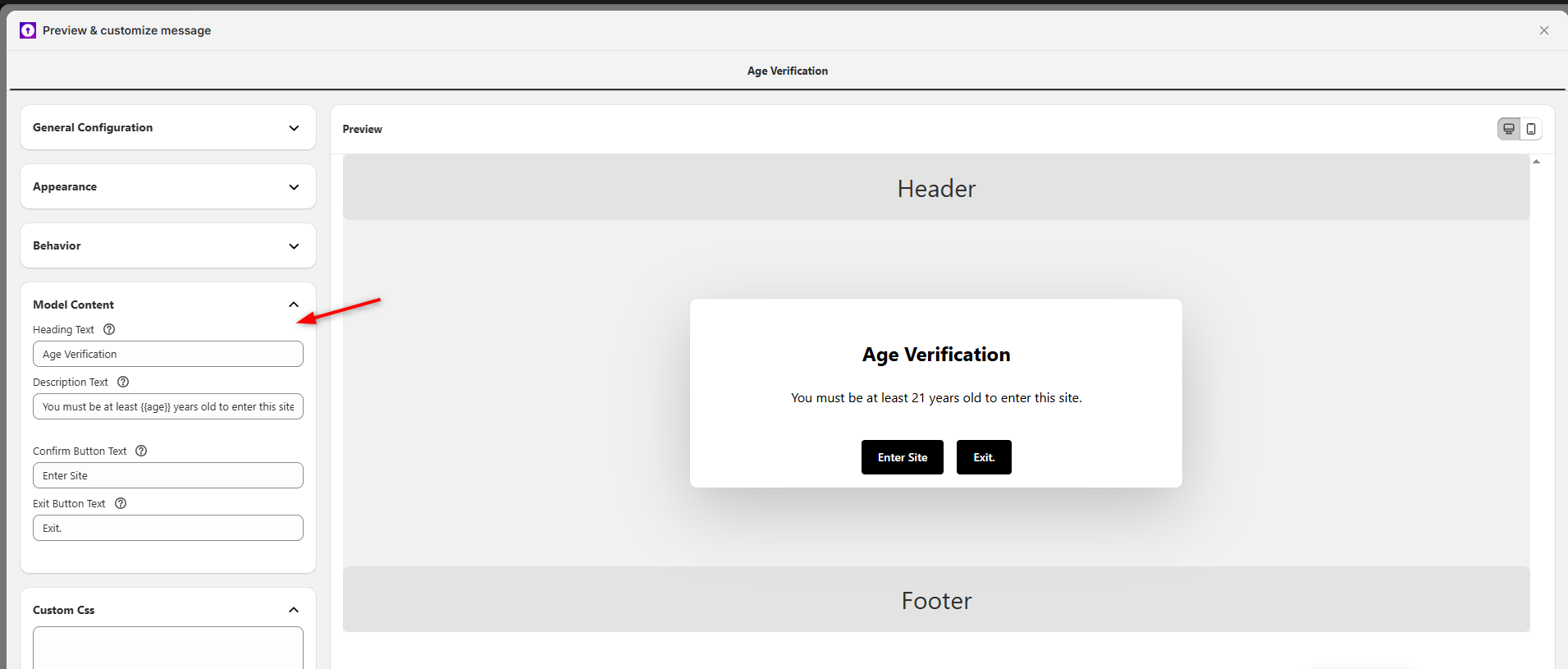
  1. Customize Modal Content (Popup Text)

Expand the Model Content section to edit every piece of text shown inside the popup.

Figure 5 — Model Content section: Heading Text, Description Text (with {age} placeholder), Confirm Button Text, and Exit Button Text. Custom CSS section is also visible for advanced users.

Setting Field

Description & Tips

Heading Text

The main title of the popup (e.g. 'Age Verification').

Description Text

The explanation shown to visitors. Use {age} to auto-insert the minimum age you set — e.g. 'You must be at least {age} years old to enter this site.'

Confirm Button Text

Label on the confirm/enter button (e.g. 'Enter Site', 'I am 18 or older').

Exit Button Text

Label on the exit/decline button (e.g. 'Exit', 'I am under age').

Custom CSS

Optional — paste custom CSS to override the default popup styles. For advanced users only.

�� Tip — Use {age} in Description Text

The {age} placeholder is automatically replaced with whatever number you enter in Minimum Required Age.

This means you only need to update the age in one place — the description text stays accurate automatically.

6. Save & Test

  1. Click Save in the top bar.

  2. Open your storefront in a private/incognito browser window.

  3. Navigate to a page covered by the lock.

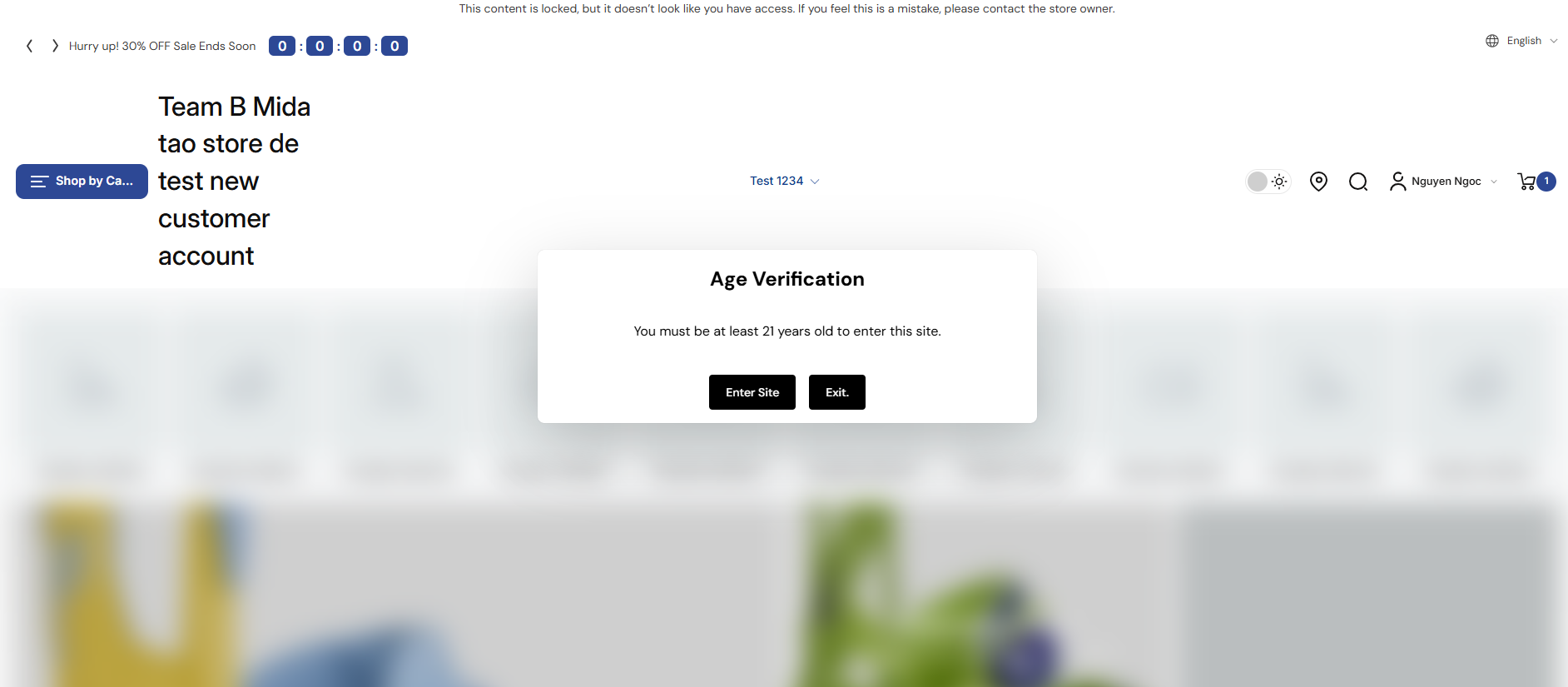
  4. Verify the popup appears centered on screen with a blurred background.

  5. Confirm the heading, description, and button text match your configuration.

  6. Click Enter Site — confirm you gain access and the popup does not reappear in the same session.

  7. Click Exit (on a fresh session) — confirm you are redirected to the URL you configured.

Figure 6 — Live storefront: Age Verification popup centered on screen with blurred background, showing 'Enter Site' and 'Exit' buttons.

✅ Verification Checklist

Popup appears on all pages covered by the lock — ✓

Heading, description, and button text match configuration — ✓

Age number in description matches the Minimum Required Age you set — ✓

Enter Site grants access and popup does not reappear in the same session — ✓

Exit redirects to the correct URL — ✓

Real-World Examples

Example 1 — Alcohol Store, 18+ Requirement (Entire Store)

  1. Go to Locks → Add lock → select Lock entire Store.

  2. Select rule: Age verified – Must confirm age.

  3. Set Minimum Required Age = 18.

  4. Description Text: 'You must be at least {age} years old to enter this site.'

  5. Confirm Button: 'I am 18 or older' / Exit Button: 'Exit'.

  6. Click Save.

Result: All visitors see the age popup before accessing the store. Those who decline are redirected to /index.

Example 2 — Weapons Store, 21+ Requirement (Products Only)

  1. Go to Locks → Add lock → select Hide Products → choose the relevant products.

  2. Select rule: Age verified – Must confirm age.

  3. Set Minimum Required Age = 21.

  4. Heading Text: 'Age Restriction' / Description: 'You must be {age}+ to view these products.'

  5. Redirect URL (On Exit): '/pages/age-restriction'.

  6. Click Save.

Result: Restricted products remain locked until the visitor confirms they are 21+. Those who decline are redirected to a dedicated notice page.

Example 3 — Custom Language Popup

  1. Set Minimum Required Age = 18.

  2. Heading Text: „Altersverifizierung“

  3. Description: „Sie müssen mindestens {age} Jahre alt sein, um auf diese Seite zuzugreifen.“

  4. Confirm Button: „Seite betreten“ / Exit Button: „Verlassen“

  5. Click Save.

Result: The popup appears in German (or any language you write), suitable for your target market.

Managing Existing Locks

From the Locks list in the app:

• Edit a lock — Click the lock name or the edit icon to re-open the configuration.

• Enable or disable — Use the On/Off toggle on the lock list or inside the lock editor.

• Delete a lock — Click the delete/trash icon. This cannot be undone.

• Update age or text — Re-open the lock, navigate to the Age Verification customization screen, make changes, and click Save.

Common Issues & Fixes

What You See

Why It Happens

What to Do

Popup is not appearing on the storefront.

The lock is disabled, or the wrong content was selected.

Open the lock, confirm On/Off is On, and verify the correct pages are covered.

The age number is wrong in the description.

{age} placeholder is working correctly — the wrong age was entered.

Re-open the lock, go to General Configuration, and update the Minimum Required Age.

Exit button is not redirecting correctly.

The Redirect URL (On Exit) field is empty or has an incorrect URL.

Open the lock → Age Verification config → Behavior section → update the Redirect URL.

Popup reappears even after confirming.

Session was cleared or visitor used a different browser/device.

This is expected behavior — confirmation is session-based.

'Require Date of Birth' toggle does nothing.

This feature is not yet available.

Wait for the Coming Soon release. The toggle will become functional when ready.

Colors or text are not updating in the Preview.

Changes may not have been saved.

Click Save and refresh. Check that the Preview is visible before saving.

Popup appears on pages I did not intend.

Lock target was set to 'Lock entire Store' instead of specific pages.

Edit the lock, change the Lock Target to the correct content type.

Still Need Help?

Click Chat support in the app or email [email protected]. Our team can configure the lock for you.

• Click Chat support in the Need help? panel visible in the lock editor.

• Or email [email protected] with the details below.

When contacting support, include:

• Your shop URL (e.g. yourstore.myshopify.com)

• The name of the lock with the issue

• What you expected vs. what actually happened

• A screenshot or screen recording if possible

�� Try This First

Check that the lock On/Off toggle is set to On.

Test in a private/incognito window — previous sessions may have already confirmed the age.

Review the lock Summary panel to confirm the Rule to access shows 'If the customer verifies age'.

Last updated