Checkout Lock
Checkout Lock gives you full control over who can complete a purchase on your store — and how they pay.
You can block checkout entirely for certain buyers, conditionally hide payment methods like Cash on Delivery (COD), and soon, hide specific shipping methods too.
This feature is included on all BSS B2B plans at no extra cost. Availability of individual rule types may vary as new options are released.
⭐ Best Practice
Start with one simple rule — like requiring customers to log in before checkout.
Use the live Preview panel to test your rule before saving.
Once confident, layer in more conditions for advanced logic.
On This Page
Eligibility Requirements
Make sure your store meets all of the following before you begin:
• You are using the BSS B2B app installed on your Shopify store.
• Your store uses Shopify's standard checkout — not a fully custom headless checkout.
• You are on any BSS B2B plan (Checkout Lock is available on all plans).
• You have Admin-level access to your Shopify store.
• Your store is either B2B-only or a hybrid B2B/B2C setup.
Understanding Checkout Lock
What It Is
Checkout Lock is a rule engine. Each rule has two parts: a condition (who or what triggers it) and an action (block checkout or hide a payment method). Rules activate the moment a matching buyer reaches your checkout.
What You Can Do
• Require customers to log in before they can complete a purchase.
• Block checkout for buyers with a specific customer tag (e.g. 'suspended', 'pending-approval').
• Block checkout when a product with a specific tag is in the cart.
• Hide payment options like COD or credit card for certain buyer segments.
• Restrict checkout to specific dates, times, or markets.
• Show customers a custom error message explaining why they were blocked.
Where It Applies
Rules run at the Shopify checkout step, on your live storefront. A Preview panel inside the app lets you simulate exactly what a buyer will see — before you go live.
Availability & Limitations
Rule Type
Status
Plans
Notes
Checkout Lock
✅ Live
All plans
Blocks checkout when condition is met
Hide Payment Methods
✅ Live
All plans
Hides COD, credit card, etc. conditionally
Hide Shipping Methods
Coming Soon
All plans
Not yet configurable — appears grayed out
Note: Multiple conditions in one rule use AND logic — all must be true at the same time. For OR logic (trigger if either condition is true), create separate rules.
Additional limitations to keep in mind:
• Rules only apply to Shopify's standard checkout. Headless or custom checkouts are not supported.
• The 'Hide Shipping Methods' option is visible in the interface but cannot be configured yet.
• Error messages support multiple languages — use the Translation option inside the rule editor.
Adding & Configuring Checkout Lock
1. Select a Rule Type
1. Go to your Shopify Admin → Apps → BSS B2B Lock
2. Click Checkout locks in the left navigation.
3. Click the Add rule button in the top-right corner.
4. In the 'Select rule type' modal, choose one of the options below.
5. Click Select to continue.

Rule Type
Use It When...
Checkout Lock
You want to stop the buyer from completing their order entirely.
Hide Payment Methods
You want to remove a payment option (e.g. COD) for certain buyers.
Hide Shipping Methods
Coming soon — not available yet.
2. Configure the Rule
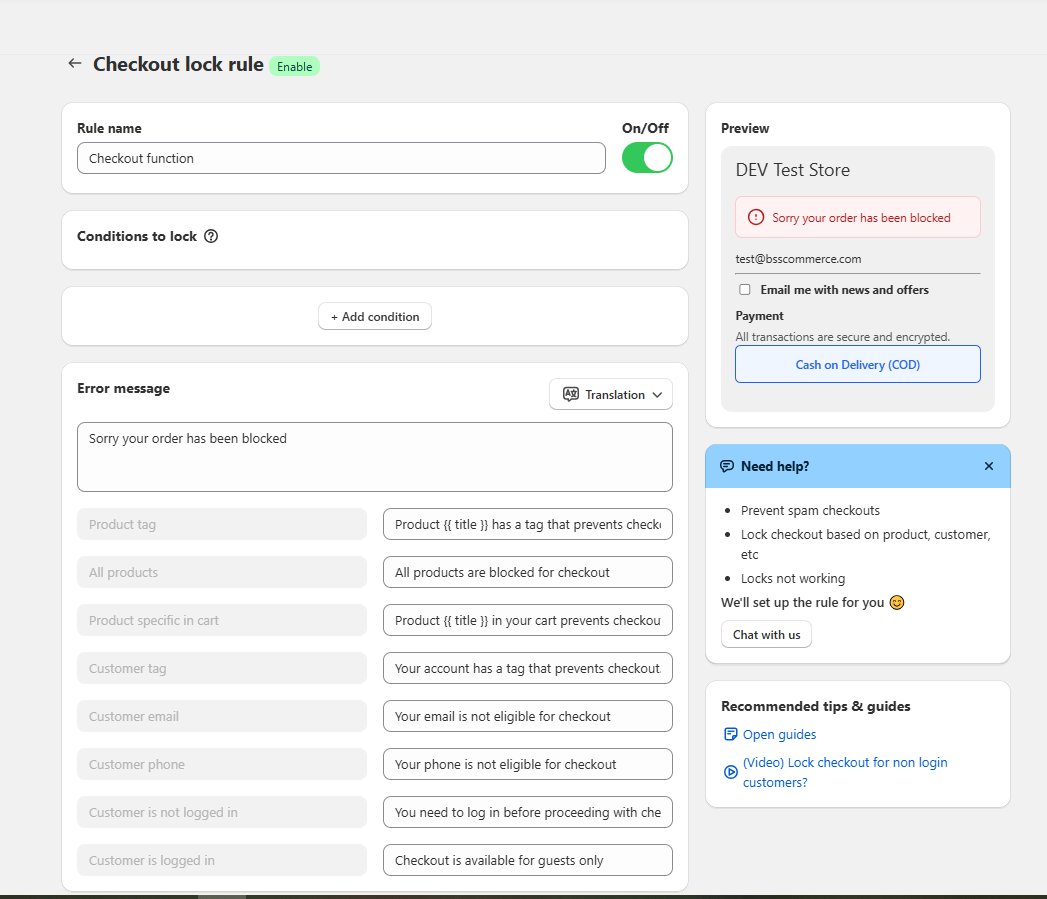
Fill in all fields on the rule editor page. The Preview panel on the right updates live as you make changes.

Field
What to Do
Rule Name
Enter a clear, descriptive name — e.g. 'Block Guest Checkout' or 'Hide COD for Untagged Buyers'.
On / Off toggle
Set to On to activate immediately, or leave Off to save as a draft.
Conditions to lock
Left blank for now — you will add conditions in Step 3.
Error message
Write what blocked buyers will see — e.g. 'Please log in to complete your purchase.' Keep it clear and helpful.
Translation
Click Translation to add the error message in other languages for international buyers.
�� Tip
Write your error message as an action, not just a notification — e.g. 'Please log in to continue' is more helpful than 'Checkout is blocked'.
3. Add Conditions
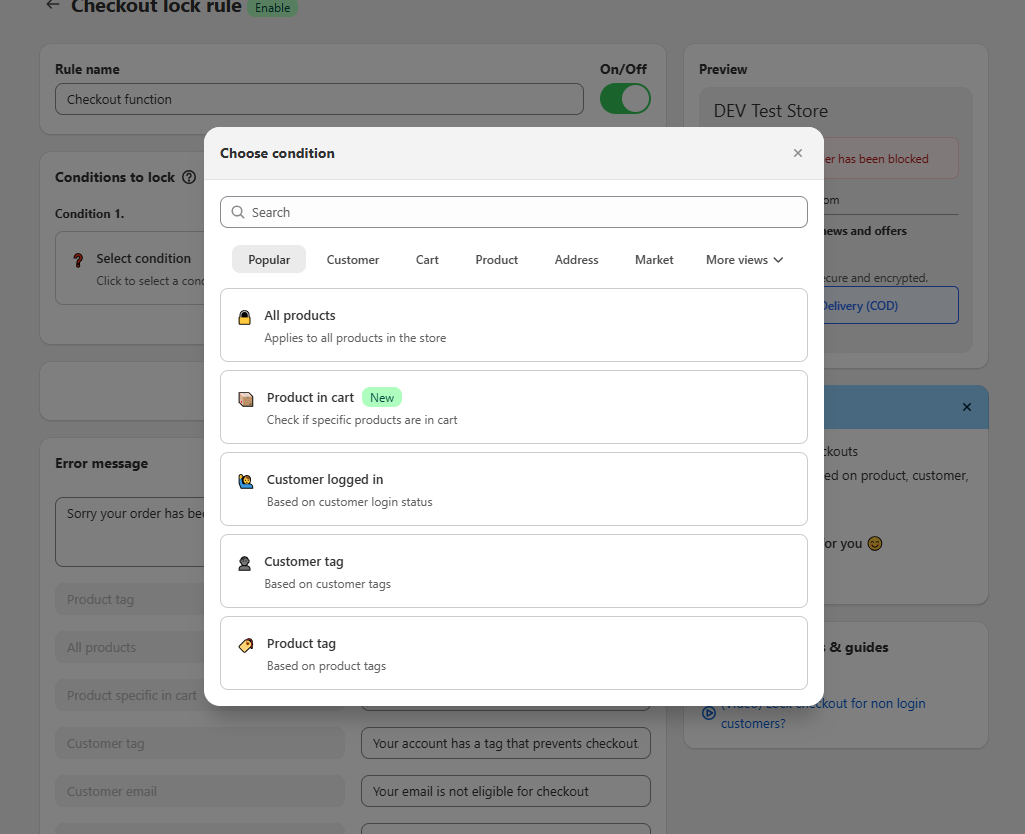
6. Click + Add condition inside the 'Conditions to lock' section.
7. Browse conditions by tab — Popular, Customer, Cart, Product, Address, Market, Date & Time, or Discount & Giftcard.
8. Or use the Search bar to find a condition quickly.
9. Select a condition and fill in any required values (e.g. a tag name or date range).
10. Repeat to add more conditions if needed.

Condition
Tab
Best Used For
Customer logged in
Customer / Popular
Blocking guests — require login before checkout.
Customer tag
Customer / Popular
Restricting specific buyer segments (e.g. 'wholesale', 'vip', 'suspended').
Product tag
Product / Popular
Blocking checkout when a tagged product is in the cart.
Product in cart
Cart / Popular
Targeting one specific product by name or ID.
All products
Popular
Applying the rule to every order, regardless of cart contents.
Date & Time
Date & Time
Limiting checkout to a specific time window or day.
Market
Market
Applying different rules for different regions or currencies.
Note: Using multiple conditions: all must be true simultaneously. If you want 'block guests OR block customers with tag X' — create two separate rules, one for each condition.
4. Save & Verify
Click Save in the top bar.
Confirm the rule appears in your Checkout locks list with the correct Status.
Set the On/Off toggle to On if you want the rule to go live immediately.
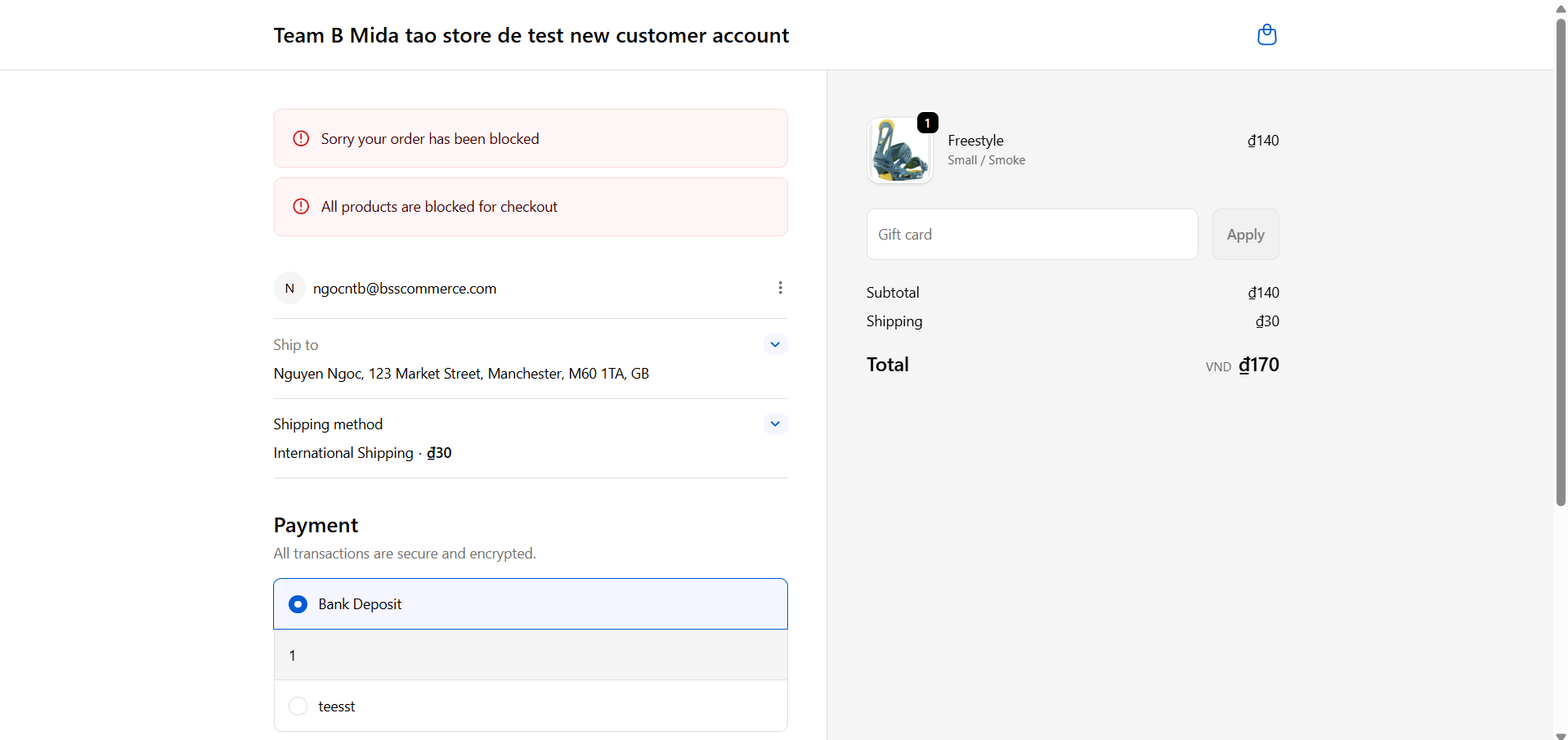
Open your storefront in a private/incognito browser window.
Add a product to the cart and proceed to checkout as the type of buyer your rule targets.
Verify the correct error message appears and the buyer cannot proceed.

✅ Quick Verification Checklist
Rule appears in the Checkout locks list — ✓
Status shows 'On' / Enabled — ✓
Error message appears correctly in Preview — ✓
Live test in incognito browser confirms the block works — ✓
Buyers who should NOT be blocked can still check out normally — ✓
Managing Existing Rules
From the Checkout locks list in the app:
• Edit a rule — Click the pencil icon in the Actions column.
• Delete a rule — Click the trash icon. This action cannot be undone.
• Enable or disable — Open the rule and use the On/Off toggle at the top.
• Localize error messages — Open the rule, click Translation, and add the message in each language you need.
Note: Disabling a rule does not delete it. The rule is saved and can be re-enabled at any time without re-configuring it from scratch.
Common Issues & Fixes
What You See
Why It Happens
What to Do
Rule is saved but buyers are not being blocked.
The On/Off toggle is set to Off.
Open the rule and turn the toggle to On.
All buyers are blocked, including the ones who should not be.
The condition is too broad — e.g. 'All products' with no customer filter.
Add a customer-level condition (e.g. Customer tag) to narrow who is targeted.
Error message is not showing at checkout.
The Error message field may be empty, or the rule is Off.
Open the rule, check the message field, and ensure the rule is On.
COD or a payment option is still visible to buyers.
The rule type may be 'Checkout Lock' instead of 'Hide Payment Methods'.
Create a new rule and select 'Hide payment methods' as the rule type.
'Hide Shipping Methods' option is grayed out.
This feature is not yet available.
Wait for the Coming Soon release. No action needed now.
I cannot find the condition I need.
The condition may be under a different tab, or not yet available.
Search by keyword in the Choose condition modal. If not found, contact support.
Still Need Help?
The fastest way to get help is through the in-app chat. Our team can set up the rule for you.
• Click Chat with us in the Need help? panel on the rule editor page.
• Or email [email protected] with the details below.
When contacting support, include:
• Your shop URL (e.g. yourstore.myshopify.com)
• The name of the rule that is not working
• What you expected to happen vs. what actually happened
• A screenshot or screen recording if possible
🎉 Try This First
Toggle the rule Off, wait 10 seconds, then toggle it back On.
Test in a private/incognito browser window to avoid cached sessions.
Make sure the buyer you are testing with actually matches the condition you set.
Last updated