Countdown Lock
Clock Countdown replaces a static lock message with a live ticking timer — showing customers exactly how long until content becomes available, down to the second.
Build Urgency and Anticipation with a Live Countdown Timer
Works with Date & Time lock conditions in the BSS B2B Lock app. Compatible with B2B-only and hybrid store setups. All visual options are fully customizable.
⭐ Best Practice
Always use the {timer} placeholder in your message — it is required for the live countdown to appear.
Set your Date & Time target carefully — the timer counts down to the exact date/time in your Shopify store's timezone.
Test in an incognito window after saving both the customization panel and the main rule page.
Point 'After date/time' for launches; use 'Before date/time' for flash sale endings.
On This Page
Eligibility Requirements
Confirm all of the following before setting up Clock Countdown:
• BSS B2B Lock app is installed on your Shopify store.
• Your store uses Shopify's standard online storefront.
• You have Admin-level access to your Shopify store.
• You are using a Date & Time lock condition — Clock Countdown only works with Date & Time rules.
• Compatible with both B2B-only and hybrid B2B/B2C store setups.
Understanding Clock Countdown
What It Is
Clock Countdown is a visual add-on for Date & Time lock rules that replaces your static lock message with a live ticking timer counting down to (or from) the date and time you set.
The timer updates every second — no page refresh needed. When it reaches zero, the locked content unlocks automatically.
What You Can Do
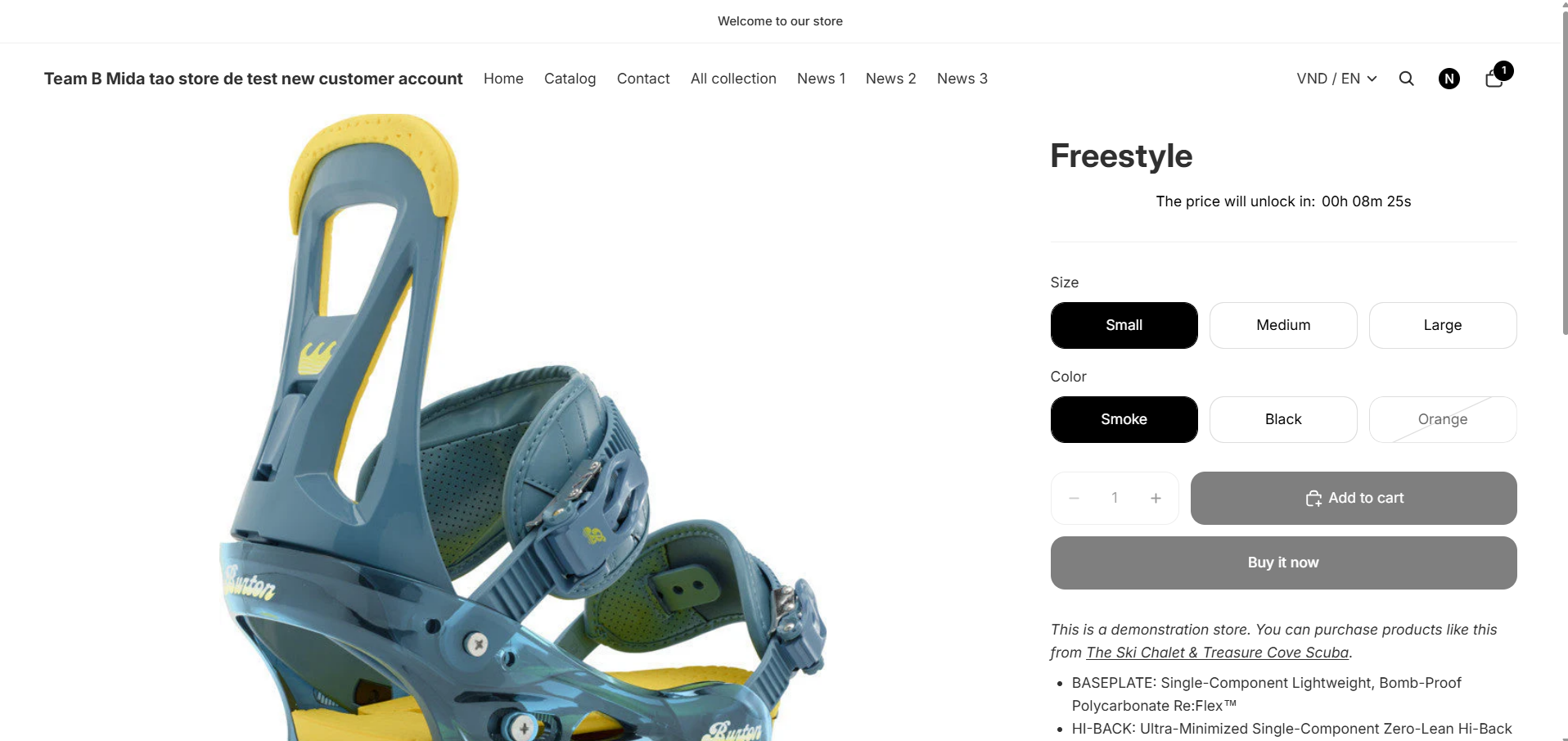
• Show a live countdown to a product launch or sale start ('New collection launches in 2d 5h 30m').
• Show a live countdown to a sale or offer end ('Sale ends in 00h 45m 12s — Don't miss out!').
• Customize all text, fonts, colors, and layout for desktop and mobile separately.
• Use the {timer} placeholder to position the timer anywhere in your message.
• Add Custom CSS for pixel-perfect control over the timer's appearance.
Where It Applies
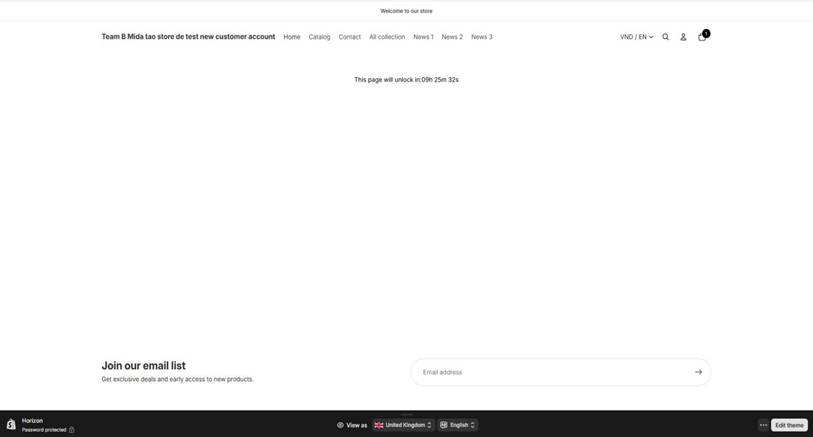
The countdown appears on any page covered by your lock — entire store, products, collections, or pages. Visible to all visitors, even those who cannot access the locked content
When to Use — and When NOT to Use
✅ Use Clock Countdown When...
❌ Do NOT Use When...
Product launches — build anticipation
Permanent locks — use a passcode or login rule
Flash sales — show when sale starts/ends
Manual approval needed — use Access Management
Pre-orders — show when order window opens
Content stays locked indefinitely after a date
VIP early access — time-limited previews
Tag-based lock — use Tag/Specific Customers rule
Events — control when registration opens
You do not want a visible countdown timer shown
Availability & Limitations
Feature
Status
Notes
Clock Countdown timer
✅ Live
Works with Date & Time lock conditions only
{timer} placeholder
✅ Live
Required — must be included in message text
Message customization
✅ Live
Free-form text + {timer} anywhere
Layout settings
✅ Live
Desktop & mobile width, alignment, orientation
Design settings
✅ Live
Font, text color, timer color, background color
Custom CSS
✅ Available
Advanced users — overrides default styles
Works with other lock rules
⚠️ Partial
Only activates when Date & Time is the access rule
Timer timezone
ℹ️ Note
Uses your Shopify store's timezone — set in Store details
⚠️ Note: Clock Countdown only works with the Date & Time lock condition. It cannot be used with passcode, login, customer tag, or other rule types.
⚠️ Note: The countdown timer uses your Shopify store's timezone. If your timer appears off by hours, go to Shopify Admin → Settings → Store details and verify your timezone.
Setting Up Clock Countdown
1. Create a Lock with a Date & Time Rule
1. Go to Shopify Admin → Apps → BSS B2B Lock.
2. Click Locks in the left navigation.
3. Click Add lock (or open an existing lock to edit).
4. In the Grant Access To panel, select Date & time.
5. Click the dropdown and choose the direction:

Option
Meaning
Best For
After date/time → Visible from
Content UNLOCKS when timer hits zero.
Product launches, pre-order opens, sale starts
Before date/time → Visible until
Content LOCKS when timer hits zero.
Flash sale endings, limited-time offers, countdowns to close
6. Select a date on the calendar and choose the target time.
⚠️ Note: Time is based on your Shopify store's timezone. Check Store details if the timer appears incorrect.
2. Enable Clock Countdown
Check the Use clock countdown checkbox at the bottom of the Date & Time section.
Click Setup message lock to open the customization panel.
The Preview & customize message panel opens with a live Preview on the right.
Write your message text in the Message section. Use the {timer} placeholder to insert the live countdown.
Click in the message text field.
Type your message — for example: 'This page will unlock in: {timer}'
Click the + Timer button to insert the {timer} placeholder at the cursor position if needed.
Check the Preview on the right to see how your message looks.

�� Tip — Message Ideas
'This page will unlock in: {timer}' — clean and direct
'New collection launches in {timer} — get ready!' — excitement-building
'Sale ends in {timer} — don't miss out!' — urgency-driving
'Early access opens in {timer}' — VIP/exclusive feel
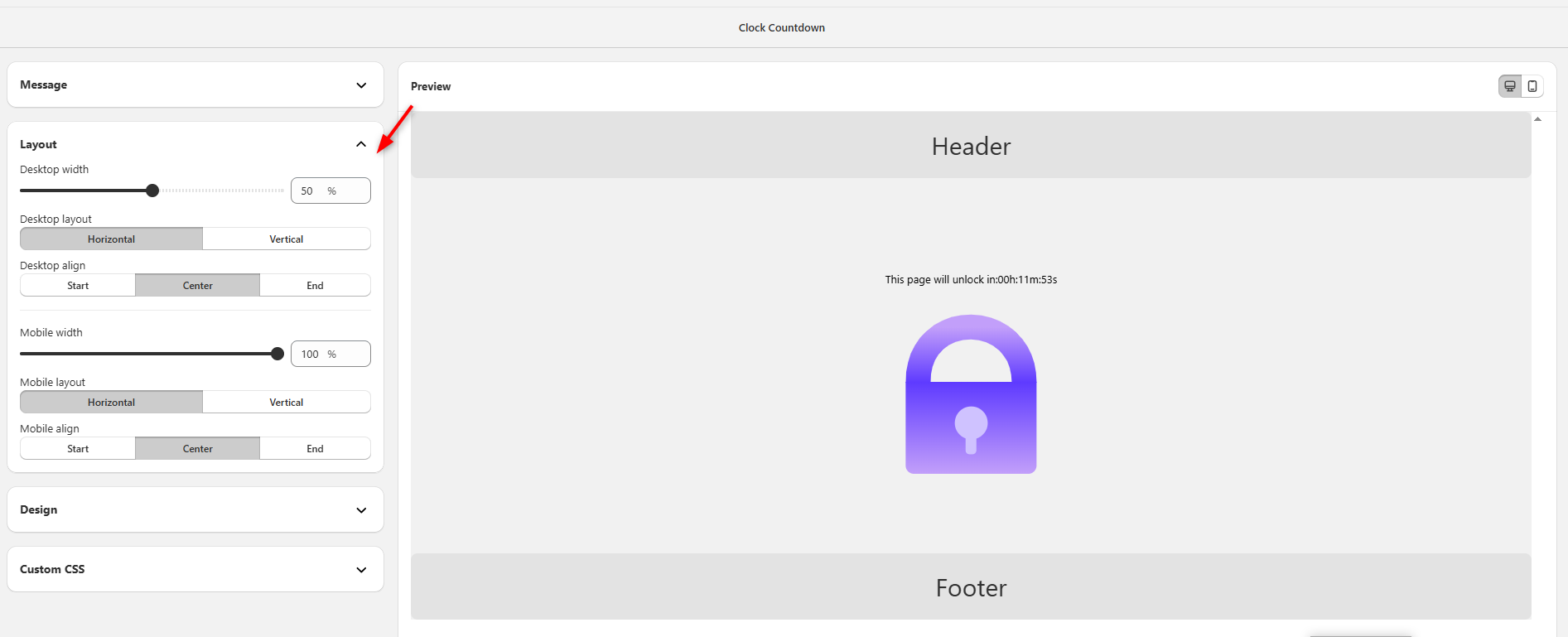
4. Customize Layout
Expand the Layout section to control positioning and size on desktop and mobile.

Setting
Options
Recommended
Desktop width
0–100% (slider)
50% for a centered, focused timer block
Desktop layout
Horizontal / Vertical
Horizontal for short messages; Vertical for multi-line
Desktop align
Start / Center / End
Center for most layouts
Mobile width
0–100% (slider)
100% — fills the screen width on mobile
Mobile layout
Horizontal / Vertical
Vertical works best on narrow screens
Mobile align
Start / Center / End
Center for consistency with desktop
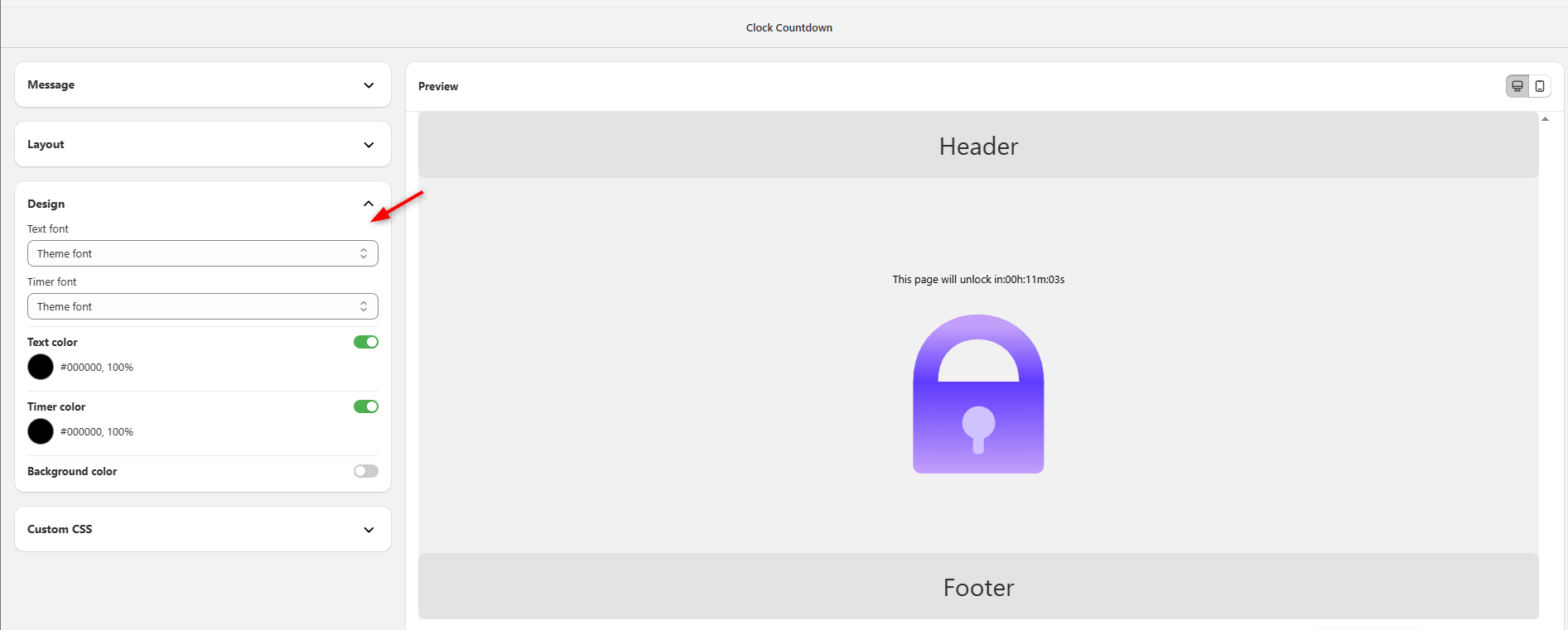
5. Customize Design (Colors & Fonts)
Expand the Design section to control the visual appearance of your countdown timer.

Setting
What It Controls
Tips
Text font
Font used for your message text
Use 'Theme font' to match your store design automatically
Timer font
Font used for the countdown digits
Consider a bold/monospace font for easy readability
Text color
Color of the message text
Toggle On to activate and pick a color
Timer color
Color of the timer digits
Use your brand's accent color or red for urgency
Background color
Background behind the countdown block
Toggle Off to use transparent; toggle On to add a colored block
Custom CSS
Override default styles with your own CSS
Advanced users only
6. Save & Test
Click Save inside the Preview & customize message panel.
Click Save again on the main rule/lock page.
Open your storefront in a private/incognito browser window.
Navigate to a page or product covered by the lock.
Verify the countdown timer appears and is counting down in real time.
Wait for the timer to reach zero and confirm the content unlocks automatically.


✅ Verification Checklist
Countdown timer appears on the correct pages — ✓
Message text matches what you configured — ✓
Timer is counting down (updates every second) — ✓
Desktop layout and alignment look correct — ✓
Mobile view looks correct (test on a phone or resize browser) — ✓
Content unlocks automatically when timer reaches zero — ✓
Real-World Examples
Example 1 — Product Launch Countdown (New Shoe Collection)
Create a lock → select the new shoe collection.
Grant Access To: Date & time → 'After date/time' → set to March 1, 2026 at 10:00 AM.
Check 'Use clock countdown' → click Setup message lock.
Message: 'New collection launches in {timer}'
Design: Bold timer font, brand accent color.
Save both the panel and the main rule page.
Result: Customers see 'New collection launches in 2d 5h 30m' and cannot access products until launch — builds anticipation and drives traffic.
Example 2 — Flash Sale Countdown (Sale Ending Tonight)
Create a lock → select Flash Sale Collection.
Grant Access To: Date & time → 'Before date/time' → set to Tonight at 11:59 PM.
Check 'Use clock countdown' → click Setup message lock.
Message: 'Sale ends in {timer} — Don't miss out!'
Design: Timer color set to red (#FF0000) for urgency.
Save both the panel and the main rule page.
Result: Customers see the red countdown and rush to purchase before the sale ends — creates urgency and boosts conversions.
Example 3 — VIP Early Access (Members Only Preview)
Create a lock → select the VIP Preview collection.
Grant Access To: Date & time → 'After date/time' → set to the early access start time.
Check 'Use clock countdown' → click Setup message lock.
Message: 'VIP early access opens in {timer}'
Design: Brand colors, clean centered layout.
Save both the panel and the main rule page.
Result: VIP members see how long until early access opens, while general visitors see the same timer — building anticipation across all buyer types.
Timer Format Reference
The {timer} placeholder auto-formats based on remaining time — no configuration needed:
Time Remaining
Display Format
Example
More than 1 day
Xd Xh Xm Xs
2d 5h 30m 15s
Less than 1 day
Xh Xm Xs
5h 30m 15s
Less than 1 hour
Xm Xs
30m 15s
Less than 1 minute
Xs
45s
⚠️ Note: The timer updates every second automatically. No page refresh is needed. When it reaches zero, the content unlocks immediately.
Common Issues & Fixes
What You See
Why It Happens
What to Do
No timer visible on the storefront.
Clock countdown is not checked, or {timer} is missing from message.
Re-open the lock → Date & Time section → check 'Use clock countdown'. Re-open Setup message lock and confirm {timer} is in the text.
Timer shows wrong time or timezone.
Shopify store timezone is set incorrectly.
Go to Shopify Admin → Settings → Store details → update your timezone.
Timer counts up instead of down.
The target date is in the past.
Edit the lock → update the Date & Time to a future date/time.
Content does not unlock when timer hits zero.
The lock has another access condition blocking it.
Review the full lock summary. Remove any additional conditions that may prevent unlocking.
Timer layout looks wrong on mobile.
Mobile width is set too narrow.
Re-open Setup message lock → Layout → set Mobile width to 100%.
Custom CSS is not applying.
CSS may have a syntax error, or it is overriding the wrong selector.
Double-check your CSS syntax. Try a simple test rule first.
Timer message shows the raw placeholder '{timer}'.
The message was saved without the live preview loading.
Re-open Setup message lock, verify {timer} is in the text, and click Save.
Still Need Help?
Contact support via the app or at [email protected].
• Click Chat support in the help panel visible on the lock editor page.
• Or email [email protected] with the details below.
When contacting support, include:
• Your shop URL (e.g. yourstore.myshopify.com)
• The rule name using the countdown
• A screenshot of the customization panel
• The date and time you are targeting
�� Try This First
Confirm 'Use clock countdown' is checked in the Date & Time section of your lock.
Confirm {timer} appears in your message text.
Save BOTH the customization panel AND the main lock page — two separate Saves are required.
Test in a private/incognito window to see the live storefront result.
Last updated