Hide Payment Methods

Hide Payment Methods lets you conditionally remove specific payment options from your checkout — based on who is buying, how much they are spending, or what is in their cart.

You stay in control of the checkout experience without touching your Shopify payment settings.

This feature is available on all BSS B2B plans. One platform limitation applies: credit card options cannot be hidden for stores based in the US or Canada — this is enforced by Shopify, not the app.

⭐ Best Practice

Always review the Rule Summary (IF/THEN panel) before saving — it shows exactly what the rule will do.

Test every new rule in an incognito window using a buyer account that matches your condition.

Start with 'Hide specific methods' rather than 'Hide all methods' to avoid accidentally blocking all buyers.

On This Page

Eligibility Requirements

Before you set up your first rule, confirm all of the following:

• BSS B2B app is installed on your Shopify store.

• Your store uses Shopify's standard checkout (not a headless or fully custom checkout).

• You are on any BSS B2B plan — Hide Payment Methods is available on all plans.

• You have Admin-level access to your Shopify store.

• Your store is B2B-only or a hybrid B2B/B2C setup.

Understanding Hide Payment Methods

What It Is

This feature creates rules that hide one or more payment options at checkout — only when a specific condition is true. If the condition is not met, the payment method stays visible. Nothing in your Shopify payment settings is changed.

What You Can Do

• Hide Cash on Delivery (COD) for high-value orders above a set cart total.

• Hide bank transfer or other methods for specific customer segments using customer tags.

• Remove express checkout buttons (Shop Pay, Apple Pay, Google Pay) for wholesale or B2B buyers.

• Hide all payment methods for guest buyers to force them to log in first.

• Apply different payment rules for specific markets or products.

Where It Applies

Rules activate at the checkout step on your live storefront. The Rule Summary panel inside the app shows the exact IF/THEN logic before you save — use it to verify every rule.

Availability & Limitations

Scope

Detail

Status

Plans

All BSS B2B plans

✅ Included

Credit cards — US/Canada stores

Cannot be hidden — Shopify platform restriction

�� Not supported

Express checkout methods

Shop Pay, Apple Pay, Google Pay, Amazon Pay, Meta Pay, PayPal Express

✅ Supported

Standard checkout methods

Loaded from your Shopify checkout config (e.g. COD, Bank Deposit)

✅ Supported

Manual methods

Add any method not auto-detected by entering its exact display name

✅ Supported

Headless / custom checkouts

Not supported — standard Shopify checkout only

�� Not supported

�� Important: Credit card options cannot be hidden for stores based in the US or Canada. This is a Shopify platform limitation and cannot be overridden by the app.

Adding & Configuring Hide Payment Methods

1. Select the Rule Type

1. Go to your Shopify Admin AppsBSS B2B Lock

2. Click Checkout locks in the left navigation.

3. Click Add rule in the top-right corner.

4. In the 'Select rule type' modal, select Hide payment methods.

5. Click Select to continue.

Figure 1 — Select rule type modal: select 'Hide payment methods' (highlighted in purple) and click Select.

2. Name the Rule & Set the Toggle

You are now on the New Payment Customization page. The Rule Summary panel on the right shows your rule logic in real time.

  1. Set the Rule name — use something descriptive, e.g. 'Hide COD over $500' or 'Hide Express Pay for Wholesale'.

  2. Set the On/Off toggle to On to activate immediately, or leave it Off to save as a draft.

    Figure 2 — New Payment Customization page: Rule Basics on the left, Rule Summary (IF/THEN) on the right, and the Need help? panel below.
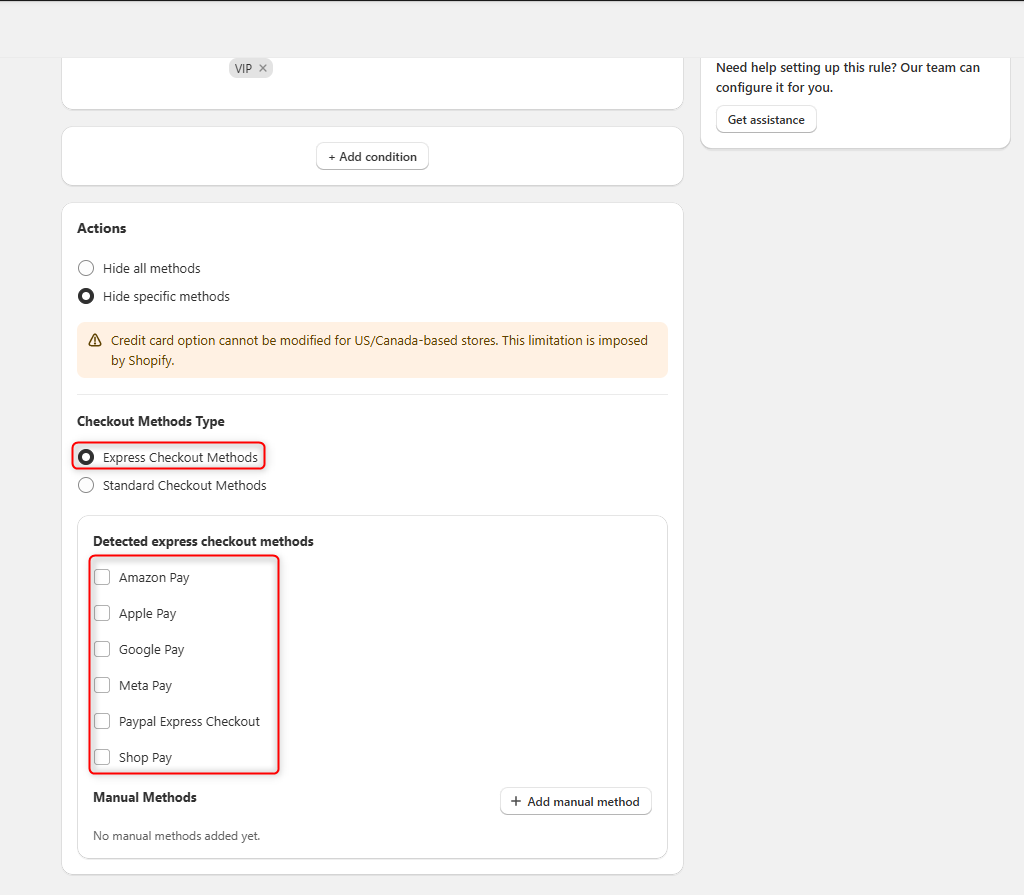
    Figure 2 — New Payment Customization page: Rule Basics on the left, Rule Summary (IF/THEN) on the right, and the Need help? panel below.

⚠️ Caution: The US/Canada credit card warning banner appears automatically on this page. It is informational — it does not block you from saving other rules.

  1. Add Conditions (Optional)

Conditions decide which buyers the rule applies to. If you skip this step, the rule applies to all buyers at all times.

  1. Click + Add condition.

  2. Select a condition from the modal — browse the Popular, Customer, Cart, or Product tabs.

  3. Set the required values for the condition (e.g. a tag name, a cart value, a product ID).

  4. Repeat to add more conditions if needed.

Figure 3 — Choose condition modal: Popular tab shows Customer tag, Cart total, and Product in cart.

Condition

Tab

Use It When...

Customer tag

Customer / Popular

You want to target or exclude a specific buyer segment (e.g. 'wholesale', 'retail', 'vip').

Cart total

Cart / Popular

You want to trigger the rule based on the order value (e.g. hide COD for orders over $500).

Product in cart

Cart / Popular

You want to trigger the rule based on whether a specific product is in the cart.

⚠️ Caution: No condition set = rule applies to ALL buyers. Always set at least one condition unless you intentionally want a universal rule.

4. Configure Actions

The Actions section decides what gets hidden. You have two options:

• Hide all methods — Removes every payment option. Buyers see 'This store can't accept payments right now.'

• Hide specific methods — Lets you choose exactly which methods to hide.

When you select Hide specific methods, choose the Checkout Methods Type:

Methods Type

What It Includes

Examples

Express Checkout Methods

One-click payment buttons that appear above the checkout form

Shop Pay, Apple Pay, Google Pay, Amazon Pay, Meta Pay, PayPal Express

Standard Checkout Methods

Payment options loaded from your Shopify checkout configuration

Bank Deposit, Cash on Delivery (COD), Wire Transfer

  1. Select Express Checkout Methods or Standard Checkout Methods.

  2. Check the box next to each method you want to hide.

Add Manual Methods (If Needed)

If a payment method you want to hide does not appear in the detected list, you can add it manually.

  1. Click + Add manual method in the Manual Methods section.

  2. Enter the exact display name of the payment method as it appears in your Shopify checkout (e.g. 'Wire Transfer', 'Bank Account').

  3. Click Add.

⚠️ Caution: The name must match exactly — including capitalization and spacing. If it does not match, the method will not be hidden.

6. Save & Verify

  1. Click Save in the top bar.

  2. Confirm the rule appears in your Checkout locks list.

  3. Set the On/Off toggle to On if not already active.

  4. Open your storefront in a private/incognito browser window.

  5. Sign in (or stay as a guest) with an account that matches your condition.

  6. Add a product to the cart, proceed to checkout, and verify the payment method is hidden.

Figure 7 — Storefront result when all methods are hidden: Payment section shows 'This store can't accept payments right now.'

✅ Verification Checklist

Rule appears in the Checkout locks list — ✓

On/Off toggle is set to On — ✓

Rule Summary shows the correct IF/THEN logic — ✓

Targeted buyer sees the payment method hidden in live test — ✓

Non-targeted buyers can still see all payment methods — ✓

Real-World Examples

Example 1 — Hide COD for Orders Over $500

  1. Click + Add condition → select Cart total.

  2. Set condition: Cart total is greater than 500.

  3. Select Hide specific methods → Standard Checkout Methods.

  4. Check Cash on Delivery (COD).

  5. Click Save.

Result: Customers with a cart over $500 will not see the COD option at checkout.

Example 2 — Hide Express Buttons for Wholesale Customers

  1. Click + Add condition → select Customer tag.

  2. Set condition: Customer has tag 'wholesale'.

  3. Select Hide specific methods → Express Checkout Methods.

  4. Check Shop Pay, Apple Pay, Google Pay.

  5. Click Save.

Result: Wholesale customers skip express buttons and go through the standard checkout flow.

Example 3 — Hide All Methods for Guest Buyers

  1. Click + Add condition → select Customer tag.

  2. Set condition: Customer is not logged in.

  3. Select Hide all methods.

  4. Click Save.

Result: Guest buyers see no payment options and cannot complete checkout — forcing them to log in first.

Managing Existing Rules

From the Checkout locks list in the app:

• Edit a rule — Click the pencil icon in the Actions column.

• Delete a rule — Click the trash icon. This cannot be undone.

• Enable or disable — Open the rule and use the On/Off toggle at the top.

• Update logic — Re-open the rule, change conditions or actions, and click Save.

Common Issues & Fixes

What You See

Why It Happens

What to Do

Payment method is still visible after saving.

The On/Off toggle is set to Off, or the buyer doesn't match the condition.

Check the toggle is On; test with a buyer account that matches your condition exactly.

Credit card cannot be hidden.

US/Canada Shopify restriction — platform enforced.

This cannot be overridden. Remove credit card from the rule and hide other methods instead.

A method doesn't appear in the detected list.

It may not be auto-detected by the app.

Use + Add manual method and enter the exact name as shown in your Shopify checkout.

All buyers see 'no payment methods'.

No condition was set, or 'Hide all methods' is selected without a condition.

Edit the rule, add a specific condition to target only the intended buyer group.

Manual method not being hidden.

The name entered doesn't match exactly.

Check the exact display name in your Shopify checkout, including capitalization.

Rule summary shows unexpected logic.

Conditions or actions were misconfigured.

Review the IF/THEN panel. Edit the rule and correct the conditions or action before re-saving.

Still Need Help?

The fastest way to get help is through the in-app support panel. Our team can configure the rule for you.

• Click Get assistance in the Need help? panel on the rule configuration page.

• Or email [email protected] with the details below.

When contacting support, include:

• Your shop URL (e.g. yourstore.myshopify.com)

• The name of the rule that is not working

• What you expected vs. what actually happened

• A screenshot or screen recording if possible

�� Try This First

Toggle the rule Off, wait 10 seconds, then toggle it back On.

Open a private/incognito window and test with a buyer account that matches your condition.

Check the Rule Summary (IF/THEN panel) before saving — it shows exactly what will happen.

Last updated