# 🎯 Set Unique Prices for Wholesale Customers

You don’t have to create duplicates of your products just to offer wholesale rates. With the **Custom Pricing** module, you can assign **exclusive pricing** to wholesale customers—right on your original catalog. This ensures they see their special pricing automatically when they log in or match your eligibility criteria.

<div align="center"><figure><img src="https://1478990334-files.gitbook.io/~/files/v0/b/gitbook-x-prod.appspot.com/o/spaces%2FGolQYRPH9iUGYatlTXwl%2Fuploads%2FHMEswqzL7q06BvelmPOF%2Fimage.png?alt=media&#x26;token=7fe0b271-2bef-4294-aa05-ef51610c6ef3" alt="" width="375"><figcaption><p>Wholesale price</p></figcaption></figure> <figure><img src="https://1478990334-files.gitbook.io/~/files/v0/b/gitbook-x-prod.appspot.com/o/spaces%2FGolQYRPH9iUGYatlTXwl%2Fuploads%2FiyDxzfcO6g1yANDmAjlZ%2Fimage.png?alt=media&#x26;token=896728fd-cf82-414a-87a4-44bdbae105ac" alt="" width="375"><figcaption><p>Retail price</p></figcaption></figure></div>

## 🛠 How to Configure Custom Pricing

Follow these steps to get started:

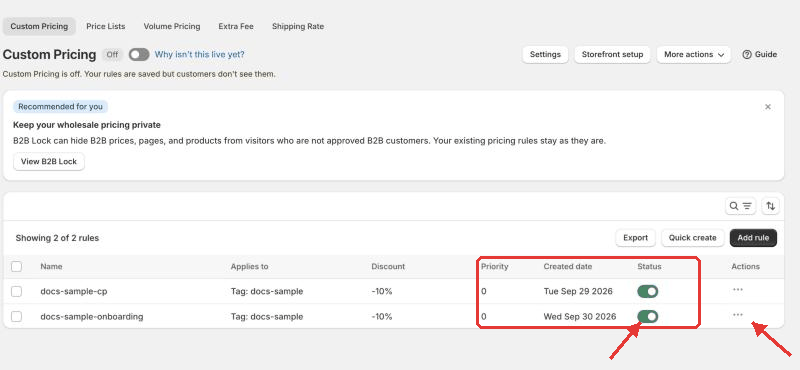
**Step 1: Enable Custom Pricing & Access Configuration**

1. Go to **B2B Pricing** in the app menu.
2. Enable **Custom Pricing** if it’s not already active.
3. Click **Configuration** to begin creating your pricing rules.

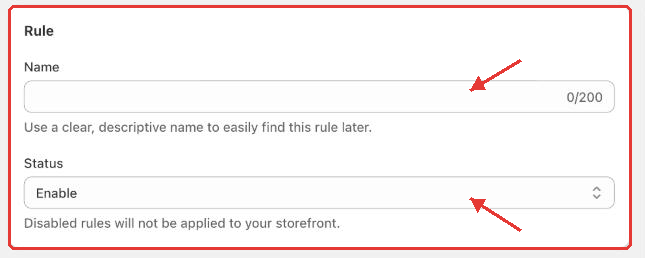
**Step 2: General Information**

* Enter a clear **Name** for your rule (e.g. “Wholesale Tier A”).
* Assign a **Priority** (0 = highest) so if multiple rules overlap, the priority determines which applies.
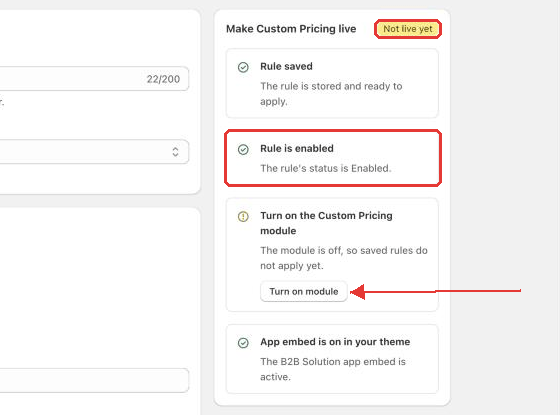
* Toggle the rule **Enabled / Disabled** — only active rules take effect.

> If two rules have the same priority on the same product/customer, the one created earlier takes precedence.

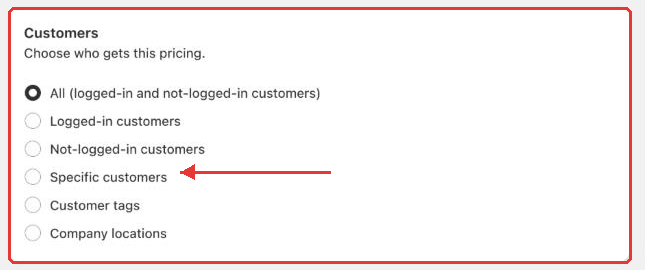
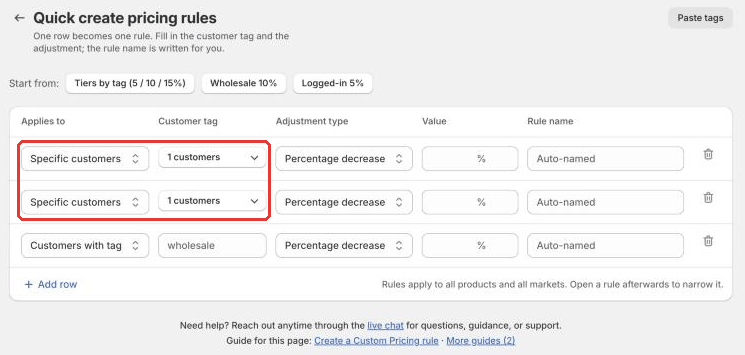
**Step 3: Define Eligible Customers**

Choose who receives this custom pricing:

* Add **specific customer emails**
* Use **customer tags** (e.g. “wholesale”, “VIP”) for groups\
  This ensures only your intended audience sees the adjusted pricing.

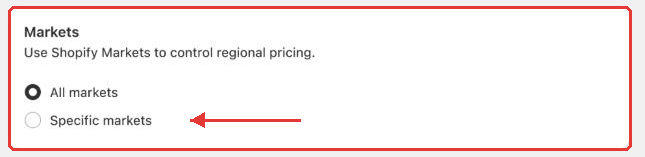
**Step 4: Select Markets (Optional)**

If your store serves multiple geographic markets or currencies, you can choose which markets this pricing rule applies to.

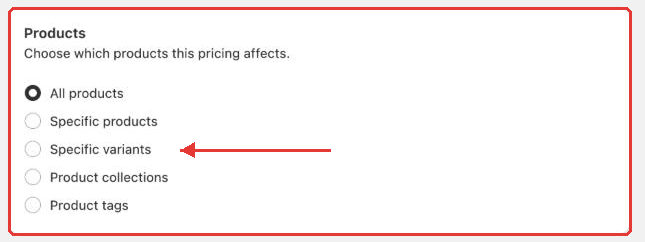
**Step 5: Apply to Products**

Decide which products the custom pricing covers:

* All products
* Selected collections
* Specific products, variants, or tags

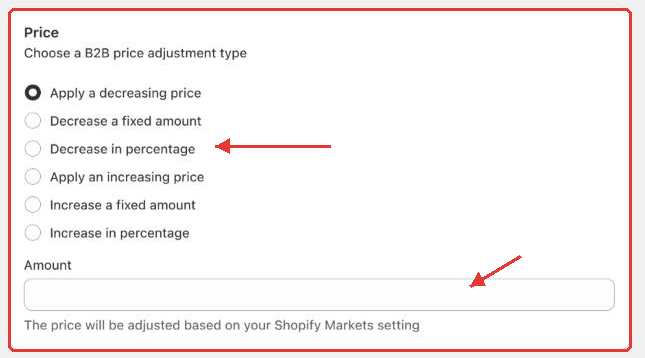
**Step 6: Set the Custom Price Logic**

Pick one of the following methods to adjust the base price:

| Option                    | What It Does                             | Example                                |
| ------------------------- | ---------------------------------------- | -------------------------------------- |
| **Fixed Price**           | Override original price with a set value | Change $50 or $65 products to $40 each |
| **Fixed Amount Decrease** | Subtract a set amount                    | $50 – $10 = $40, $65 – $10 = $55       |
| **Percentage Decrease**   | Reduce by a percentage                   | 10% off: $50 → $45, $60 → $54          |

If you need **per-product custom pricing**, the **Price List per Customer** feature gives you complete control.

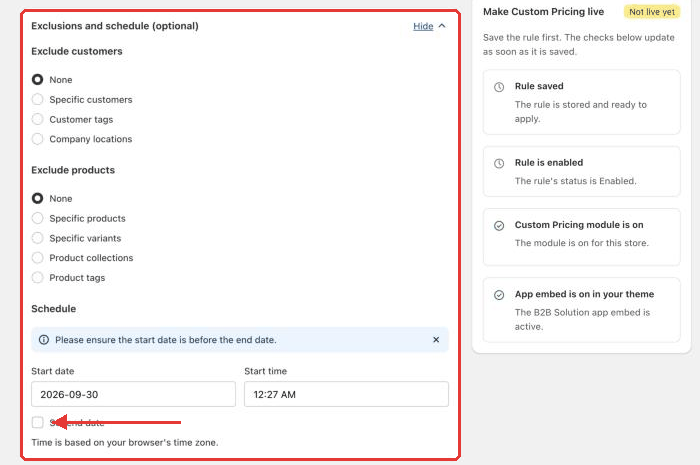
**Step 7: Exclude Customers or Products (Optional)**

* Prevent certain customers from accessing this pricing (e.g. special accounts)
* Exclude particular items or variants so they retain their standard pricing

**Step 8: Set Duration (Optional)**

Want this pricing to run for a limited time? Add **Start** and **End dates** to automate activation and expiration.

**Step 9: Preview & Validate**

Use the **“Show product pricing details”** button to preview how the custom pricing will appear before it goes live.

**Step 10: Install & Activate**

* Go to the **Installation** section
* Choose your installation method and click **Start**\
  Once applied, eligible customers will see their custom prices right away.

{% hint style="info" %}
If the prices don't change to how you expect, feel free to reach out to us at [**support-sbc@bsscommerce.com**](mailto:support-sbc@bsscommerce.com) or [**Live Chat**](https://go.crisp.chat/chat/embed/?website_id=9f64b5a9-1a02-4190-93b8-8ef56b19f740)**.**
{% endhint %}

## 🛍 How It Looks on the Storefront

* Non-eligible visitors see the standard retail price.
* When wholesale customers log in, product pages automatically reflect the adjusted pricing.
* Discounted prices appear throughout the shopping experience, maintaining transparency and trust.

<div align="left"><figure><img src="https://1478990334-files.gitbook.io/~/files/v0/b/gitbook-x-prod.appspot.com/o/spaces%2FGolQYRPH9iUGYatlTXwl%2Fuploads%2Fn8aO5GfS65OPv8ZkaGrS%2Fimage.png?alt=media&#x26;token=0c94f416-1ace-4642-9207-078aa7ab0513" alt="" width="375"><figcaption><p>Not logged-in</p></figcaption></figure> <figure><img src="https://1478990334-files.gitbook.io/~/files/v0/b/gitbook-x-prod.appspot.com/o/spaces%2FGolQYRPH9iUGYatlTXwl%2Fuploads%2FcIQI5825vUTwlOjpfjTe%2Fimage.png?alt=media&#x26;token=da98fe6e-d1bd-45d7-851b-a85a56dd631d" alt="" width="375"><figcaption><p>Logged-in</p></figcaption></figure></div>

{% hint style="info" %}
Encounter a problem? Feel free to reach us at  [**support-sbc@bsscommerce.com**](mailto:support-sbc@bsscommerce.com) or [**Live Chat**](https://go.crisp.chat/chat/embed/?website_id=9f64b5a9-1a02-4190-93b8-8ef56b19f740)**.**
{% endhint %}